Chapters
On this page
LoadOut talks to three kinds of hardware, and is precise about which is which. A weather meter and a shot timer are live Bluetooth reads. A chronograph is a file or a photograph, never a radio. None of it is required: every number these devices supply can be typed by hand, free, on every tier.
Where devices live
Everything pairs in one place: Settings › Connected Devices, in three sub-sections.
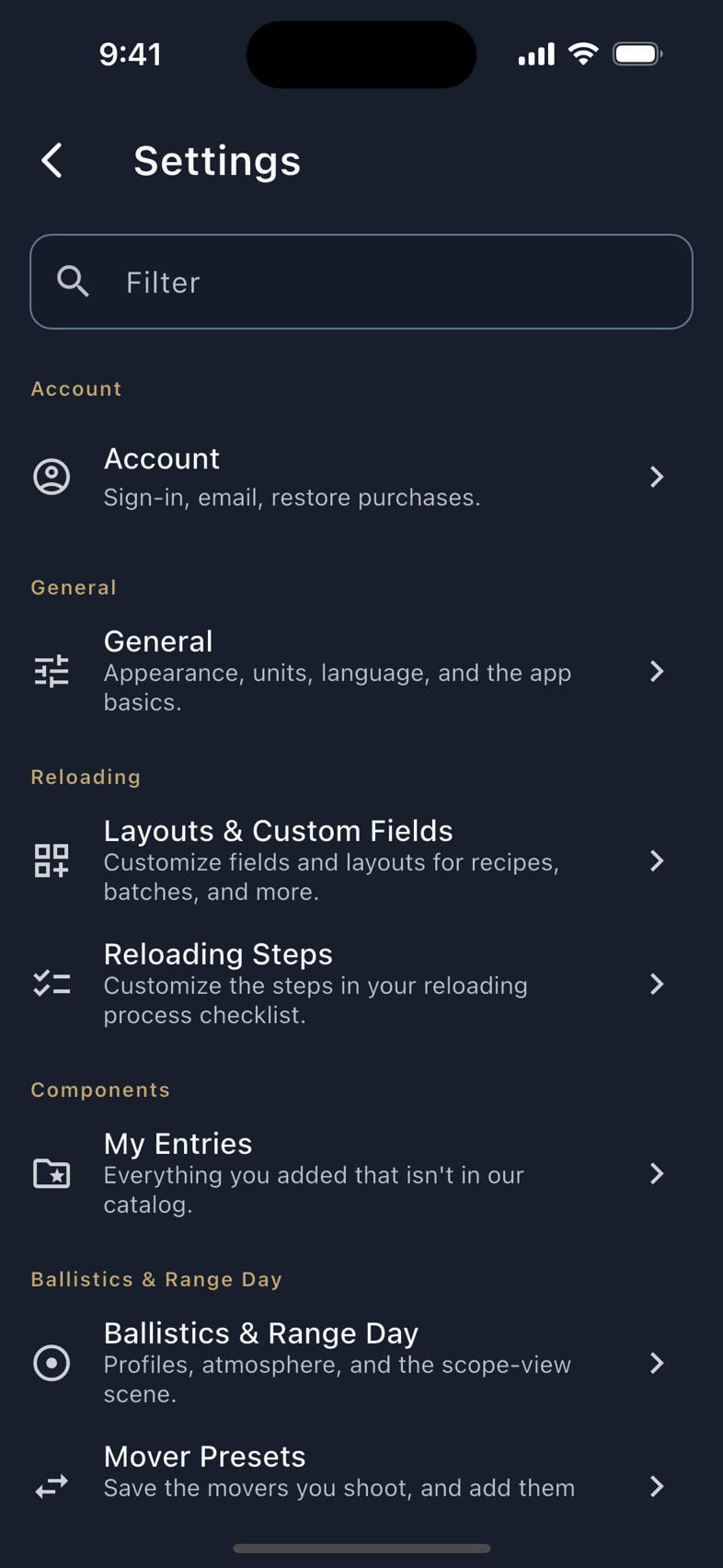
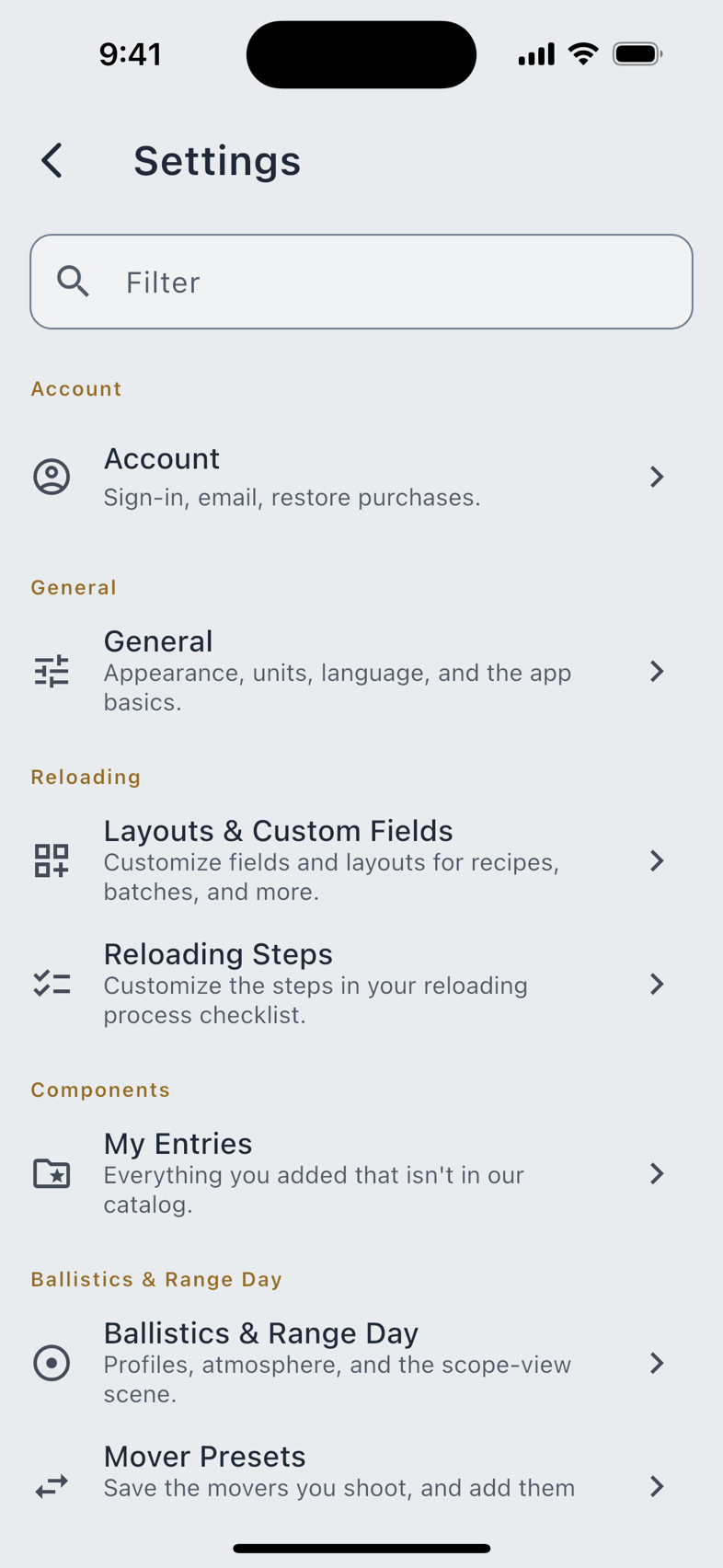
Bluetooth meters and the shot timer pair on the phone, the tablet, and a Mac with Bluetooth. The web app runs the workspace (recipes, firearms, your data) without them, and watches pair only with a phone.
The chronograph is deliberately not here, because there is nothing to connect. It lives in Import & Export › Chronograph Import and under Tools & Resources › Velocity Check.
Weather meters
A weather meter reads the air where you are standing and hands it to the solver in one tap, instead of you reading numbers off one screen and typing them into another.
Kestrel 5-series
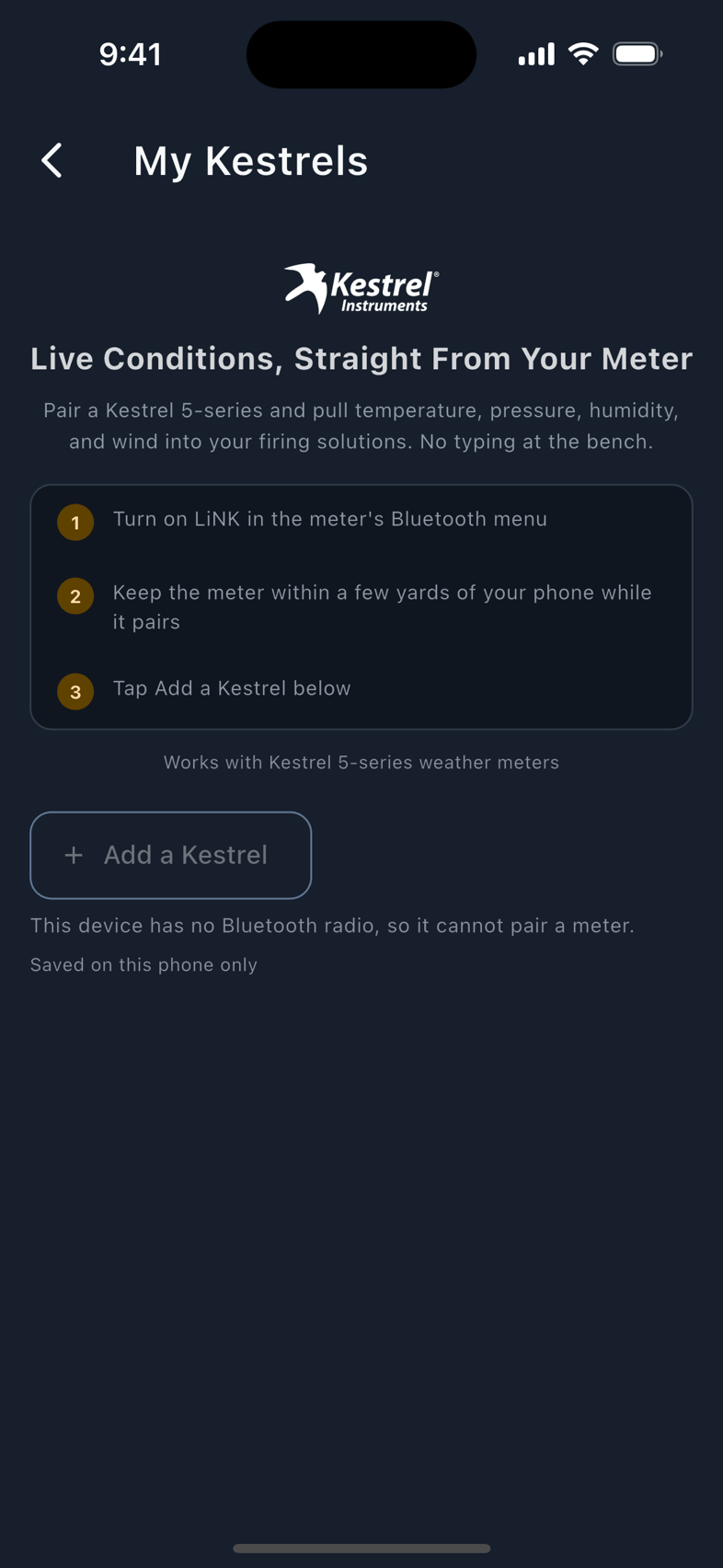
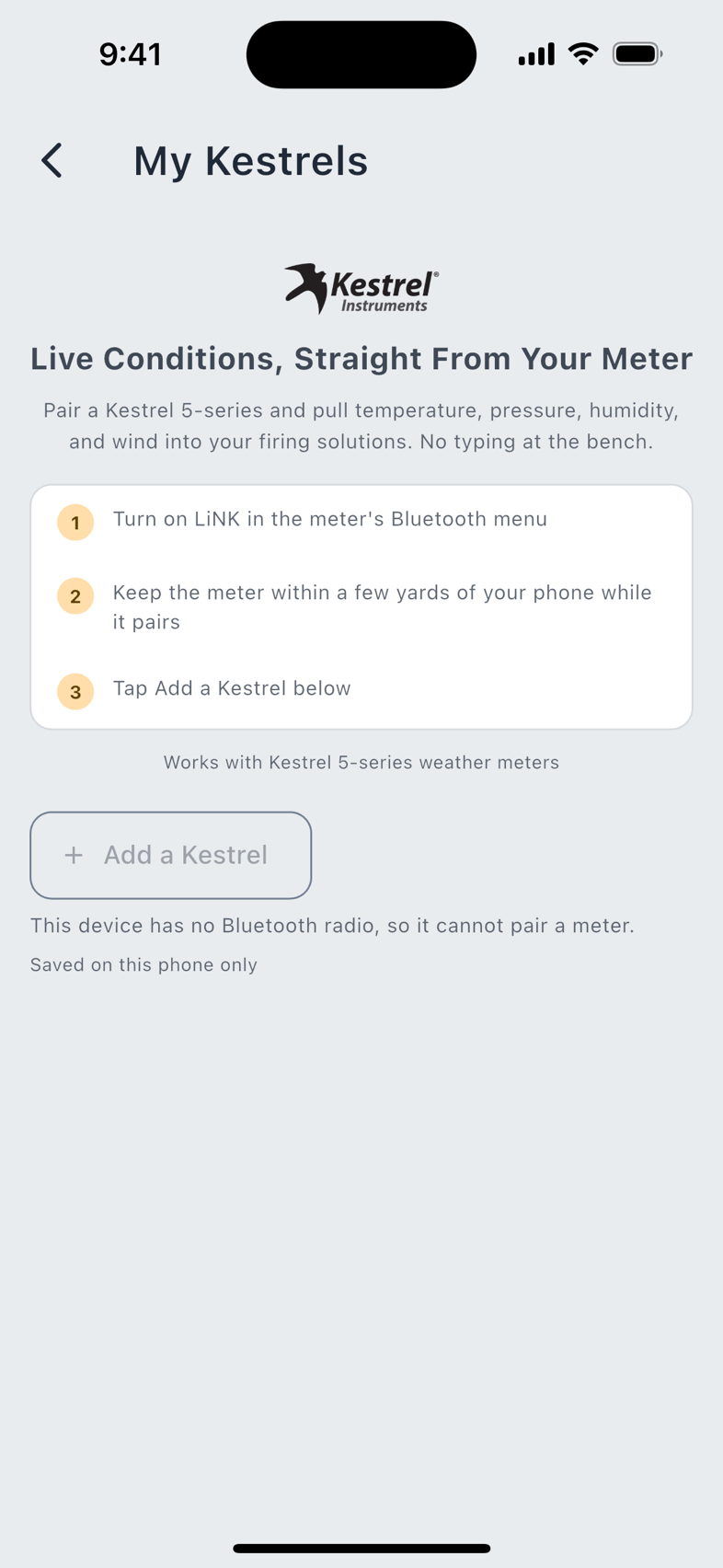
The landing carries a Before You Pair card, with steps verified on the device:
- Turn on LiNK in the meter's Bluetooth menu.
- Keep the meter within a few yards of your phone while it pairs. That is where to stand, not a claim about the radio's reach.
- Tap Add a Kestrel, pick your meter out of the scan, and name it if you want: Firing Line, say, rather than a serial number.
Once paired, Read From Kestrel appears on the environment panel in Range Day and on the Ballistics page. One tap writes temperature, station pressure, humidity, wind speed and true wind direction into your inputs, with the meter's own station elevation, which lets density altitude be derived rather than guessed. A Following banner appears while a meter streams, with Freeze and Read Again.
WeatherFlow WEATHERmeter
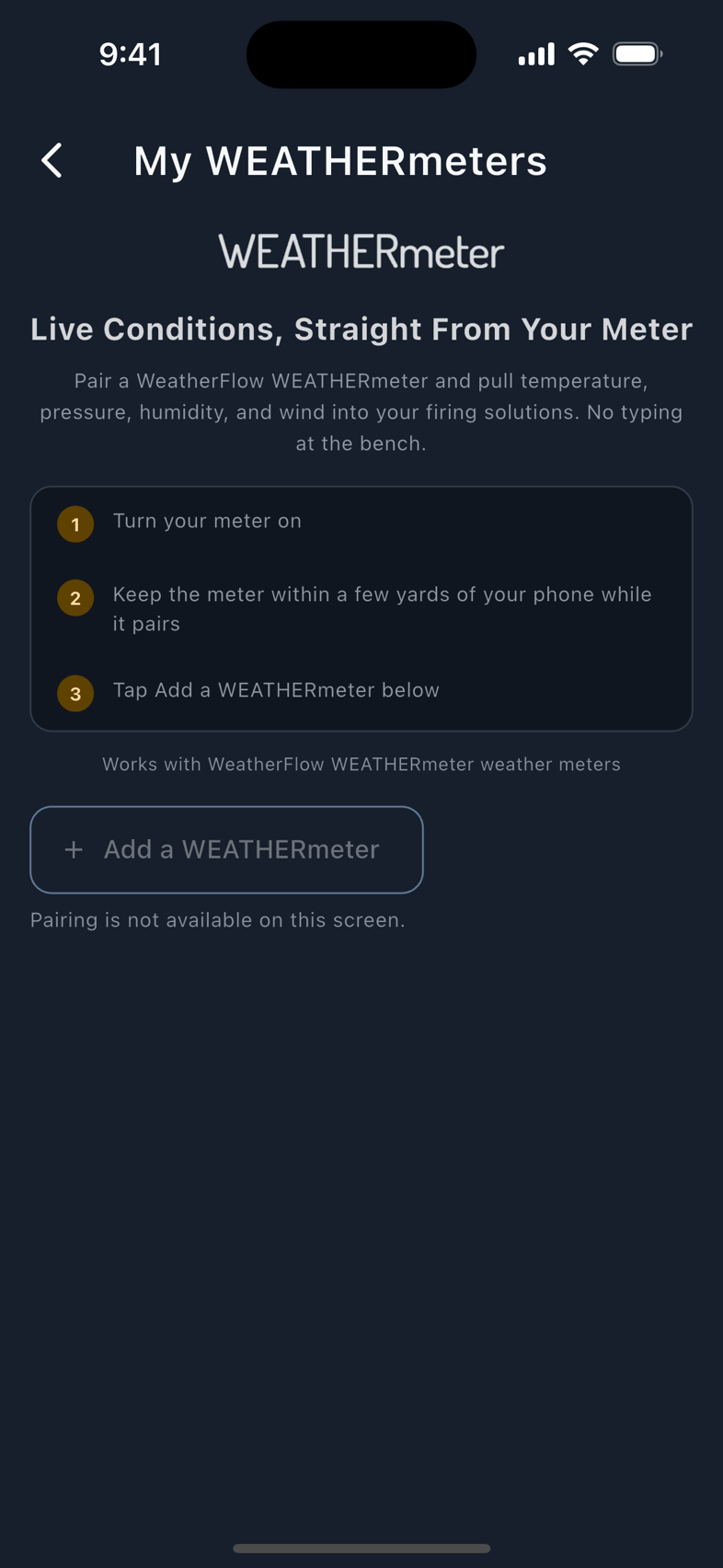
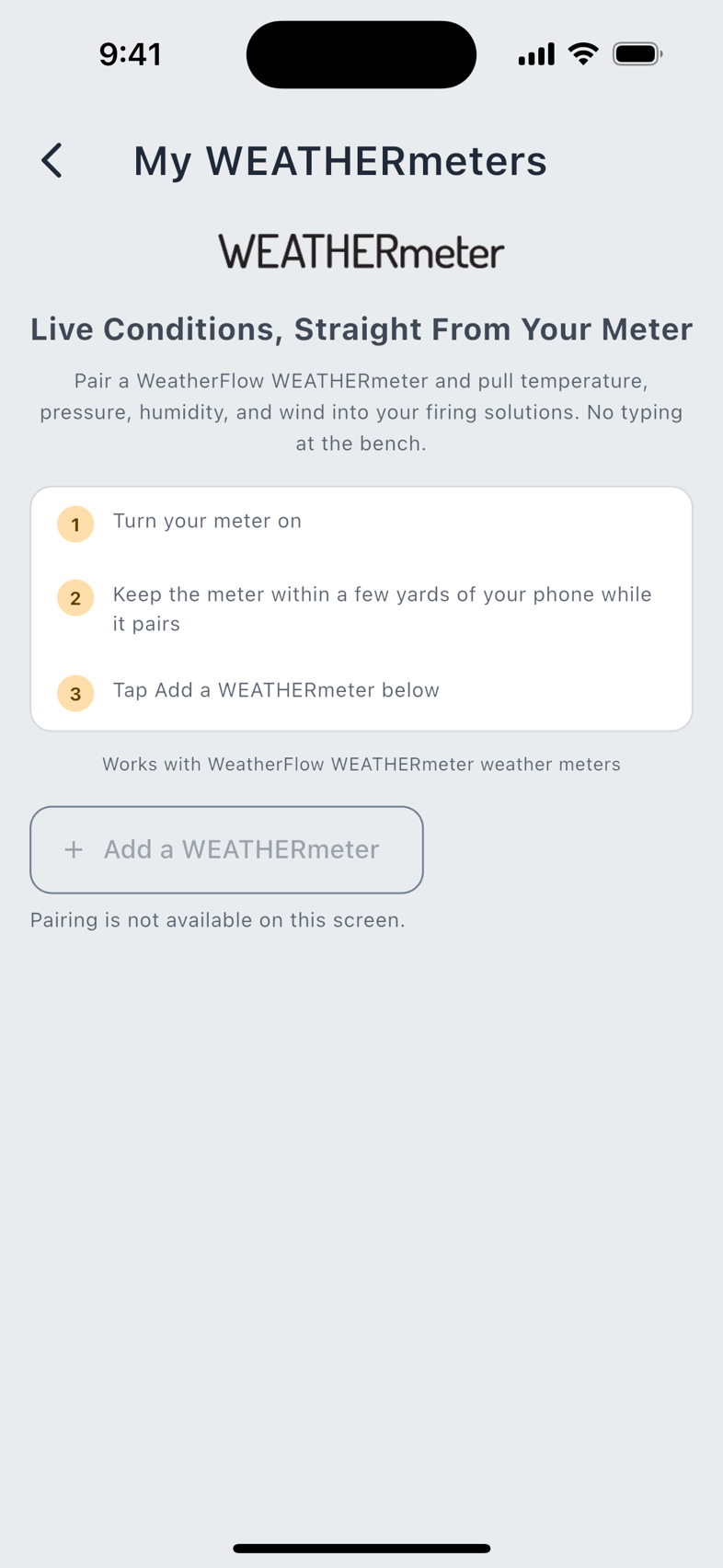
- Turn your meter on.
- Keep the meter within a few yards of your phone while it pairs.
- Tap Add a WEATHERmeter and pick it out of the scan.
It reads temperature, station pressure, humidity and wind speed exactly as a Kestrel does. Two things differ, and are stated rather than smoothed over:
The shipped note says what happens meanwhile: Until then, LoadOut leaves the direction blank rather than guessing. Temperature, pressure, humidity, and wind speed all read normally. If you calibrated it in the WeatherFlow app, LoadOut picks that up on connect.
Calypso
Calypso support is coming; there is no date yet, and the details will be published here when it ships.
What applies to every meter
One Pro unlock covers every meter you own, of any brand. And Free entering the same conditions by hand stays free. What Pro buys is convenience, never access to the solver.
Android 12 or newer is required for any Bluetooth meter, and it is a permission decision rather than a radio one: before Android 12 a Bluetooth scan required location access, and asking for your location to read a thermometer is a prompt whose stated reason and real reason do not match. On Android 12 the app asks for exactly what it uses, so LoadOut requests no location permission for Bluetooth at all.
The SG Timer
Pro LoadOut reads a Shooters Global shot timer over Bluetooth and logs every split into your record at the timer's own millisecond times, joined to the firearm and load you were shooting. Nothing gets rounded on the way and nothing gets transcribed afterwards. The SG Timer, SG Timer 2 and SG Timer GO all work.
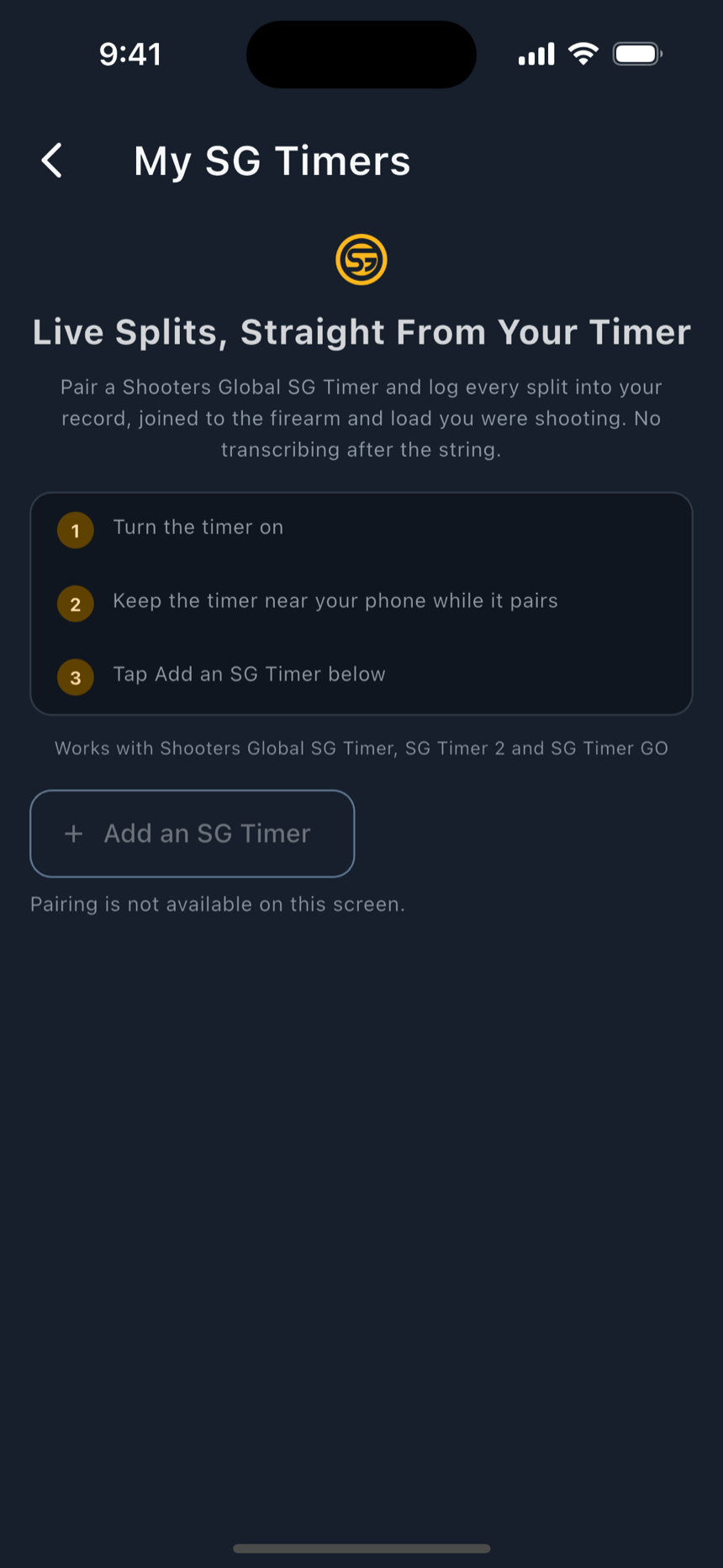
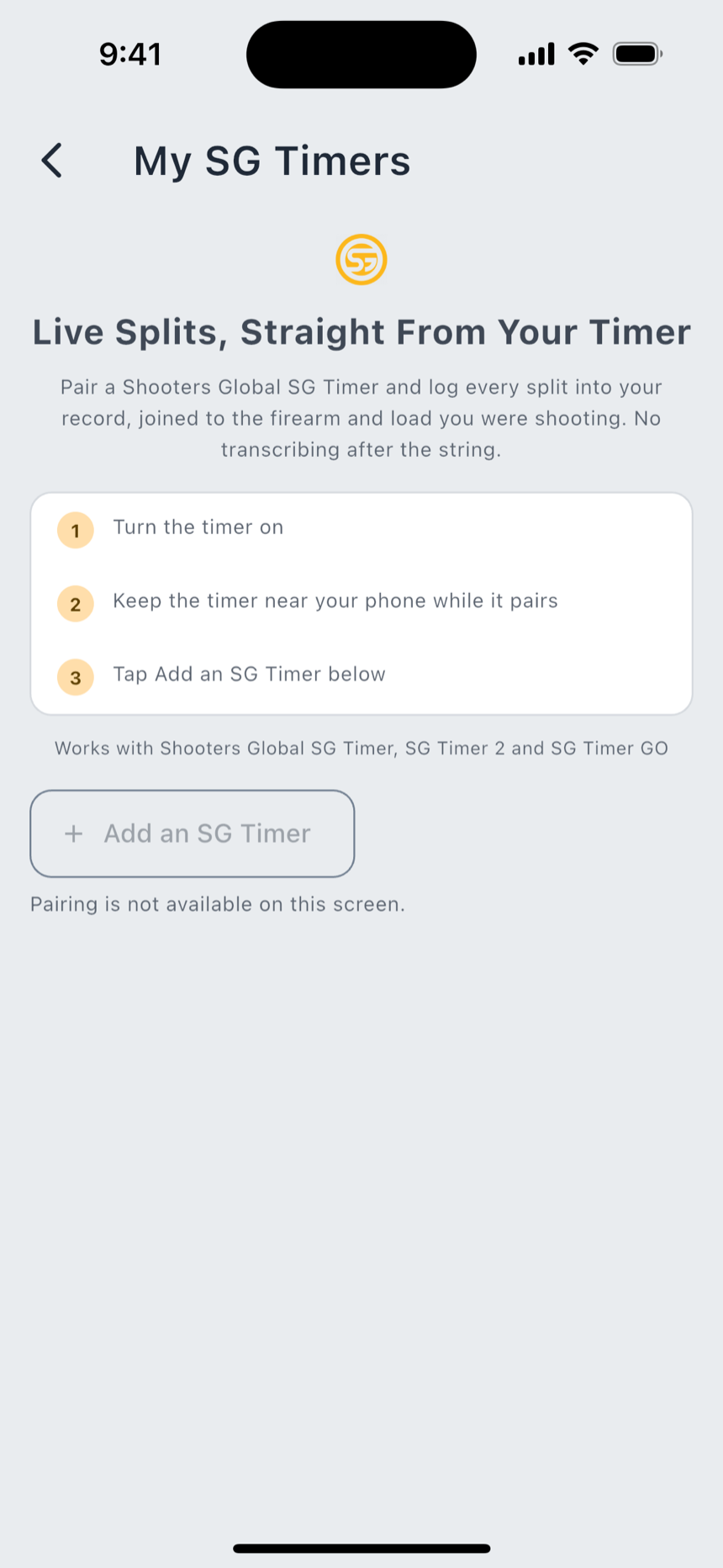
- Pair it. Settings › Connected Devices › Shot Timers › SG Timer. Turn the timer on, keep it near your phone while it pairs, and tap Add an SG Timer.
- Check where the shots are going. The live page states its destination before you fire, reading Logging to: Range Day with the session named, or Logging to: your shot record with a Start a Range Day Session button beside it. A shot never lands somewhere you were not shown.
- Run the string. The page walks Ready → Armed → Running → Stopped, with Suspended for a paused string. While armed it says how it will start: Starting in N s, or Starting after a random delay of 1.0 to 4.0 s chosen by the timer.
- Read the shot list. Three columns: #, From Beep and Split. The first row reads Draw, because there is no previous shot to be split from.
Par comes off the timer's own setup and is shown as such: Par 8 s · from the timer's own setup, or No Par. LoadOut does not invent one.
A missing shot is named, not smoothed over
Bluetooth drops packets. When one does, the row says exactly that: Shot 4 was not received. The timer counted it. Import from the timer to fill it. A count line keeps both numbers visible: Timer counted 12 · LoadOut received 11. If the link goes down mid-string it says so, with the time, and notes that the timer may still be running.
Import From Timer
Import From Timer reads the sessions the timer already stored: Sessions stored on your timer, newest first. Dates come from the timer's own clock. Reading one takes an exchange per shot, so a long list takes a moment, and the screen says so instead of looking stalled.
A timer whose clock was never set produces sessions dated 1970, and those arrive with a Date Needed chip: Timer clock not set. You will be asked when this string was fired. You supply the date; LoadOut does not guess. Splits import as exact differences of the timer's own times.
You can also drive the timer from the phone with Start, Suspend and Stop, and a refused or unanswered command says which it was, and that nothing changed.
Live capture, import, and phone-side control are Pro. Reconciling and reviewing your strings stays free, always. The settings tile carries a Pro badge but is not itself gated, so you can see what the feature is before deciding.
This is for your own practice: it does not score you against anybody, and says nothing about what any organization allows.
The Garmin Xero
Pro Three ways to get a Garmin Xero C1 Pro session in, and none of them is Bluetooth. The Xero was never a radio integration here. All three land in the same per-rifle velocity log.
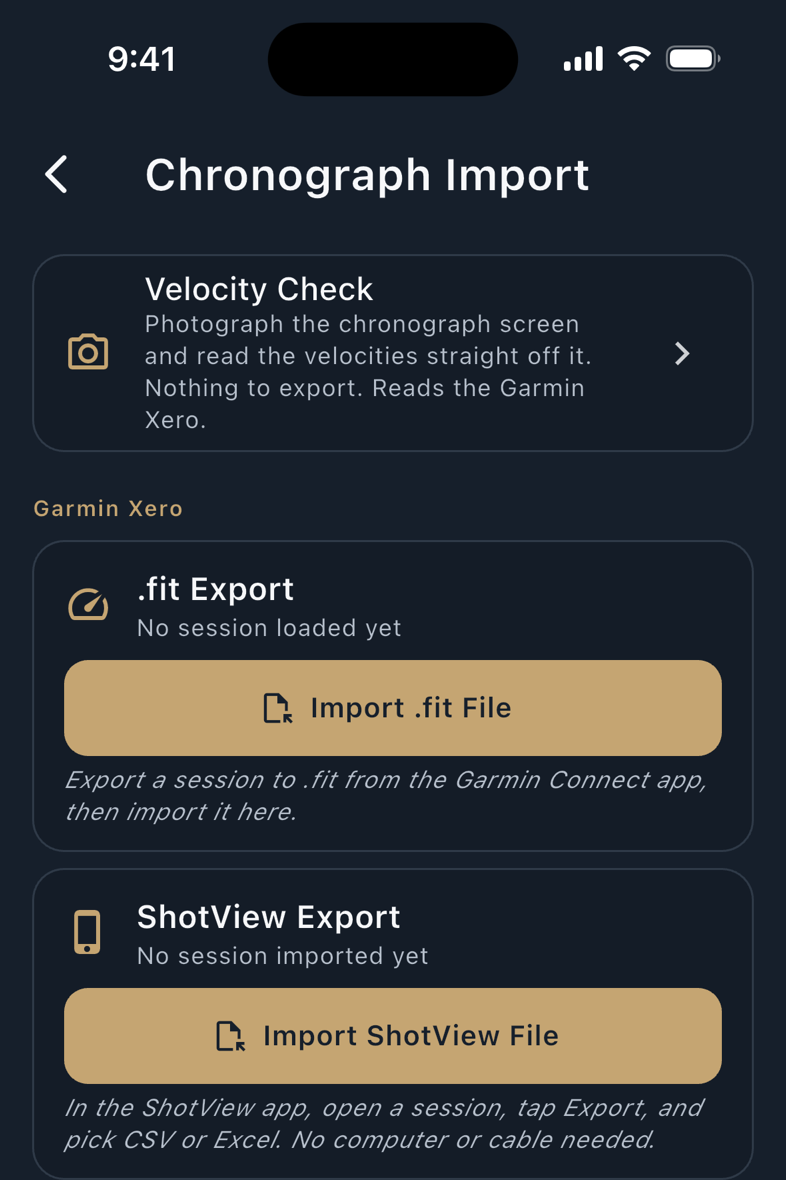
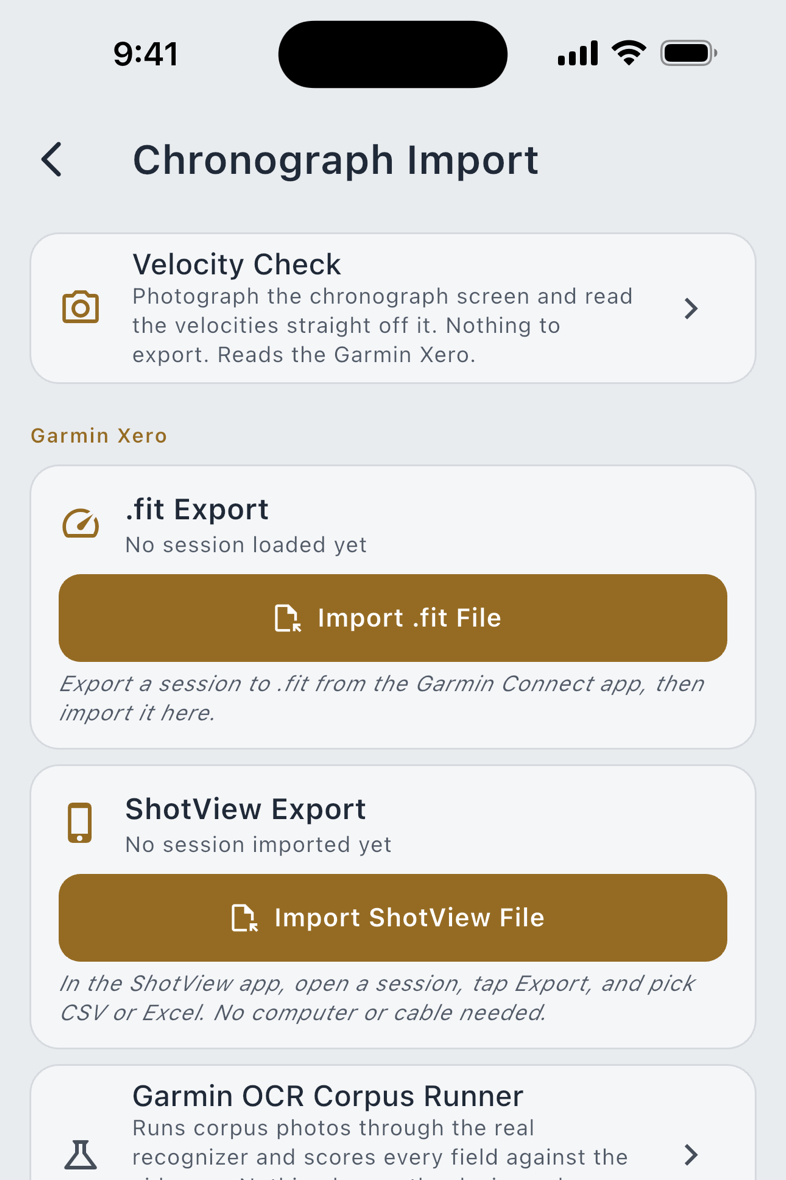
| Route | Where | What you do |
|---|---|---|
| .fit Export | Import & Export › Chronograph Import | Export a .fit session from Garmin Connect, then Import .fit File and pick it. |
| ShotView file | The same screen | Export a CSV or Excel file from ShotView, then Import ShotView File. |
| Velocity Check | Tools & Resources › Velocity Check | Photograph the screen. No cable, no computer, no export. |
Reading the screen
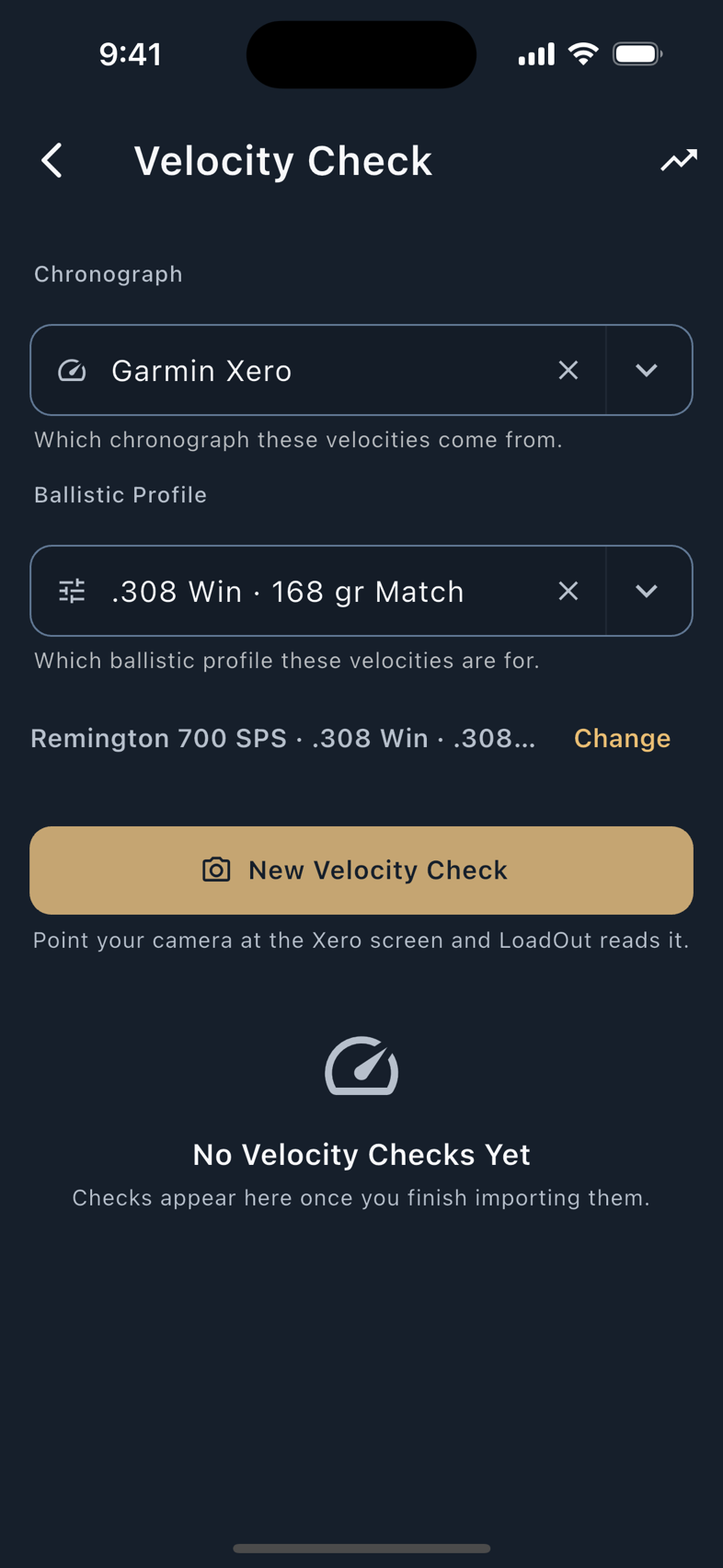
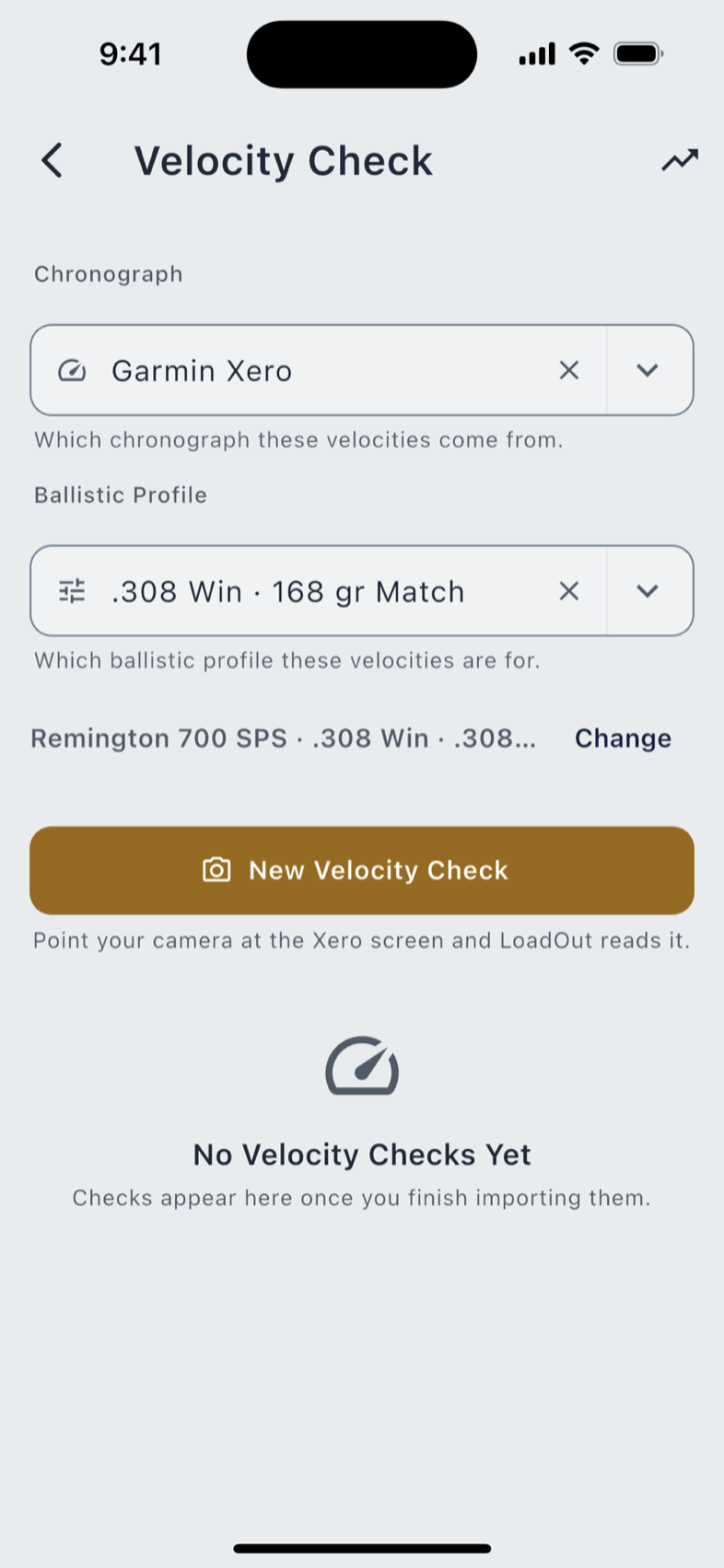
Photograph the Xero's results or Session Summary (one screen is enough) and add the Shot List across several photos for the per-shot string. The reading happens on your phone.
Nothing gets accepted quietly. The review opens with one line about the whole read:
Under the banner, every value carries its own marks, starting at the same place on every row so you can read the column straight down. Unsure and Double-check say the read is not certain about that one; You set this replaces both the moment you type a value. Quieter notes say how a number got there rather than how much to trust it: converted from m/s, decimal restored, re-read magnified, computed, read by AI. A number with a dotted underline can be tapped to see the patch of your own photo it was read from, and a screen showing two different units at once is refused outright.
Improve with AI, as a last resort
Improve with AI is the only step in this flow that leaves your phone, it is part of Pro, and it never runs by itself. Tap it and it shows what it would send first: the cropped picture of the chronograph screen, not the whole photograph, and one line summarizing what this import has read so far. Nothing else goes with them: no saved recipes, no firearms, no other photos. You can send twice on one import, then it stops offering. What comes back lands in the review like any other read, marked as read by AI, for you to accept or correct.
The log and the trend
Accepting a check files it against the rifle you picked. The Velocity Check screen keeps a scrollable history (Date, Shots, Avg, SD, ES, with Min, Max, Rifle and Load reached by scrolling), and a row tap expands the full card: a source chip reading Photo · OCR or Garmin .fit, the profile, rifle and load it was filed against, five figures, and a per-shot graph you can tap to name a shot and its difference from the average.
A printed report carries two standard deviations, each labelled with the estimator that produced it, SD · Sample (n−1) and SD · Population, rather than one unlabelled number two people would compute differently.
You can override the rifle or load for one capture without editing the profile; when that breaks the profile's pairing, the capture carries a Non-Profile Firearm or Non-Profile Load chip, recorded with it, so a year later the history says what you were actually shooting.
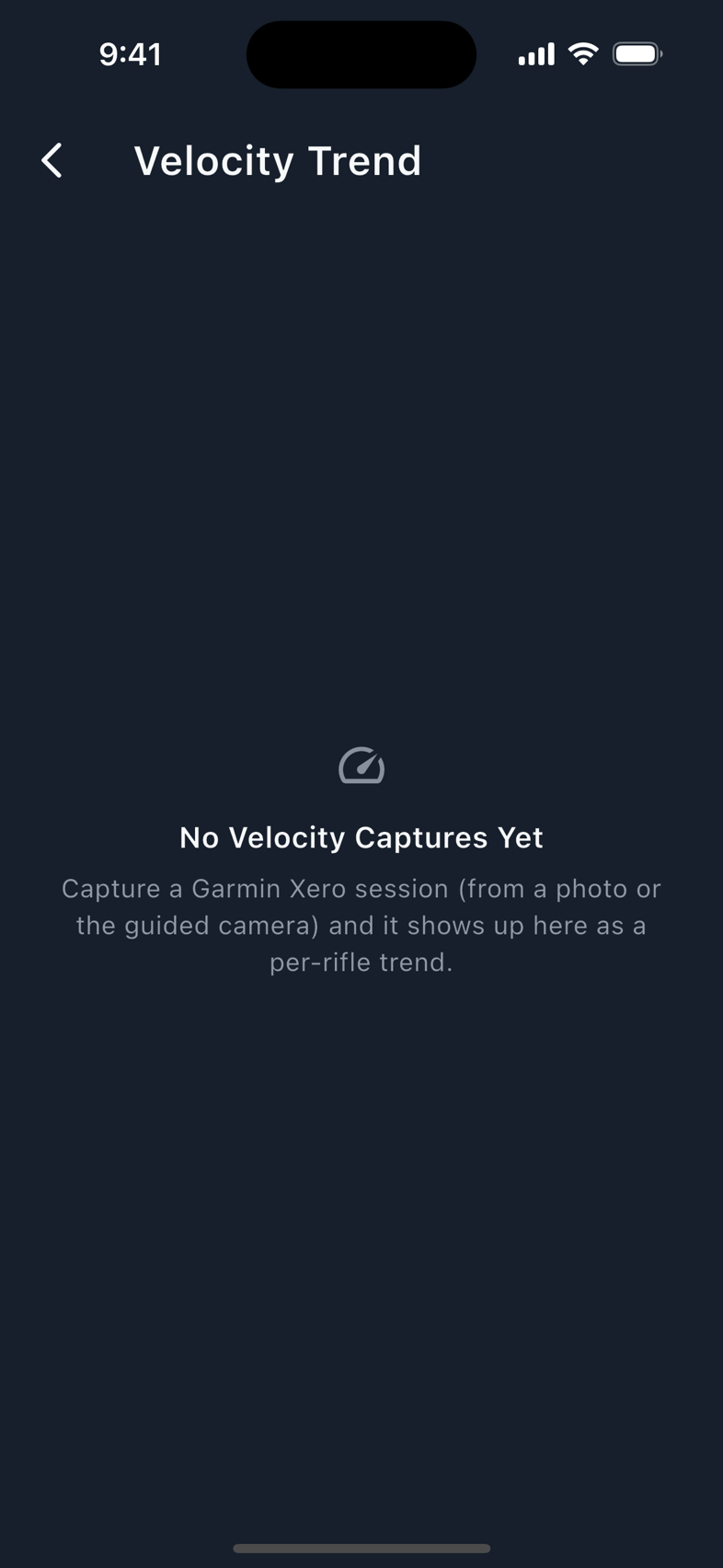
Use Avg as Muzzle Velocity in the card's footer starts a ballistic profile with that average already in it, plus the rifle and load when the capture knew them. It appears only when there is a real average and the capture binds a profile. Velocity Trend then draws that rifle across a season, so you can watch for the drift a barrel picks up as it wears; where it has no data it draws nothing rather than inventing a point.
Device Compatibility
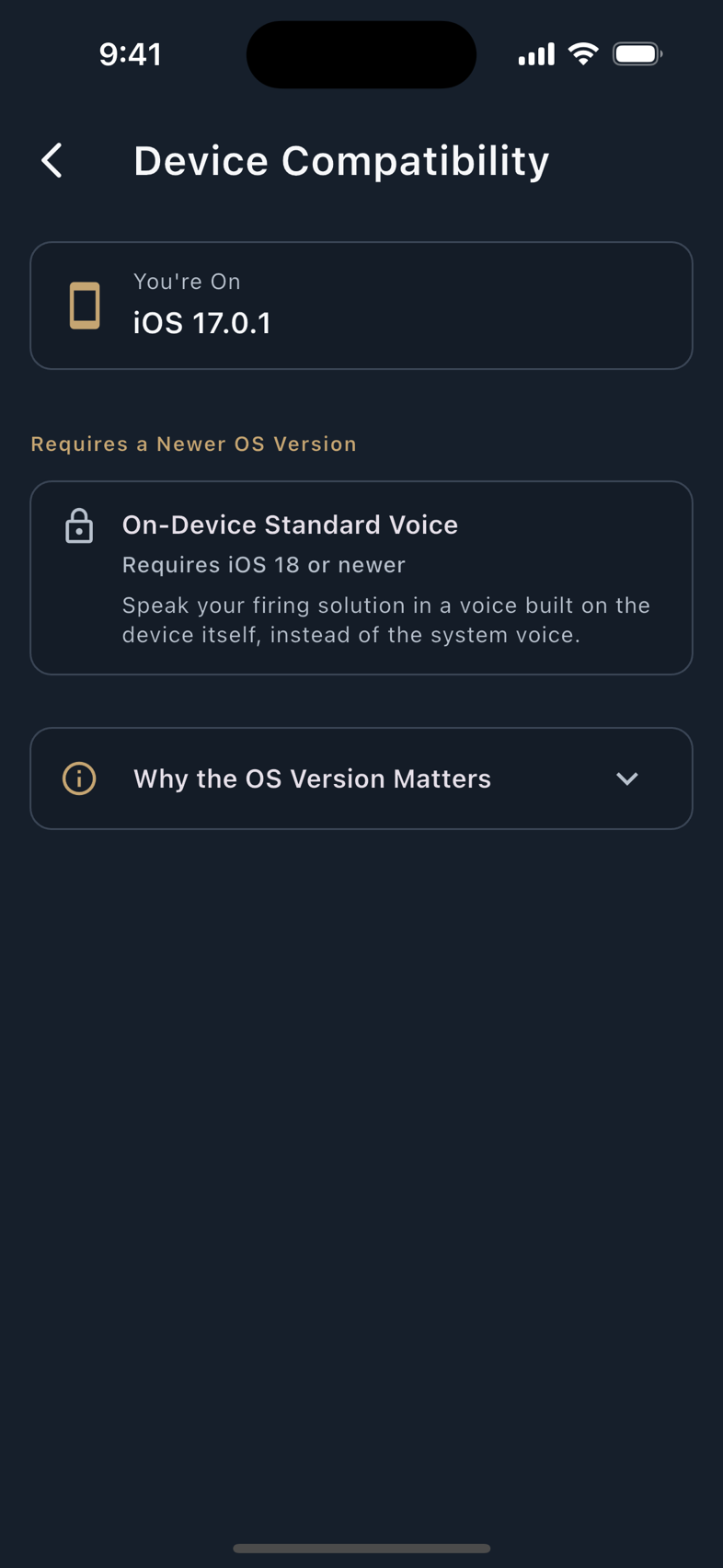
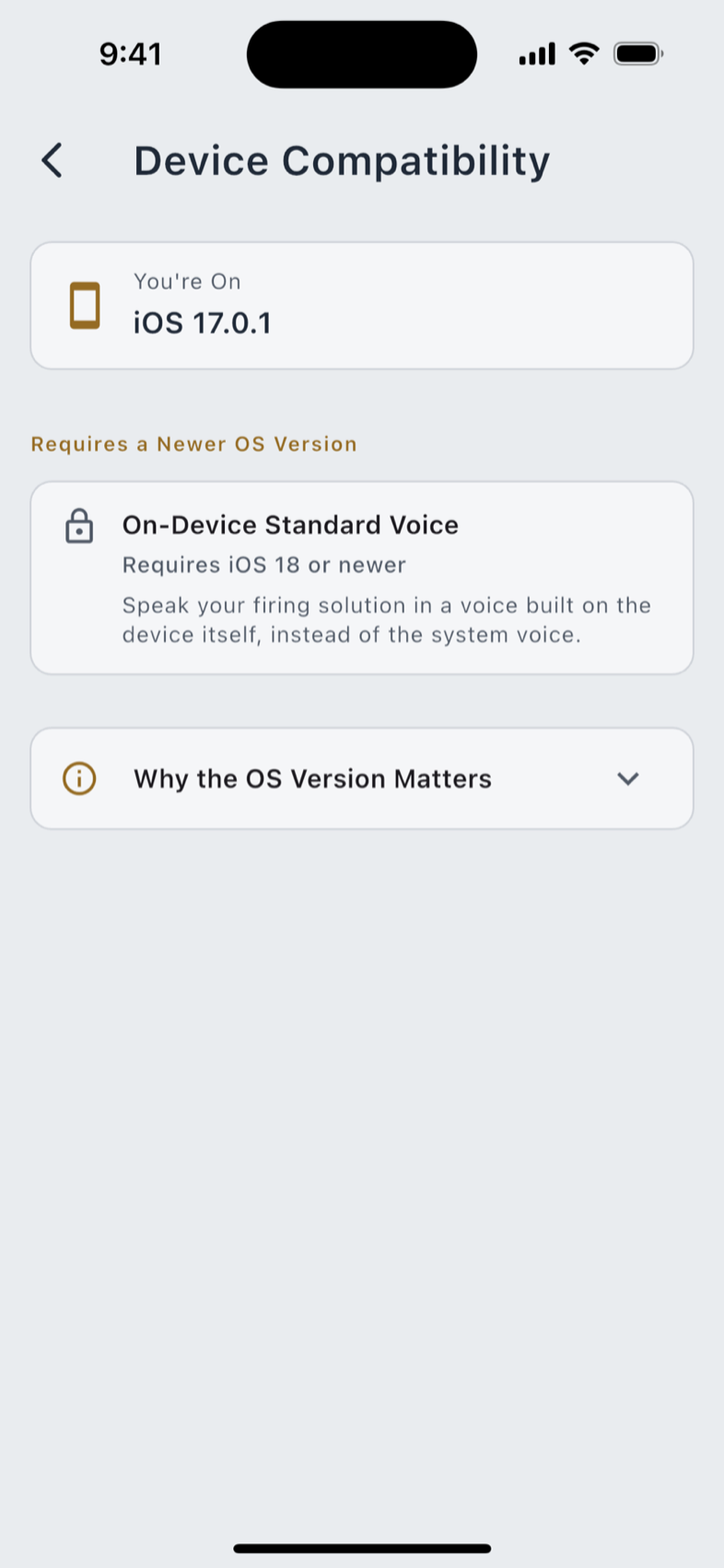
Settings › Device Compatibility lists the features this device cannot run, each with the reason: Requires Android 12 or newer, Requires Android 11 or newer, Requires iOS 18 or newer.
The tile appears only when something is actually gated. On a device that can run everything it is not there at all, because an empty compatibility screen would be a list of nothing.
When pairing fails
Work down this list first; most failures are one of the first four.
- Bluetooth is on, and LoadOut has permission. On Android, check Settings › Device Compatibility too. A meter needs Android 12 or newer, and an older phone gets a row saying so.
- The device is awake and advertising. A Kestrel needs LiNK switched on in its own Bluetooth menu; a WEATHERmeter and an SG Timer just need to be on. A meter asleep in a bag is not discoverable.
- Stand close while it pairs. Within a few yards of the phone. Distance is a pairing problem far more often than it is a hardware one.
- One app at a time holds the connection. A meter already connected to the vendor's app, or to a second phone, will not appear. Close the other app, or disconnect there first.
- Check what the scan says. If a device is found but refused, LoadOut names the reason. That device is not an SG Timer is a different fact from finding nothing at all.
- Forget and re-pair. Each paired device card carries rename and forget; adding it again clears a stale pairing.
Still stuck? Write to support@johnsondigitalsystems.com with: your phone model and OS version; the device make, model and firmware version; which step above it failed at and what the screen said, word for word; and whether the vendor's own app can see the device right now. That last one separates a LoadOut problem from a hardware problem in one line.
None of this is load-bearing. Every value a meter supplies has a field you can type it into, free, and the solver treats a typed number and a captured one identically. If a meter will not pair at the range, the day is not lost.