Chapters
On this page
This is the one part of LoadOut that puts your reloading data anywhere but your own device, and the whole design is about making that safe to do. The file is encrypted before it leaves, with a key derived from a passphrase that exists only on your devices, and it is written to a drive you already own. This chapter covers what each of the two features does, and what happens when something goes wrong.
What it is, and what it is not
Pro Two separate features, on the same encryption and the same passphrase.
- Cloud Backup & Restore makes restore points. You take one when you want one, or leave it on a schedule, and you can go back to any of them.
- Cloud Sync runs continuously. Every device signed in with the same account and passphrase converges on the same records.
The claim that governs both is narrow and exact: no LoadOut server ever receives your reloading data. There is no LoadOut backend holding it, because there is no LoadOut backend for it to be held on. The only cloud copy that exists is one you made, encrypted with a passphrase we never see, sitting in a drive that belongs to you.
This is not your phone's own backup, and it is not a substitute for one. LoadOut deliberately excludes its data from iCloud Backup and Android Auto Backup, so a new phone restored from the platform arrives without your reloading records. Cloud Backup, or the free JSON export, is the copy that survives a lost phone.
Signing in
LoadOut does not require an account. It mints an anonymous guest on first launch, and every core feature works without ever signing in. Signing in buys Cloud Backup and Cloud Sync. Nothing else sits behind it, which is why the app never nags a free user to sign in.
Three providers, on the sign-in screen:
- Continue with Google
- Continue with Apple
- Continue with Microsoft
The account identifies you; it is not where the data goes. Signing in with Google does not mean the backup goes to Google Drive. The drive is a separate choice, made on the backup screen.
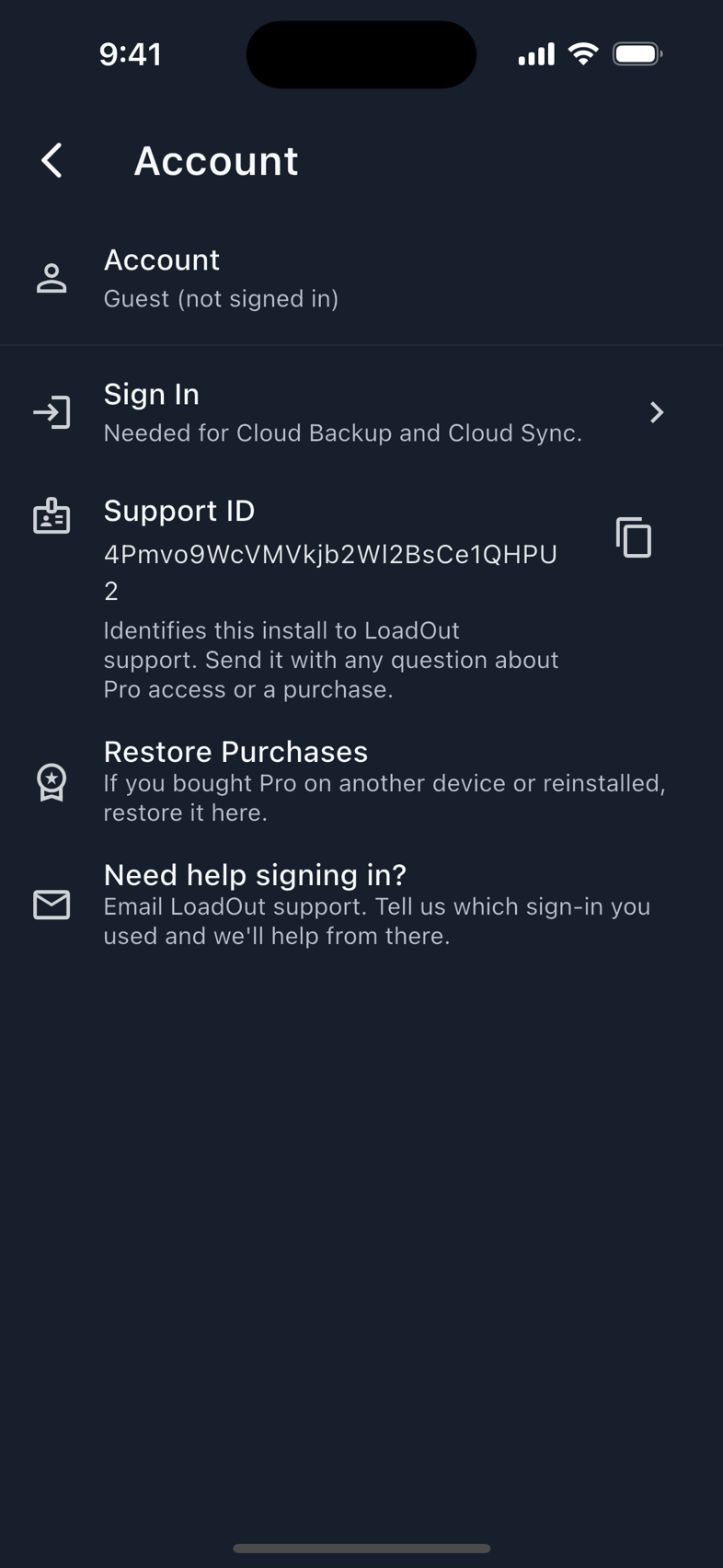
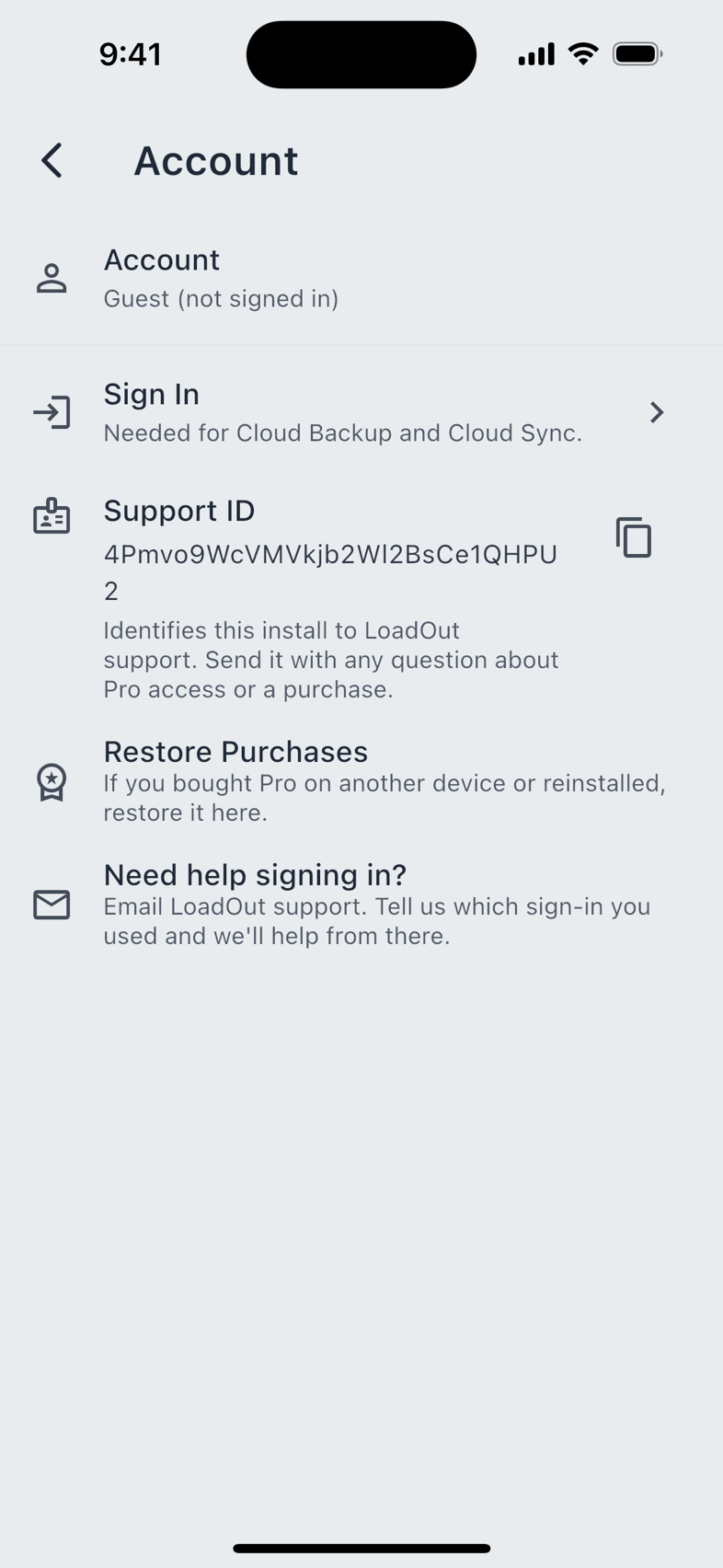
Restore Purchases needs no account at all. Pro is a store purchase, so restoring it is a conversation between the app and your App Store or Play account. Sign-in only matters for the cloud.
Your passphrase
One passphrase covers both features, so you are never asked to set two. It must be at least eight characters, and the setup dialog can generate one for you if you would rather not invent it. A generated phrase goes on the clipboard so you can paste it somewhere safe immediately.
The passphrase is saved to the keychain of your own Apple or Google account (the iOS and macOS Keychain, or Google's account-backed store on Android) so it follows you to your other devices rather than having to be typed on each one. LoadOut never sees it. It is not sent to us, it is not derivable from anything we hold, and it is stripped out of any log line the app writes.
That is also the limit of what can be done for you if you lose it. The backup screen says so in a red panel, in these words: if you lose your passphrase, your backups cannot be recovered. Save it somewhere safe. Take it literally. An encrypted blob with no key is noise, and there is no reset link, because a reset link would mean we held something we say we do not.
Cloud Backup
The screen is Cloud Backup & Restore, from the Import & Export hub or from Settings. Pick a cloud account in the first section, and the second section holds everything for that account: an automatic-backup toggle with its consent line, Back Up Now, and Restore & Manage.
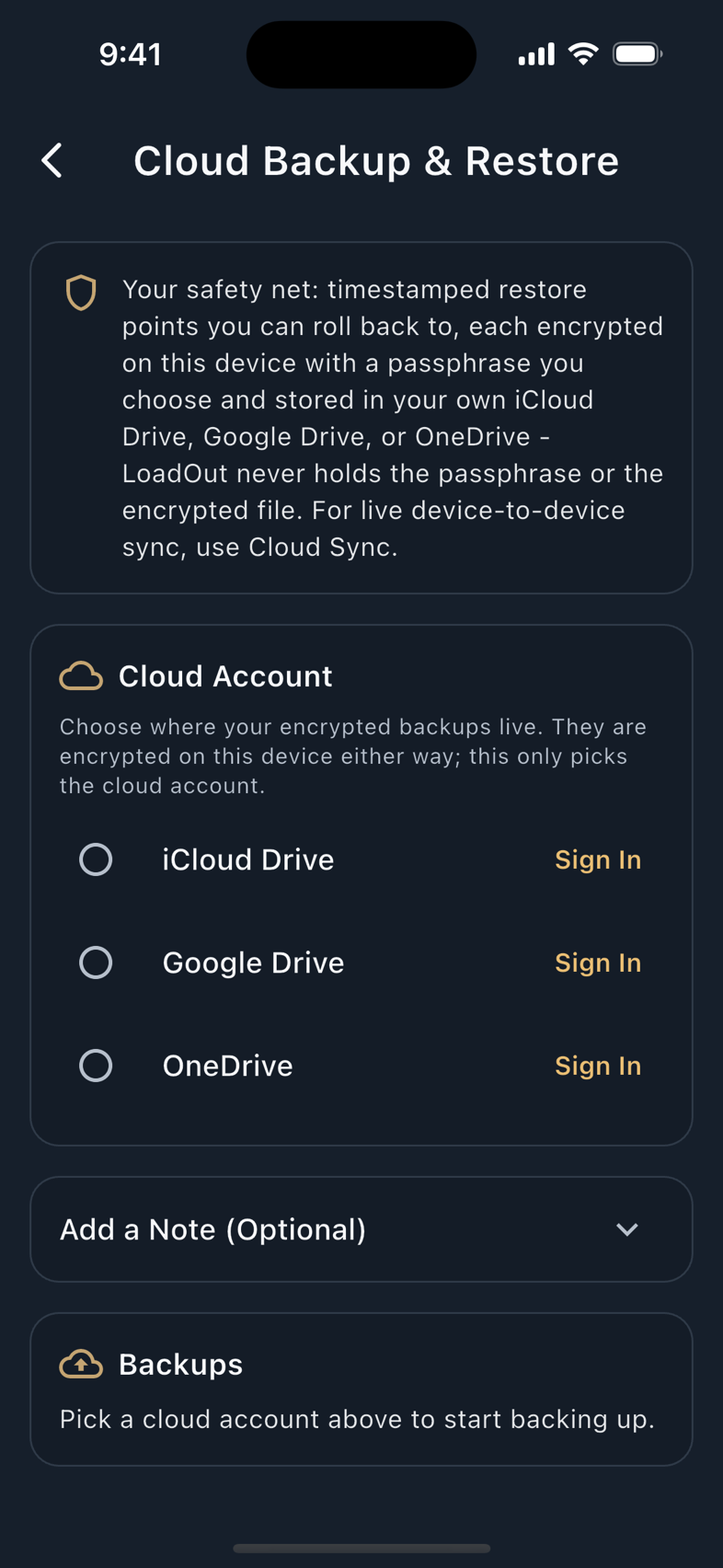
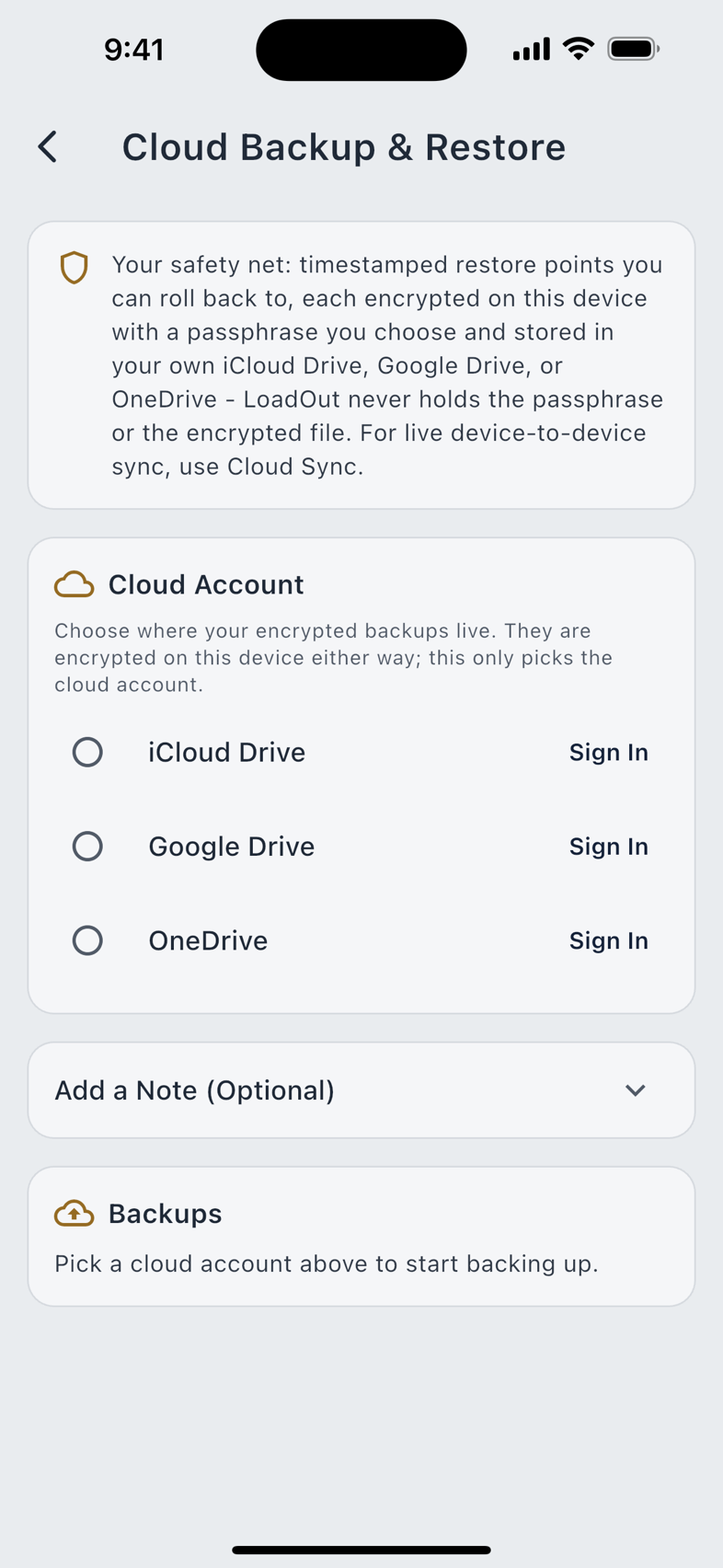
- Pick a provider. The list shows only the ones this device can reach.
- Set the passphrase. If one is already saved to your account, LoadOut recovers it and tells you it did. Otherwise you set or generate one now.
- Tap Back Up Now. LoadOut builds the export, encrypts it on the device, and uploads the encrypted blob. You can attach a short note to the next manual backup so a restore point is identifiable later.
- Restore & Manage lists what is there. Each snapshot shows its filename, size and date. Pick one to restore, or delete ones you no longer want.
The blob holds every user-data table (recipes, firearms, batches, brass logs, inventory, profiles, sessions, notes) and it also carries your Recently Deleted tombstones. Tombstones travel for a reason: a delete has to converge like anything else, or a peer device with a stale copy would quietly resurrect a record you deleted. Those tombstones stay out of the plaintext JSON export, so a deleted record never shows up in a file you open.
Cloud Sync
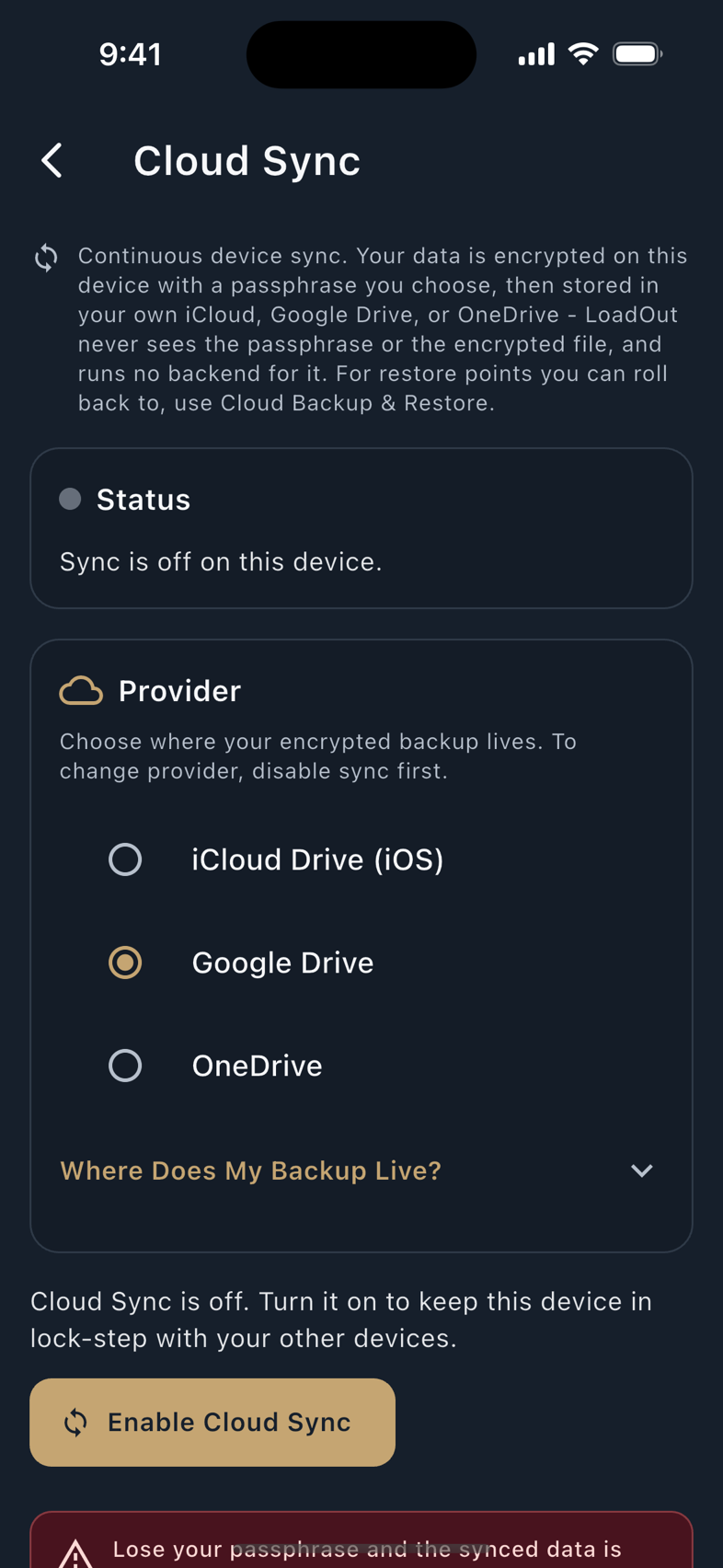
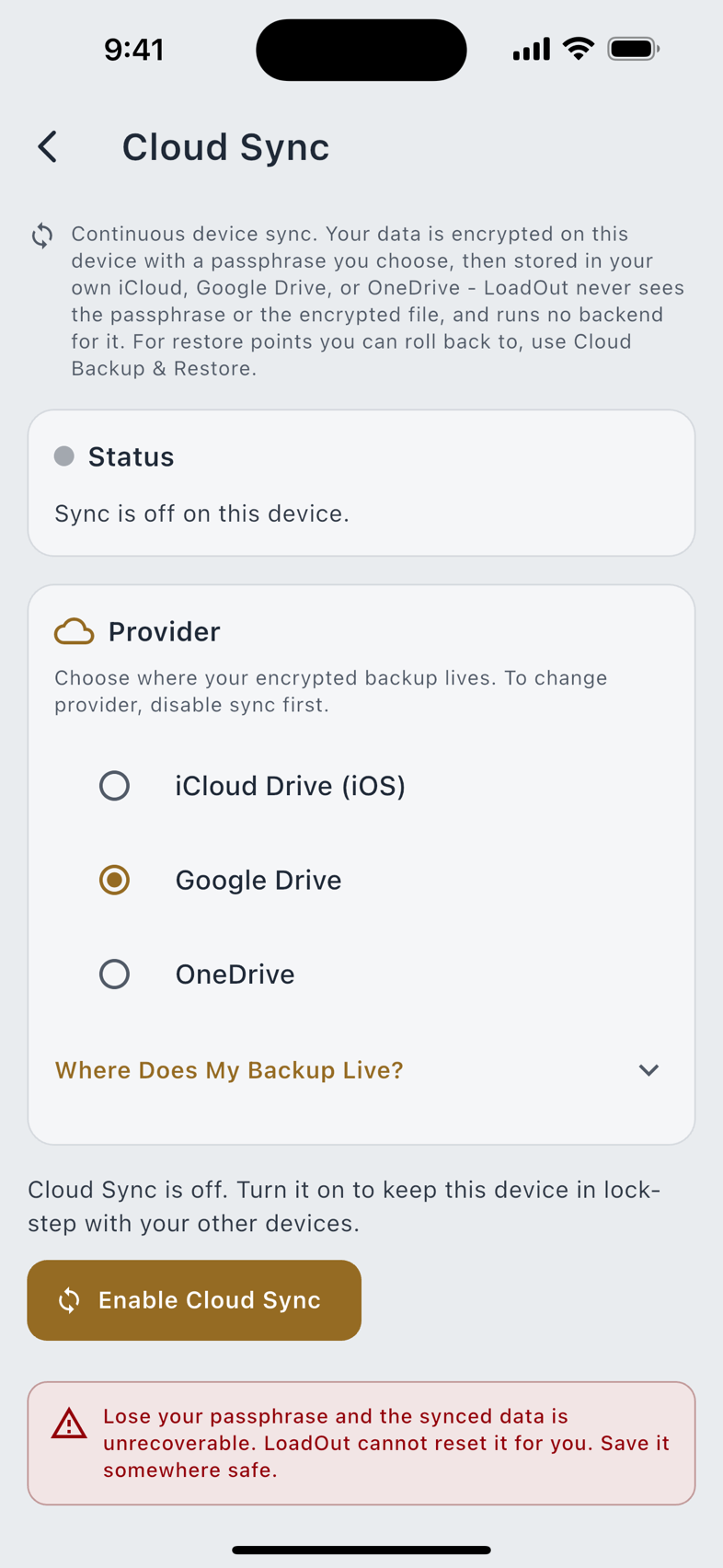
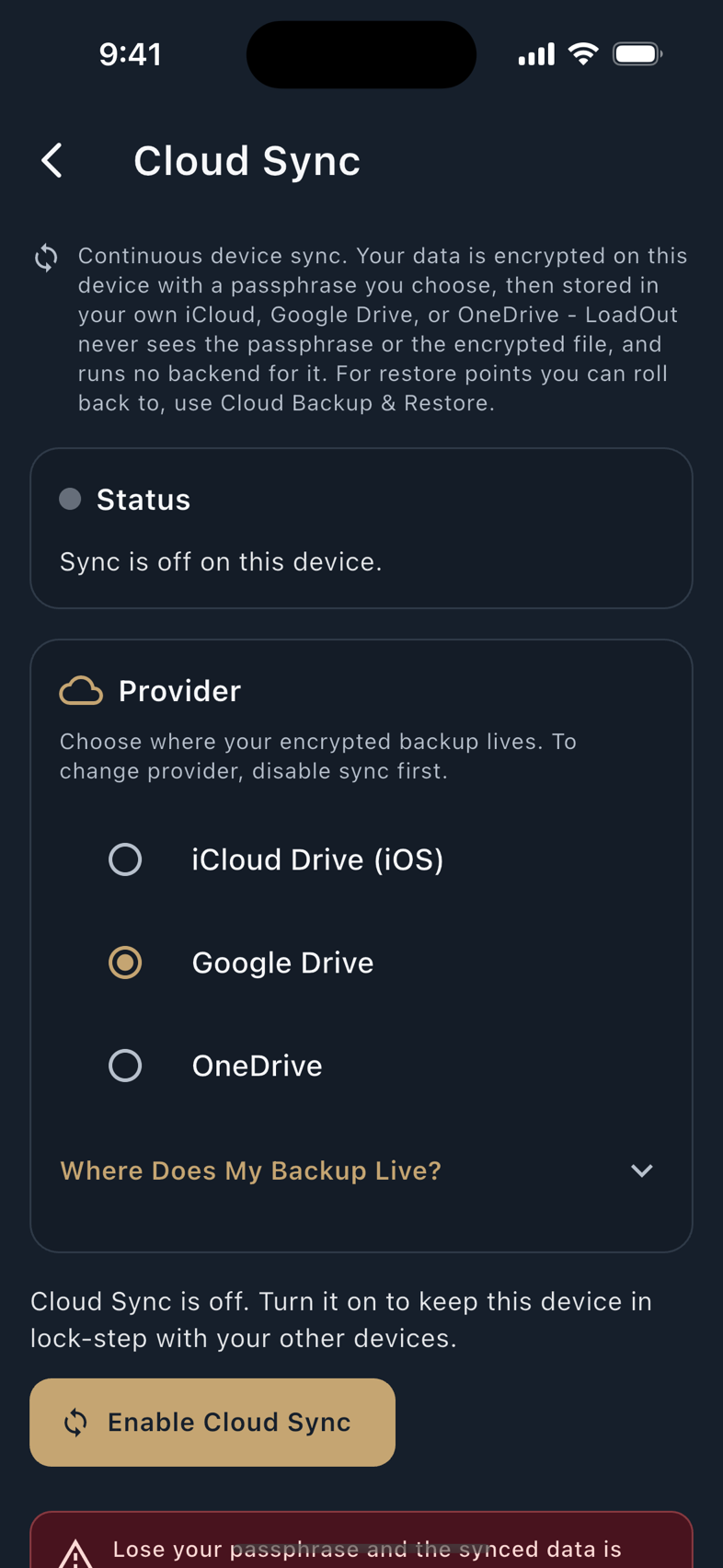
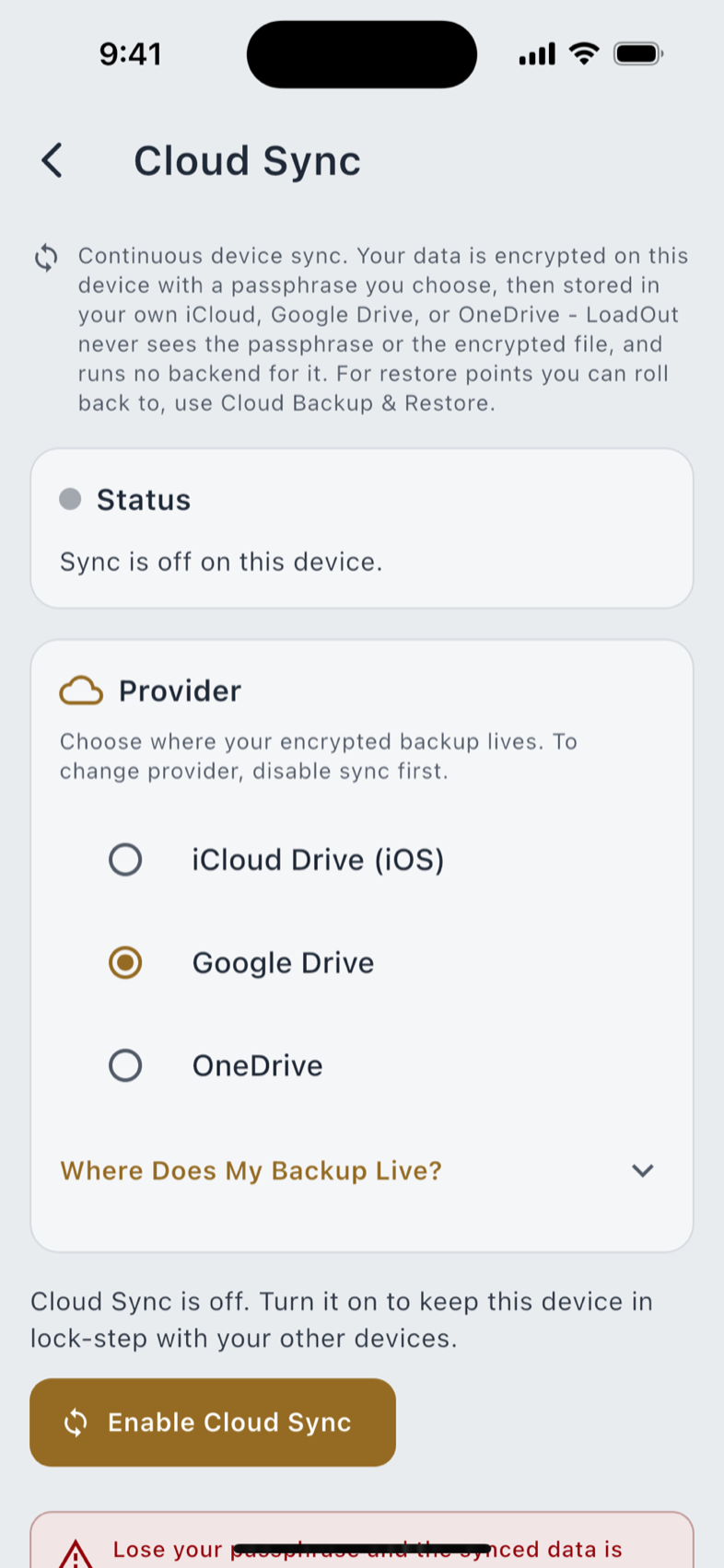
Sync is the same encryption, running continuously. Once it is on:
- Uploads a few seconds after you save something. The app waits five seconds after the last change rather than pushing on every keystroke.
- Downloads when the app launches, and whenever you tap Sync Now.
- Tells you when something is waiting. If another device has pushed changes, the status line says so and points at the button.
When one record is edited on two devices, the most recent write wins, decided per record rather than per file. Deletions converge the same way: a tombstone out-ranks an older live copy, so removing a recipe on one device removes it everywhere instead of coming back on the next sync.
Notes are the one exception, and it favours you. When the same note was edited on two devices, LoadOut does not pick. Your local version stays exactly as it is, and the other version is written out as a real note in the same folder, labelled as the conflicting copy, so you can merge them yourself. Notes are the one record where two-device editing is likely, written at the range and edited at home, and a silently eaten paragraph is invisible in a way a silently eaten charge weight is not.
LoadOut sets no limit on how many devices share one account and passphrase. Setting up the second one is the same flow as the first: the setup dialog opens by asking whether you have set up Cloud Sync on another device before, and Yes, on Another Device takes you to the passphrase entry rather than to passphrase creation.
Restoring on a new device
- Install LoadOut and sign in with the same provider you used before.
- Open Cloud Backup & Restore, or Cloud Sync, and pick the provider your data is on.
- Enter the passphrase. If it was saved to your account keychain, it is already there. If not, type the one you saved. A wrong one fails cleanly: Could not decrypt backup. The passphrase is wrong, or the file has been modified since it was created. Both halves matter: the encryption cannot tell a wrong passphrase from an altered file, so LoadOut names both possibilities rather than asserting the one it cannot know. Nothing is half-restored either way.
- Restore. Everything comes back.
A restore is not capped. If you had twenty firearms as a Pro user and restore them on the free tier, all twenty arrive and all twenty stay. Nothing is dropped, hidden or made read-only. The app says so plainly on the way in, under Everything Was Restored, and then tells you what the free tier includes so you know why you cannot add a twenty-first. The cap governs new records, not your own history.
Providers by platform
Which drives a device can offer depends on what that device has access to.
| Provider | iPhone, iPad | Android | Mac | Web |
|---|---|---|---|---|
| iCloud Drive | Yes | No | No | No |
| Google Drive | Yes | Yes | Yes | Built in, but not usable yet (see below) |
| OneDrive | Yes | Yes | Yes | Built in, but not usable yet (see below) |
The web app carries the Google Drive and OneDrive code, but Cloud Backup and Cloud Sync are Pro features and Pro cannot be bought or restored in a browser today, so neither can be switched on there yet. Use the phone, tablet, or Mac app for your cloud copy; the free JSON export works everywhere, the browser included.
iCloud Drive is offered on iPhone and iPad only, because a browser and an Android phone have no iCloud Drive container to write to, and LoadOut asks the device rather than assuming. Google Drive uses the narrowest scope Google offers, which grants access only to LoadOut's own application folder: if you read the consent sheet, it says the app cannot see your other Drive files, and that is accurate. Nothing prompts you to connect a drive on launch. The consent sheet appears when you tap a backup button and not before.
What does not travel
Three things stay on the device that made them, and it is worth knowing which.
| Not synced | Why |
|---|---|
| Component photos | The photo record syncs; the image bytes do not. Nothing in the app uploads them yet, so a photo stays on the device that took it. The picture is not in the plaintext export either. |
| The on-device search index | Search by meaning builds an index from your own records, in a cache folder rather than the database. It is rebuilt locally on each device rather than shipped, and it is erased by either privacy operation. |
| The watches' own copies | A watch holds its own cached card, holds and shot queue. Those live in that watch's storage and reach the phone over the watch link, not the cloud. |
When sync seems stuck
| Symptom | What to check |
|---|---|
| Nothing has synced since you changed devices | You are signed out, or signed in with a different provider than the one holding the data. Settings › Account shows which. |
| "Could not decrypt backup" | The blob is encrypted under a different passphrase, often the one from an older setup. The message also names a modified file, because the encryption cannot distinguish the two. Nothing was overwritten; enter the right passphrase and try again. |
| The last attempt failed | The status line says so and offers Sync Now to retry. The most common cause is the provider being unreachable rather than anything in the app. |
| A restore is refused | The blob was written by a newer version of LoadOut than this device is running. Update the app and try again; the file is intact. |
| Changes are waiting and nothing pulls them | Sync pulls on launch and on Sync Now. In a browser tab there is no background window to finish an upload in, so the push completes on the next launch instead. |