Chapters
On this page
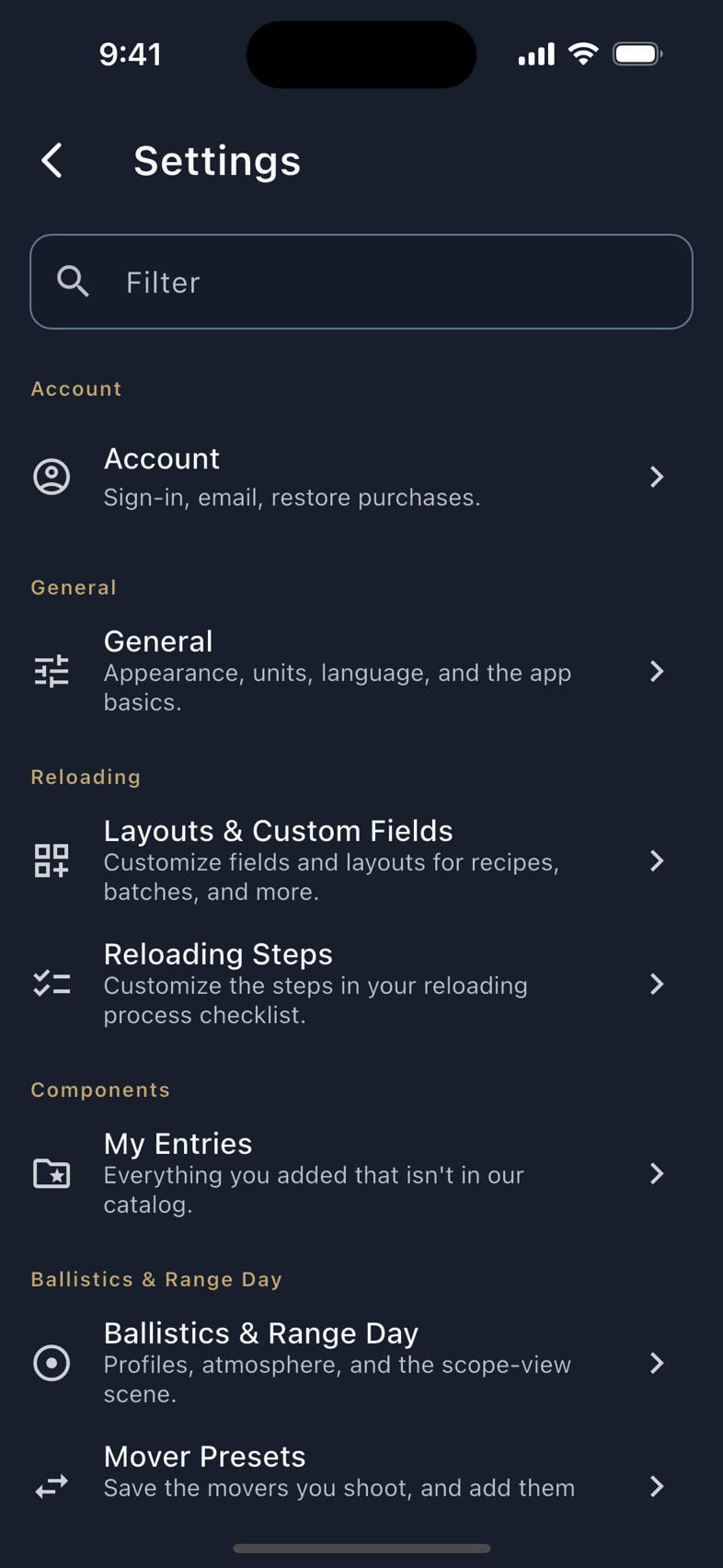
Settings is a directory: ten sections, each a short list of rows, each row a screen. This chapter takes a heading per screen rather than per section, so a few of the headings below (Mover Presets, Device Compatibility) are rows inside a section rather than sections of their own. It walks them in the order the app lists them, says what every switch changes, and points at the chapter that owns the detail where one exists. Nothing here is a preference you must set before LoadOut works, since the app ships usable, but four of them (units, the angle unit, language, and Beginner Mode) are read by every screen that follows.
Finding a setting
Open Settings from the side menu. The first thing on the page is a Filter field, and it is the fastest route to anything on this page.
- It matches more than titles. Row titles, row subtitles, and a hidden list of synonyms all feed the filter, so
darkfinds General,crashfinds Privacy & Data, andmoving targetfinds Mover Presets. - Jump To goes inside a screen. Some queries match a specific control rather than a whole page. Typing
mradormoaproduces a Jump To result that opens General, scrolls to the angular-units control, and pulses it. The same is true of the watch shot-capture control. - Nothing matched is still useful. When a query has no exact hit the page says so and offers a Did You Mean? group rather than an empty list.
A row whose destination needs Pro carries a small Pro chip where the chevron would be. The chip names the feature's tier, not your account: it is read from the same gate table the app itself enforces, so it stays visible when you are a subscriber, and it disappears on its own if a feature is ever made free.
General
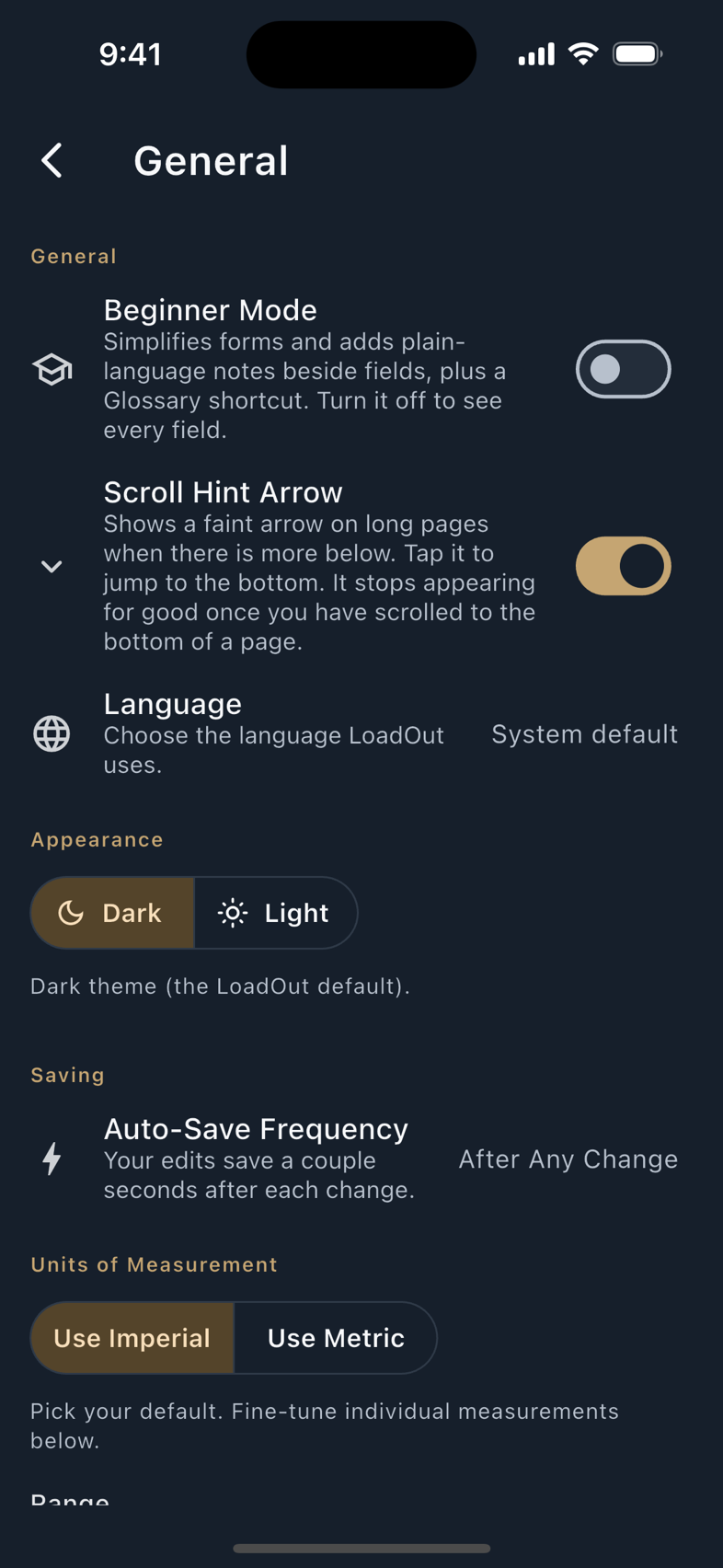
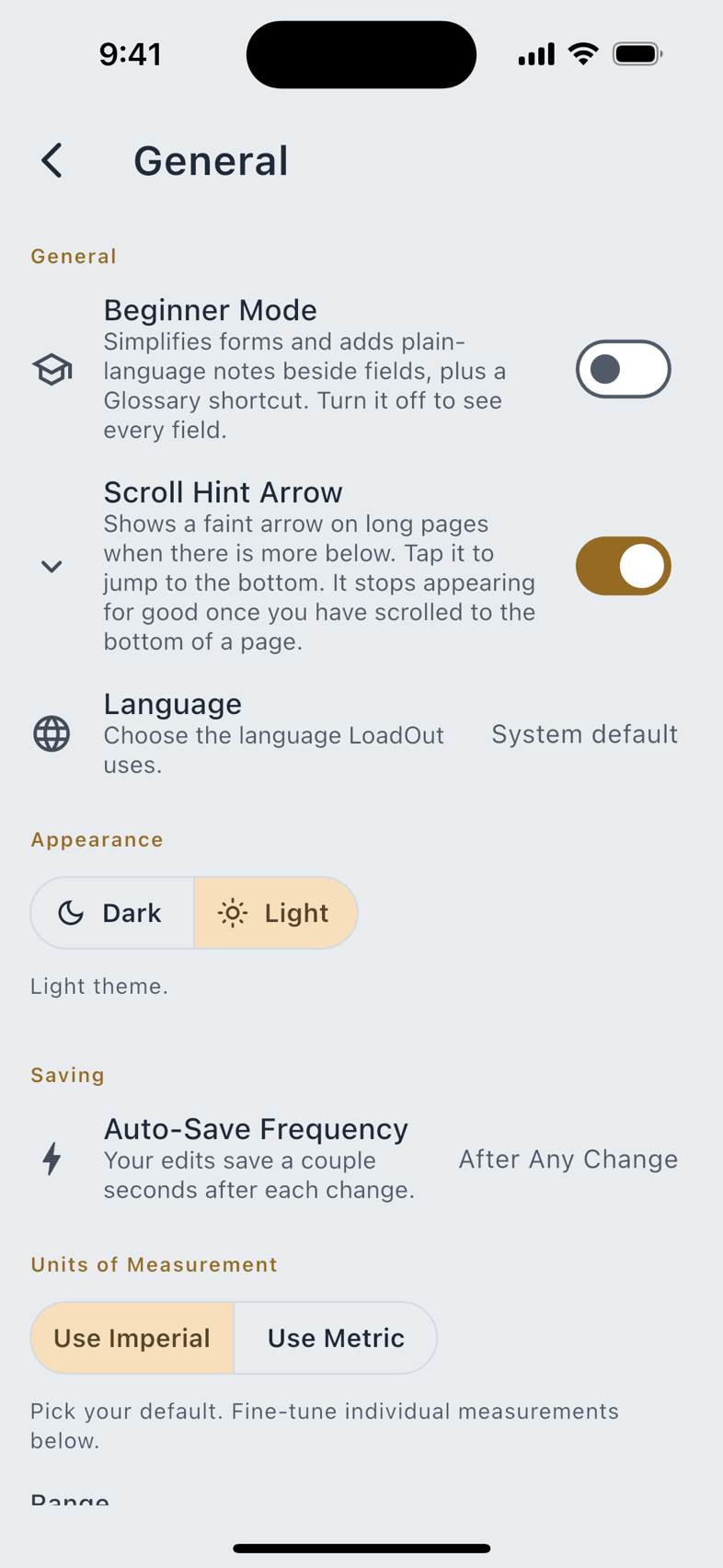
Settings › General holds four groups.
| Group | What is in it |
|---|---|
| General | Beginner Mode keeps forms simple and adds plain-language notes beside fields plus a Glossary shortcut. Scroll Hint Arrow puts a faint arrow on long pages when there is more below; it stops appearing for good once you have scrolled a page to the bottom. Language offers System default plus sixteen options. |
| Appearance | Two segments, Dark and Light. Dark is the LoadOut default. There is no automatic third mode. |
| Saving | Auto-Save Frequency: Off (saves only when you tap Done or Save), after any change, every minute, every 5 minutes, or every 10 minutes. |
| Units of Measurement | Use Imperial or Use Metric sets everything at once; the rows below let you mix. Changing the master switch resets the per-row choices. |
The rows beneath it are Range, Muzzle velocity, Drop & sight height, Bullet weight, Bullet diameter, Angle, Energy, Temperature, Wind velocity, Pressure and Altitude, each a row of unit buttons. Mixing is normal and supported. Metres for range with grains for bullet weight is a combination the app expects, and bullet diameter has its own inches-or-millimetres axis because a metric shooter thinks in millimetres for a bore.
Angle starts at MRAD even when you pick Imperial. Whether you dial mils or MOA is a shooter's preference rather than a property of the measuring system, and LoadOut's output reads in mils by default. Pick MOA and the choice is stored. Flipping the Imperial / Metric switch clears every per-row override, MOA included, so set it again afterwards.
Sixteen language options cover fifteen languages, because Portuguese appears twice, for Brazil and for Portugal. Switching language does not touch your data; the names you typed stay exactly as you typed them.
Account
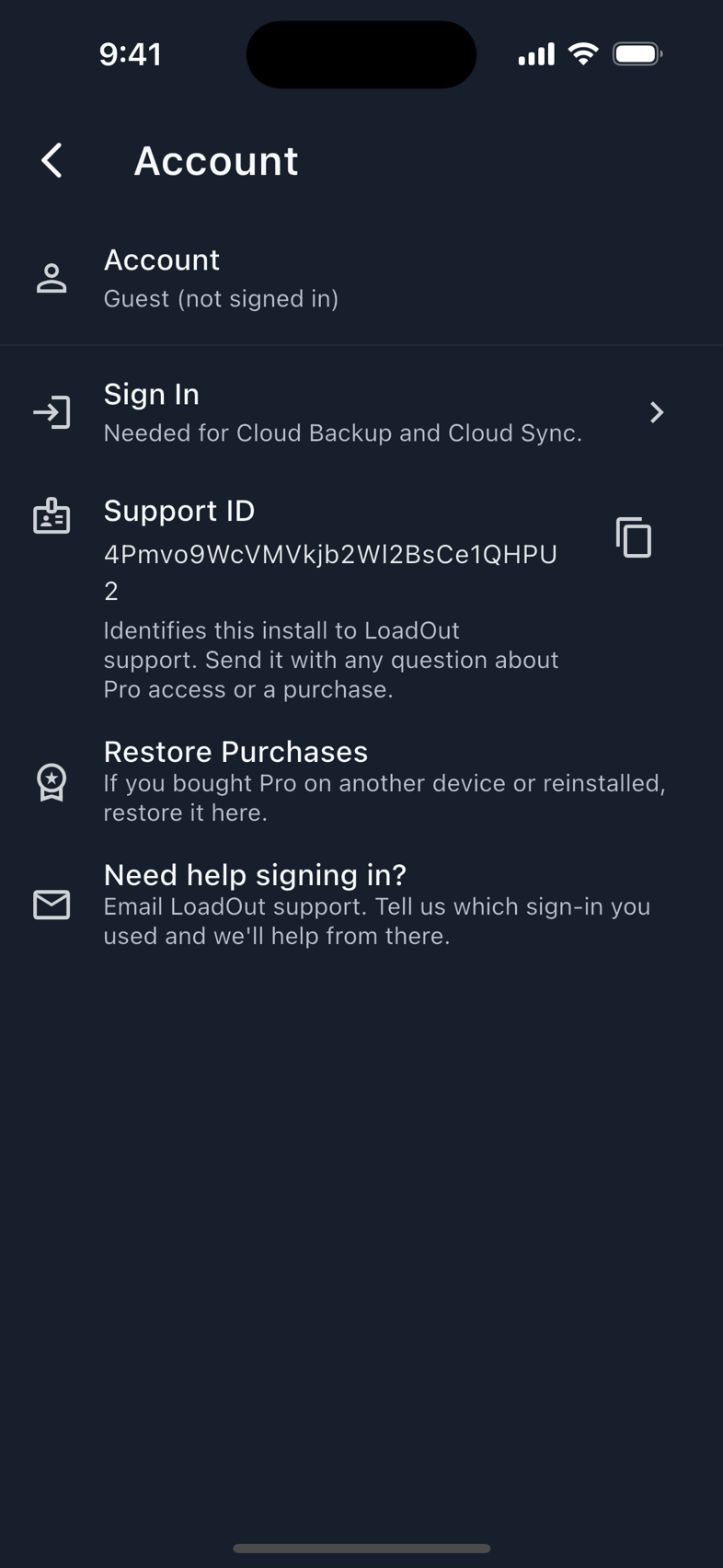
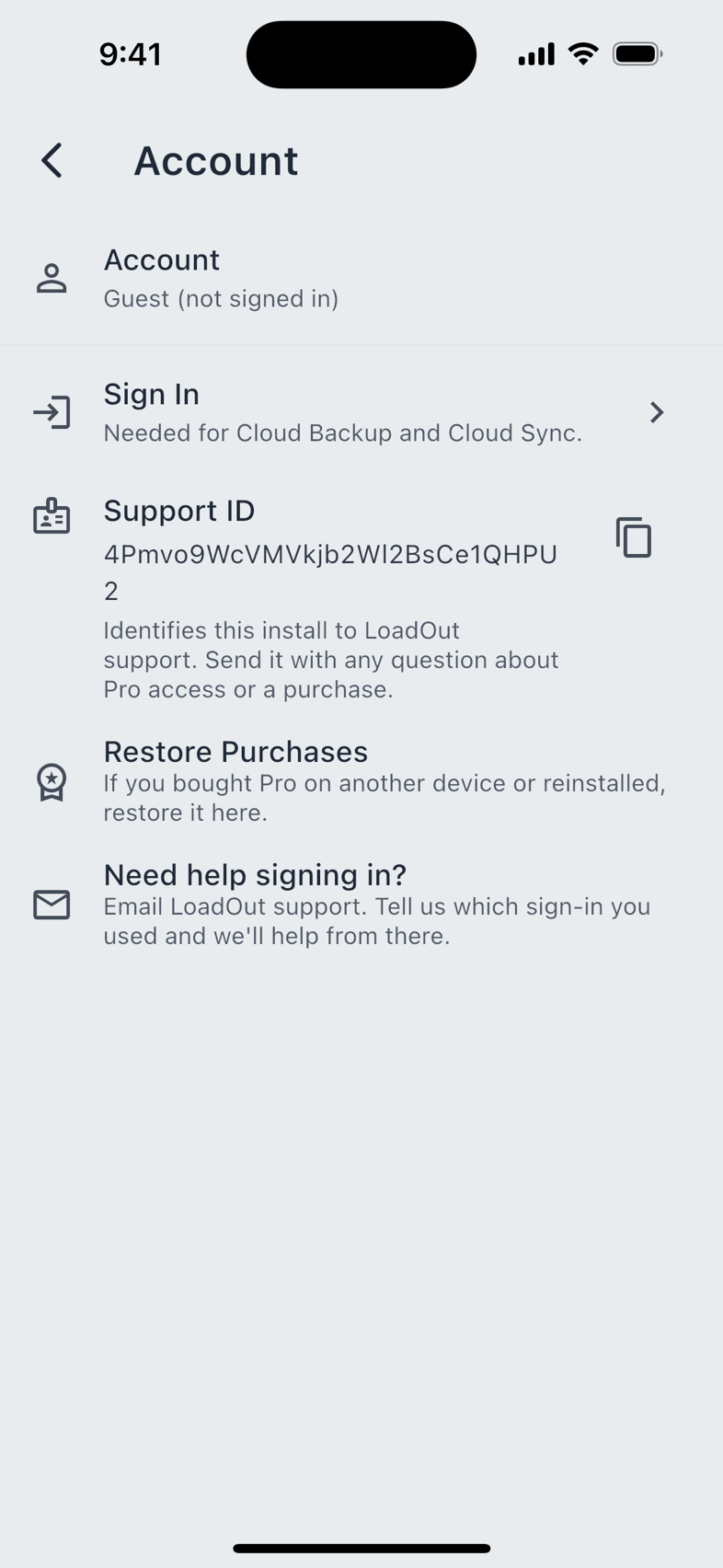
Settings › Account is short, because LoadOut needs no account. The top row reads either Guest (not signed in) or Signed in.
- Sign In means signing in to a cloud provider: Google, Apple or Microsoft. The only thing it buys is Cloud Backup and Cloud Sync, which is why the row says Needed for Cloud Backup and Cloud Sync, and why it is only offered to a guest who already has Pro.
- Sign Out signs out of that cloud account. Your local data stays on the device; nothing is deleted.
- Restore Purchases needs no account at all. It asks the store you bought from. Use it after a reinstall, or on a second device signed in to the same store account.
- Support ID is a copyable identifier for this install. It is deliberately shown to guests and to free users, because the person who most needs it is the one writing in about Pro access.
- Need help signing in? opens a mail draft to support.
Pro itself is tied to your store purchase. Signing in links that purchase to your identity, which is how Pro follows you from an iPhone to an Android tablet.
Connected Devices
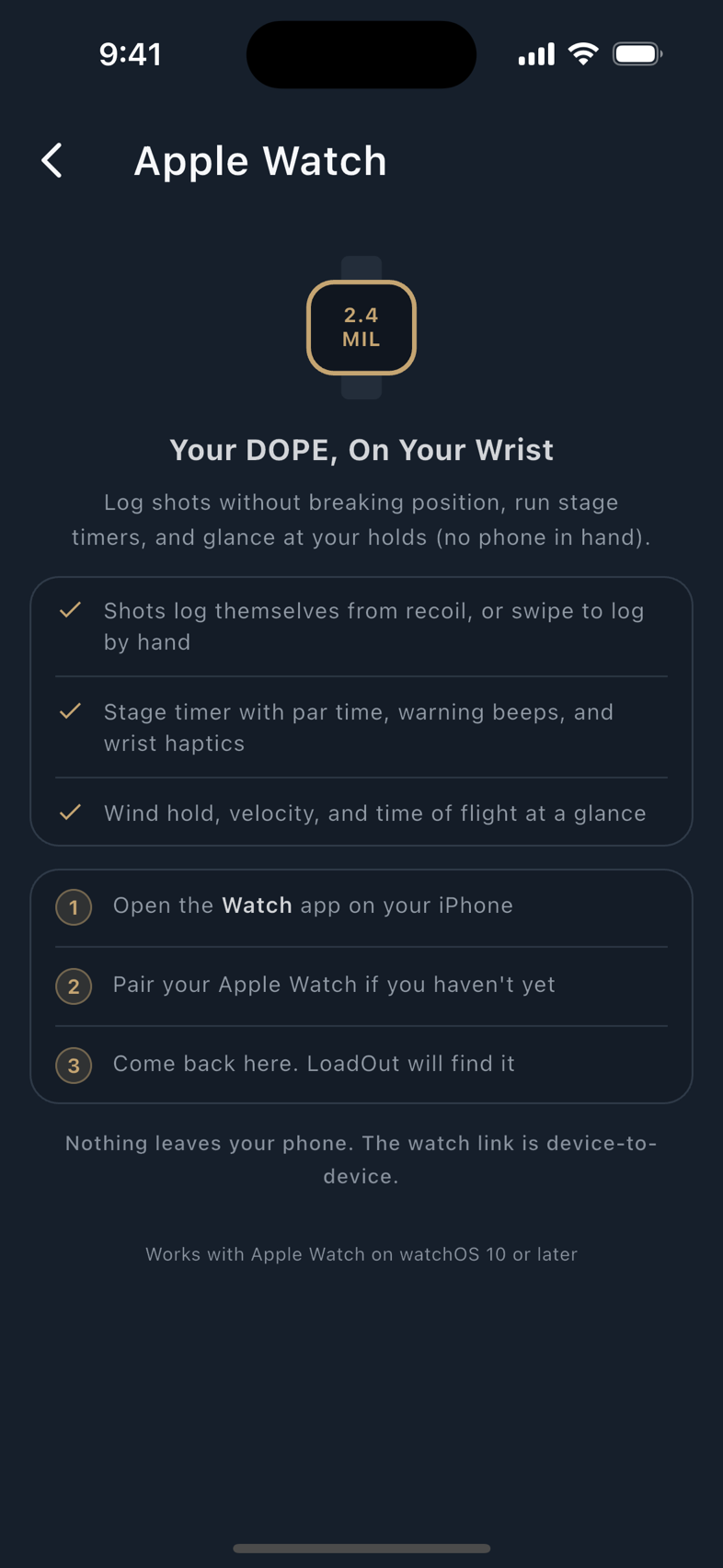
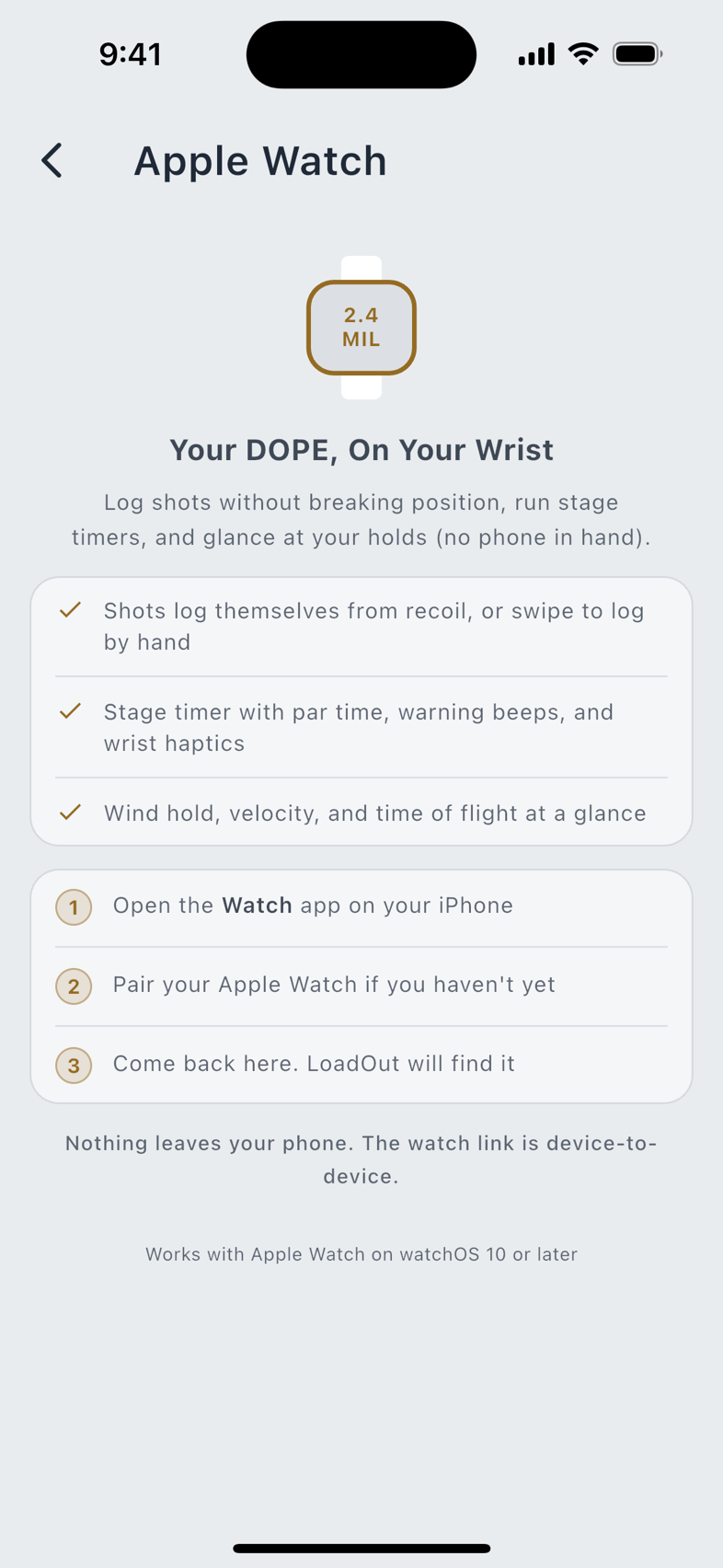
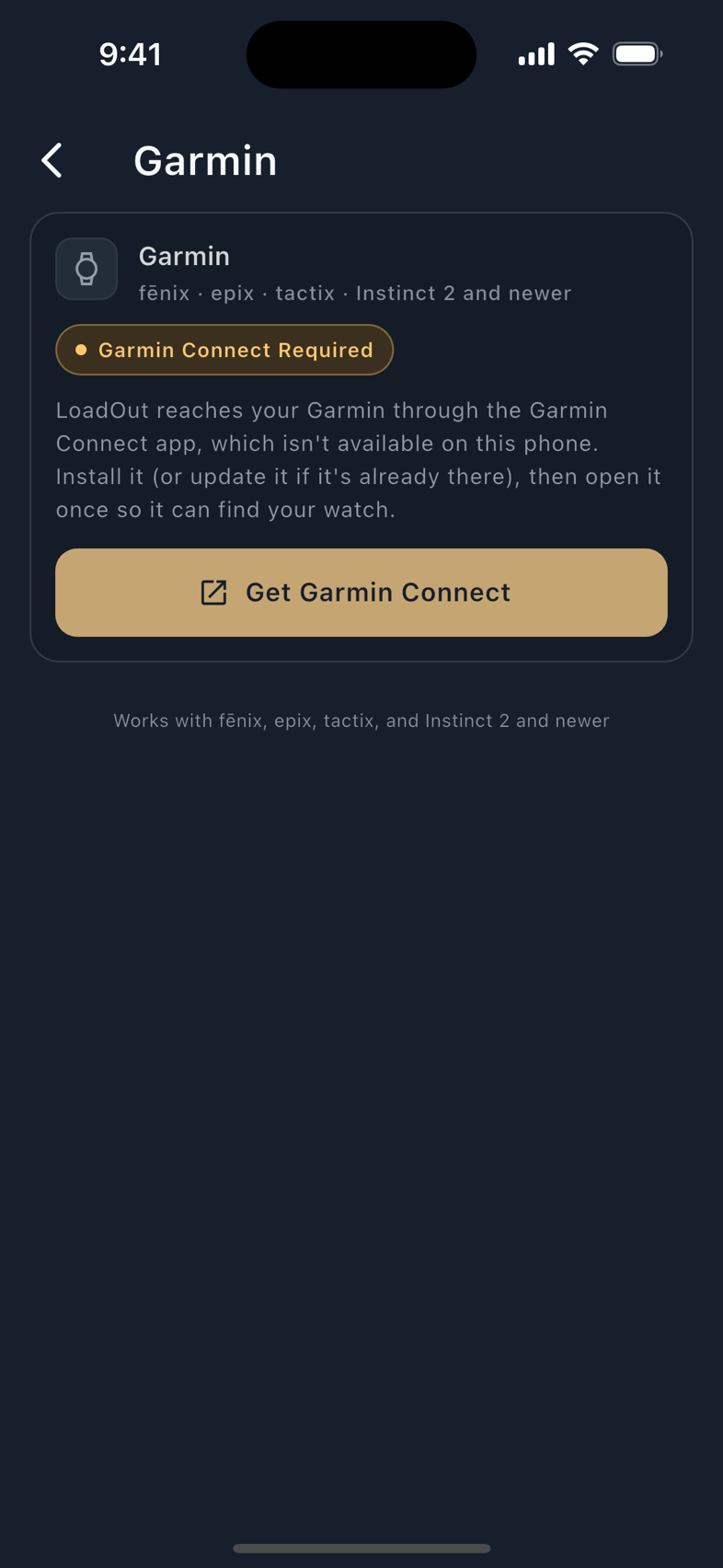
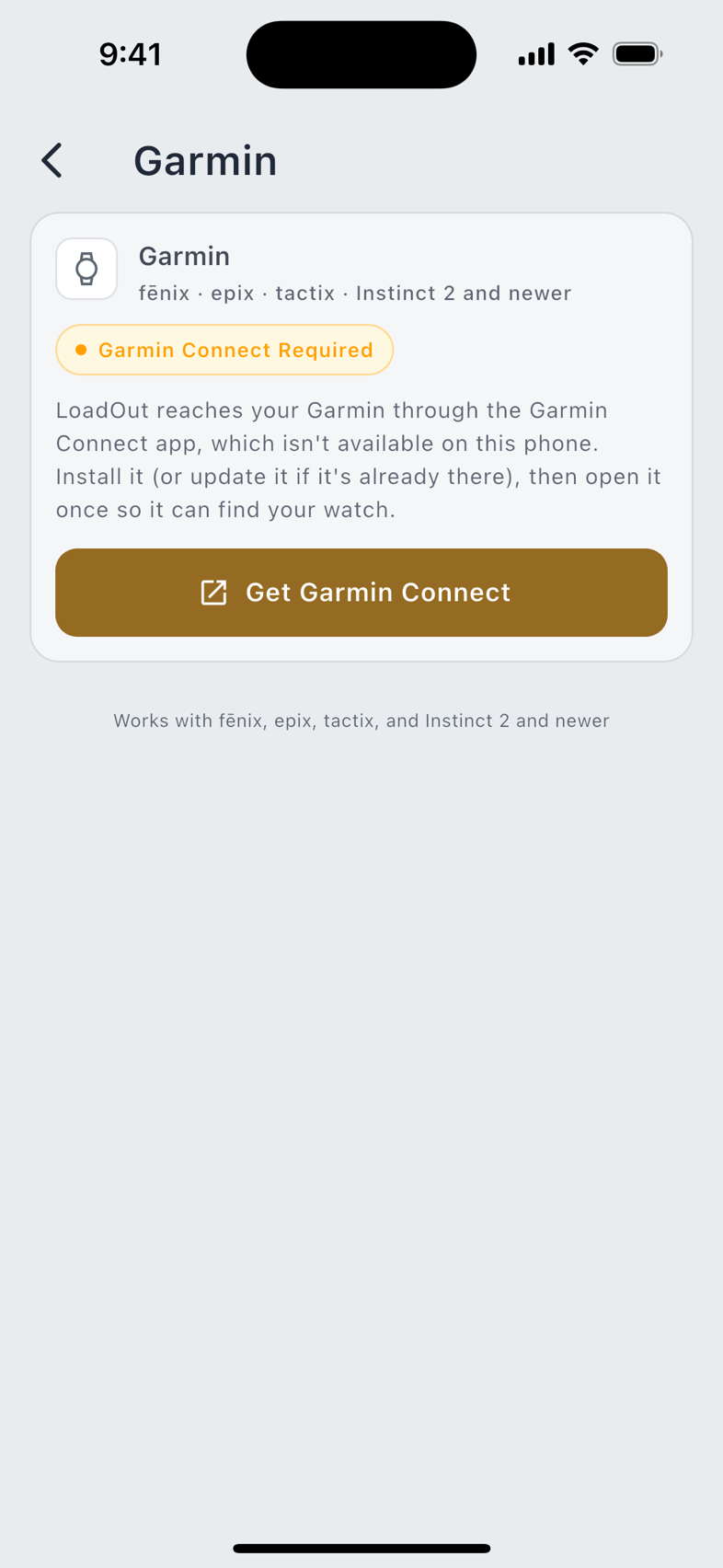
Three sub-headers: Weather Meters (Kestrel Weather Meter and WEATHERmeter), Shot Timers (SG Timer), and Watches. Pairing, capture, and what each device sends are covered in Connected Devices; the watches themselves in Companion Watches.
Each watch gets its own page, one for Apple Watch, Wear OS and Garmin, and the settings on it are per watch. Every page carries the same four groups.
| Section | Controls |
|---|---|
| Shot Capture | Detect Shots Automatically, and a sensitivity slider. The number on the slider is the real recoil threshold in g that the watch measures against, so a lower number catches lighter recoil. With detection off, in the Manual mode, the wrist gains a Log Shot control on the holds page it lands on while a capture is running, and that becomes the only way a shot is logged. Nothing is swiped: no watch has a swipe-to-log gesture. |
| Stage Timer Defaults | Par Time, Start Delay, Warning Beeps, Quiet Mode, Haptic Strength (Light, Standard, Strong), Shot Confirmation (Haptic, Sound, Both, Off), and Keep Screen Awake. |
| Glanceable DOPE Preferences | Hold Units (Mil or MOA), then the three optional rows: Show Wind Hold, Show Velocity, Show Time of Flight. The face fits three rows; elevation always shows and you pick the other two. Under Landing Page Controls, Show Wind Adjuster and Show Target Stepper hide controls rather than numbers. The hold stays wind-corrected either way, and hiding a row makes the elevation and windage numbers larger. |
| Voice | On a watch that can ask the phone a question: Answer on This Watch, and under Spoken Output, Read the Next Target After a Shot. |
These settings save even when the watch is not connected, and apply the moment it is. If you change several on one watch, LoadOut offers once, as you leave the page, to copy that visit's changes to your other watch.
Voice & AI
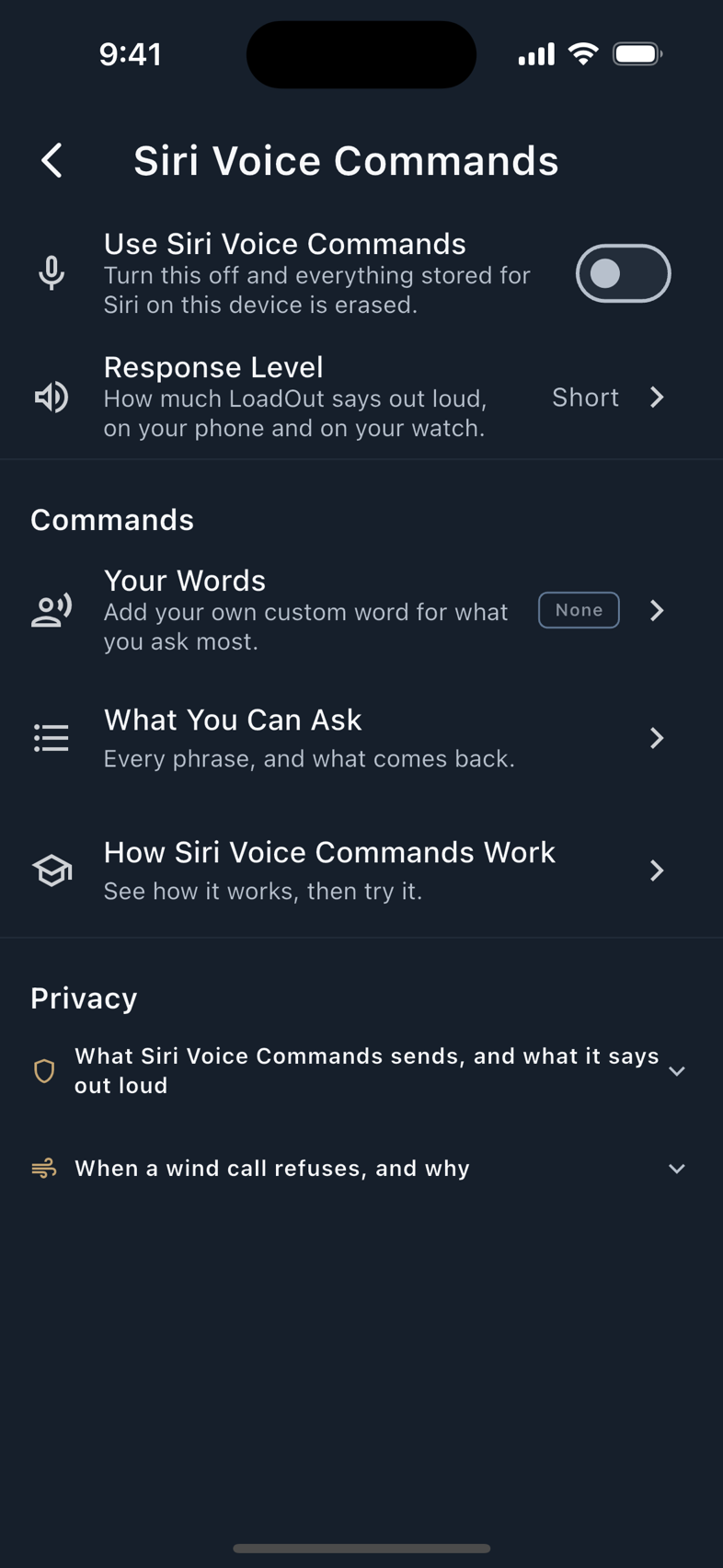
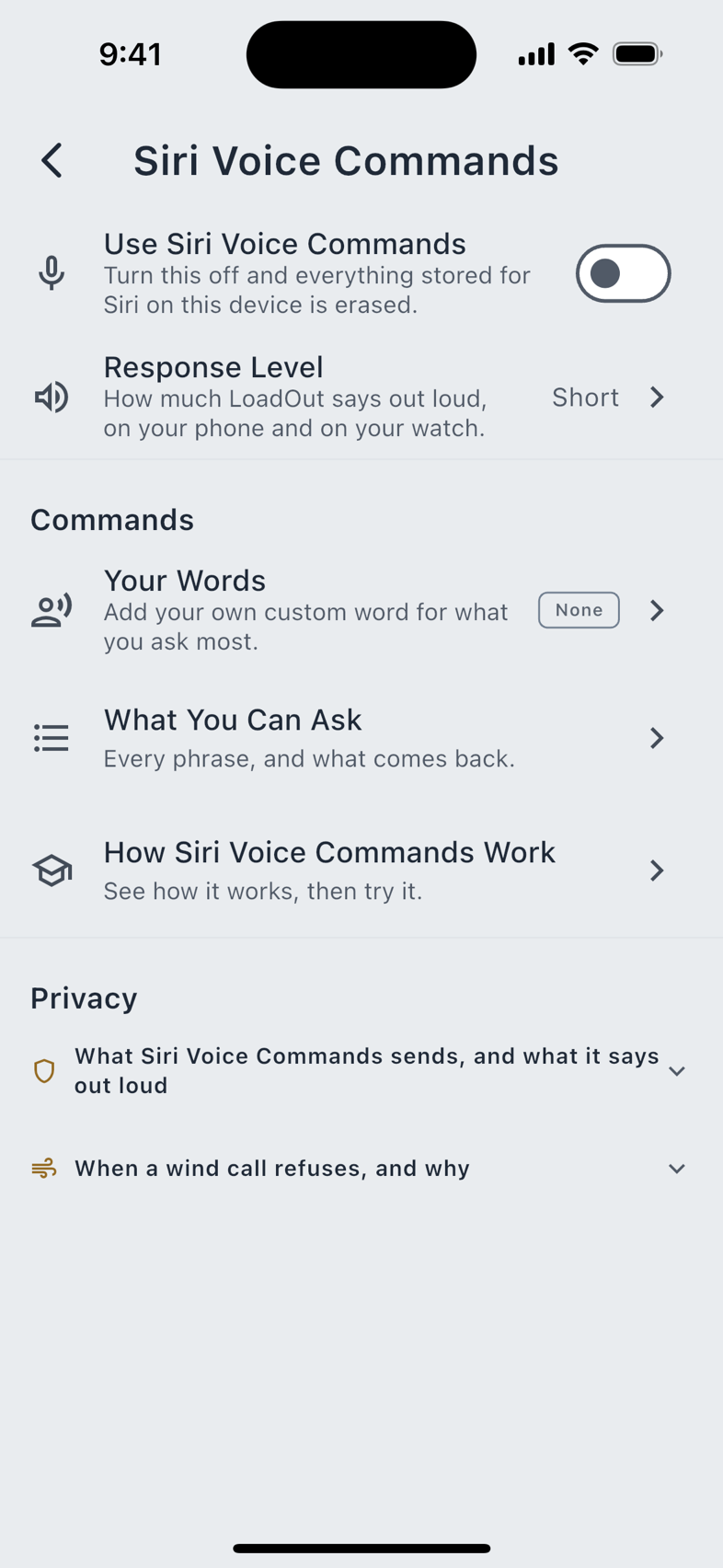
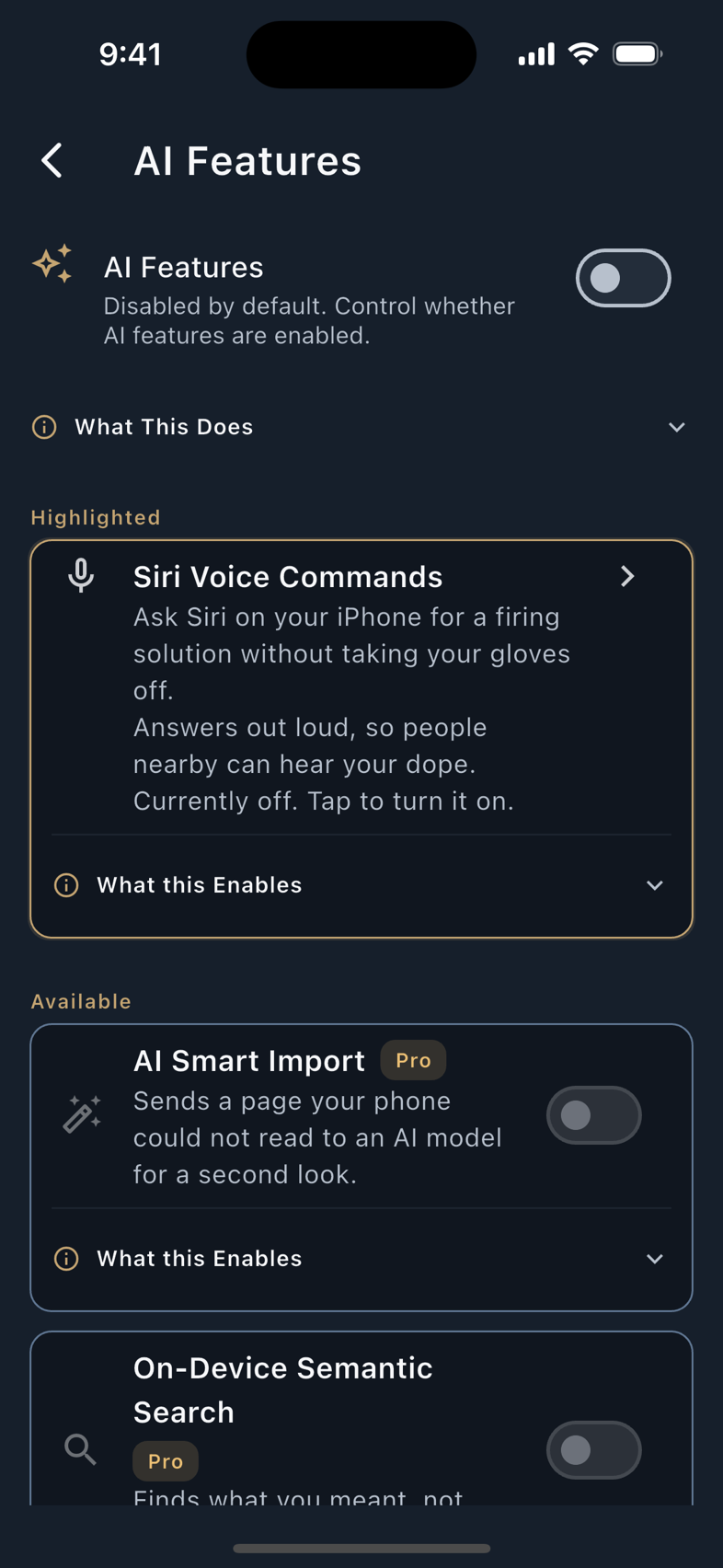
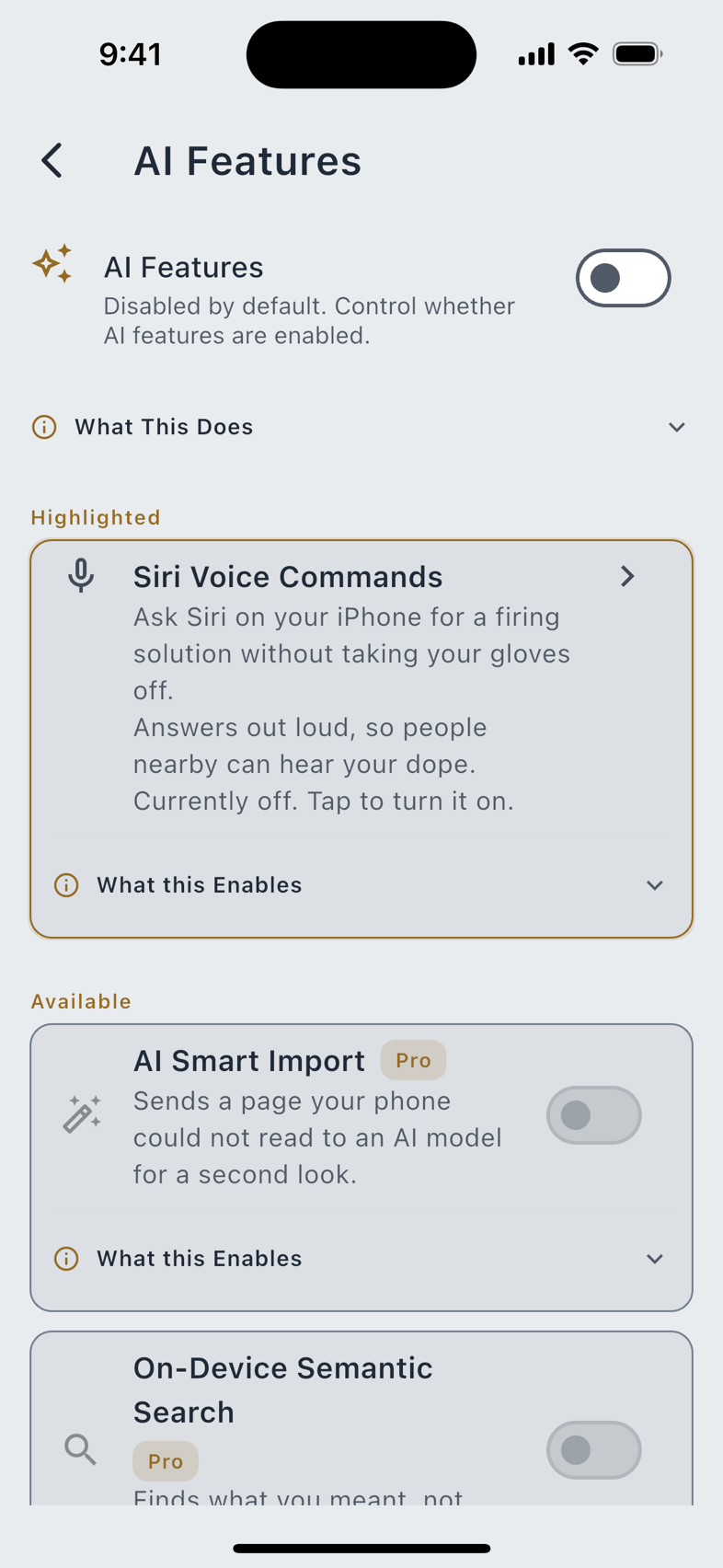
Three rows: Siri Voice Commands (called Voice Commands on Android), Spoken Output, and AI Features. Siri Voice Commands exists on iPhone, iPad and Apple Watch only, not on the Mac and not on the web. The AI Features switch is off on a new install, and every feature under it stays off until you turn that master on and then turn the feature on. Voice & AI is the chapter.
Cloud Sync and Backup
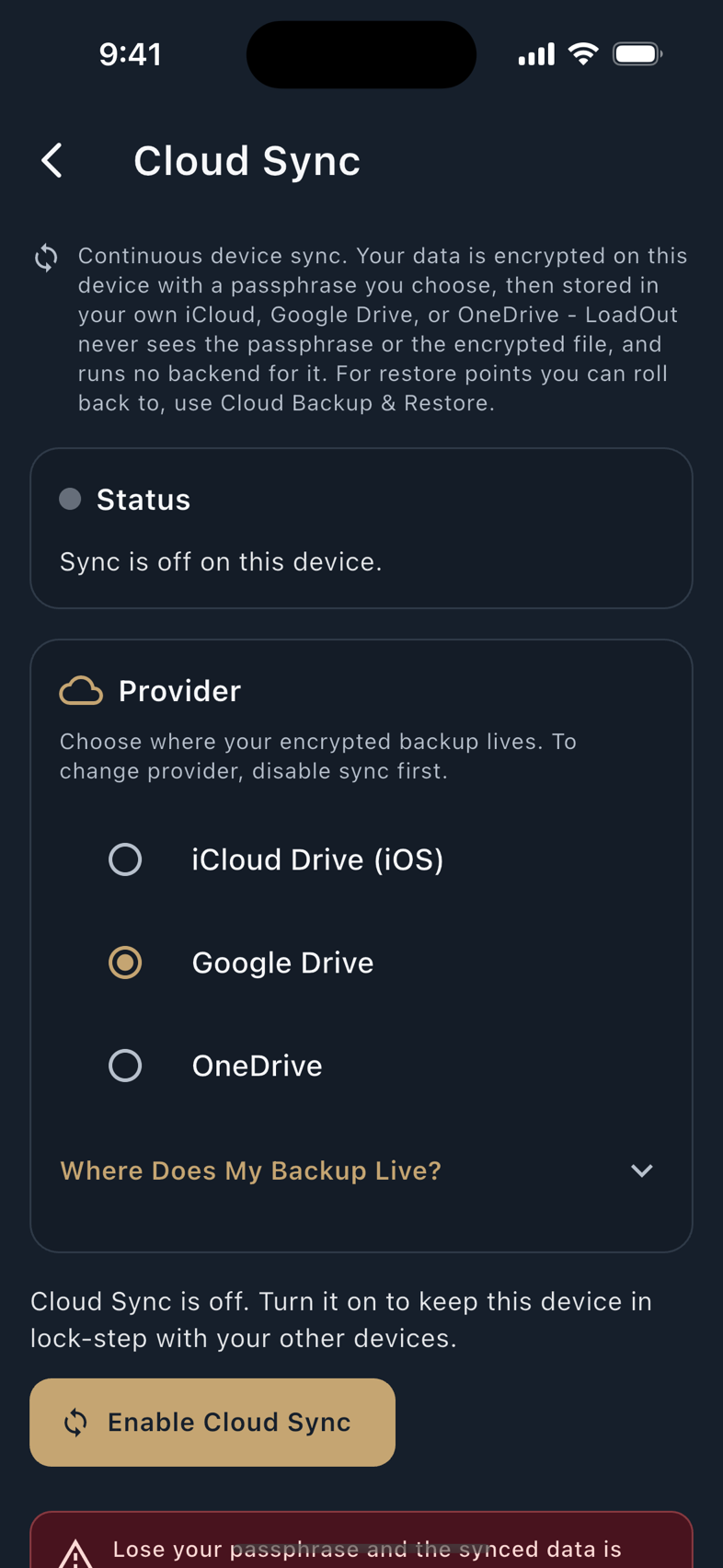
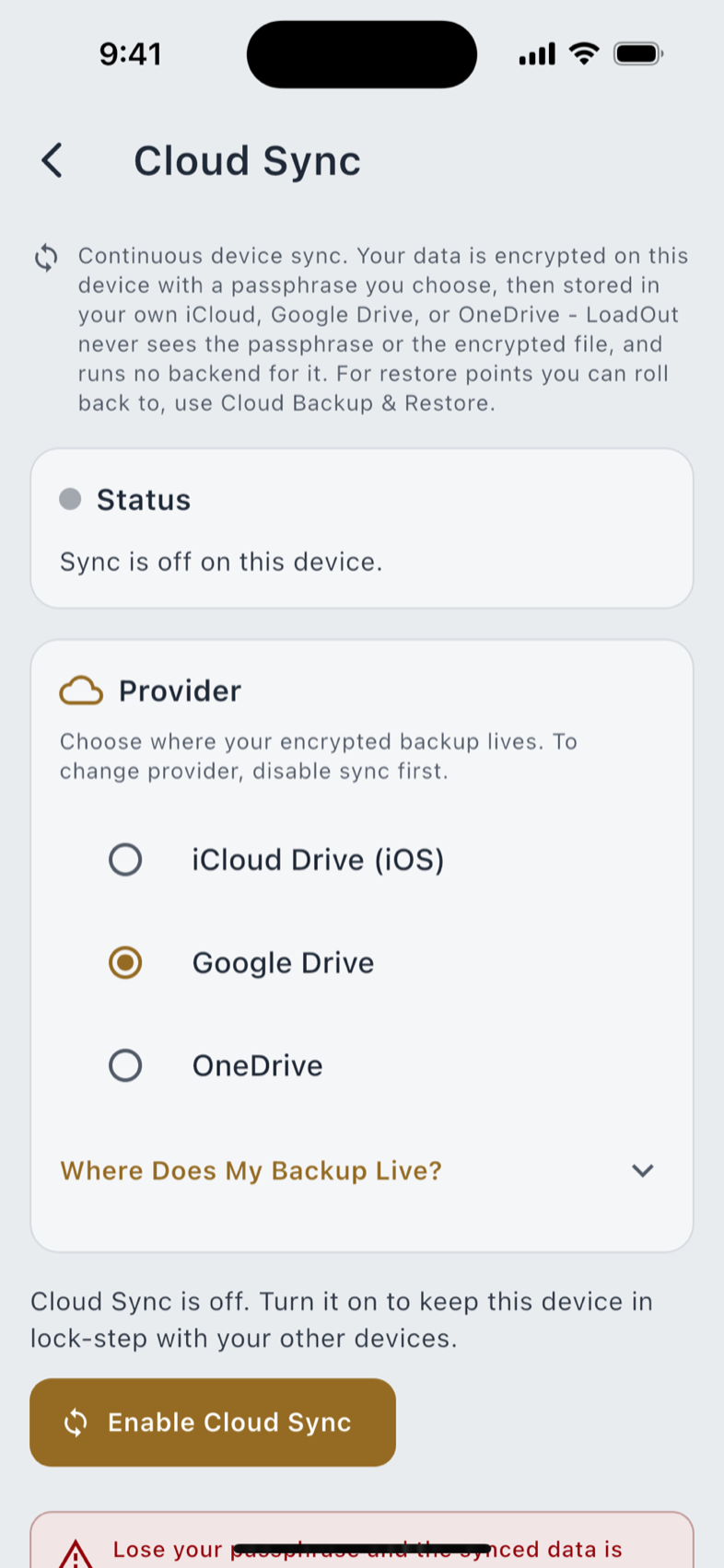
Cloud Sync Pro keeps your devices in step automatically; Cloud Backup & Restore Pro makes encrypted restore points in your own iCloud Drive, Google Drive or OneDrive. Both are also reachable from the Import & Export hub. Setting a passphrase, restoring, and what happens when two devices disagree are in Cloud Backup & Sync.
Privacy & Data
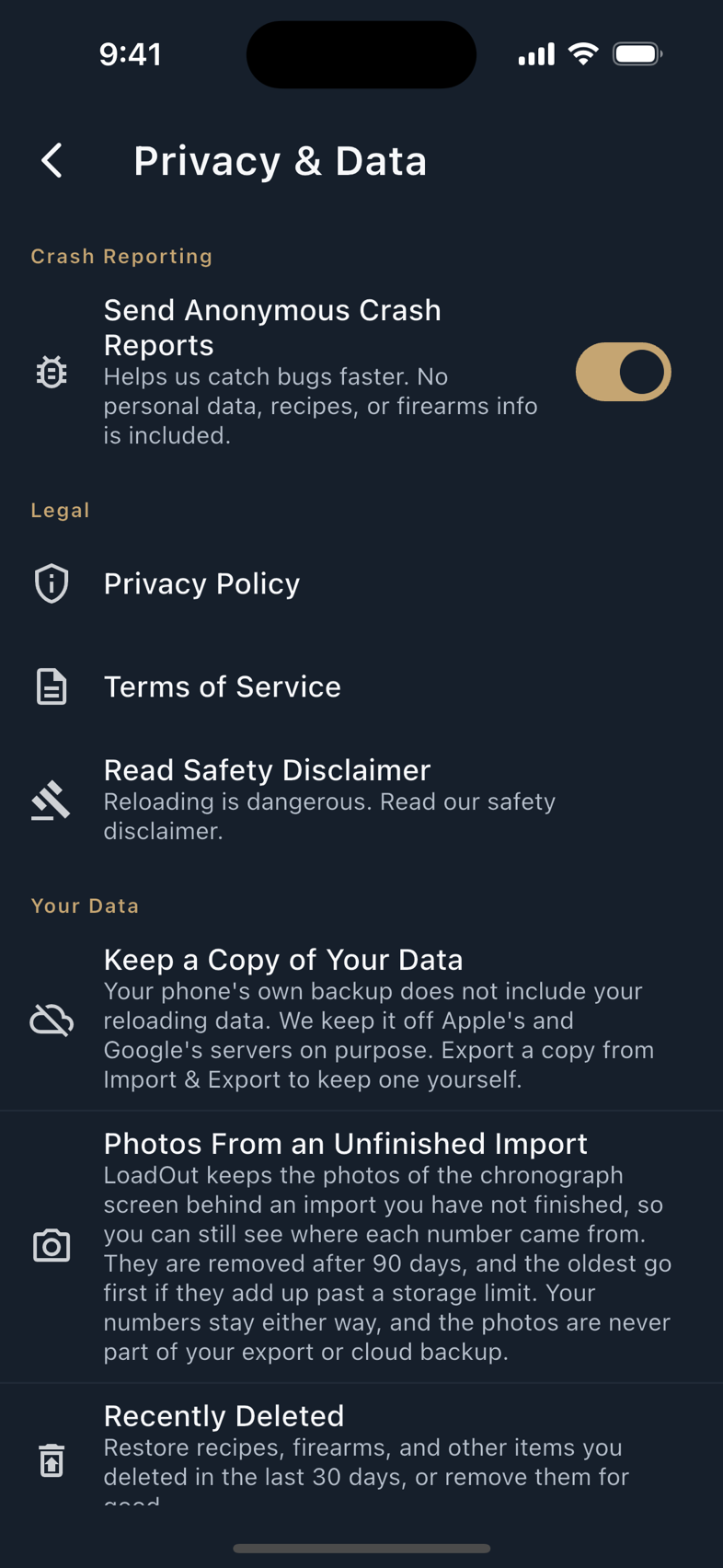
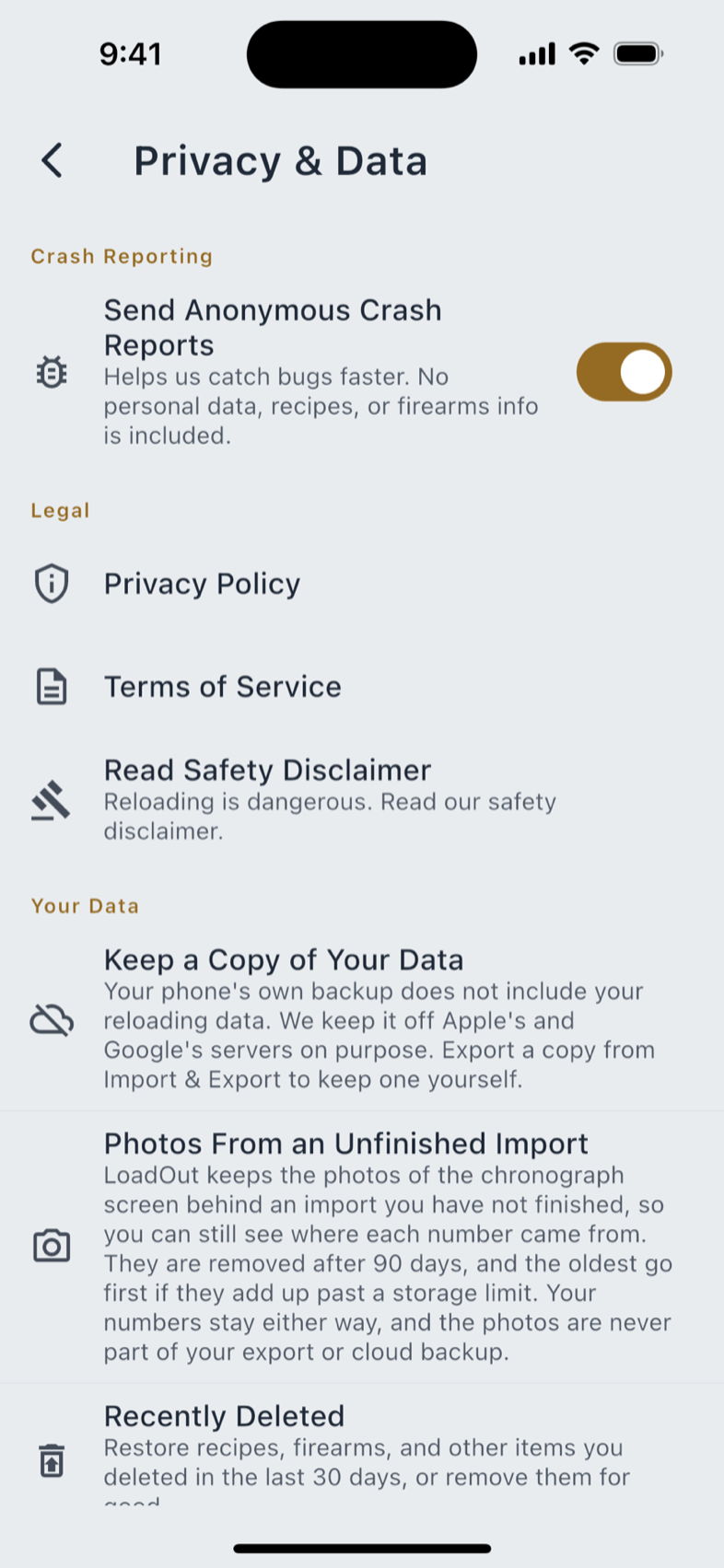
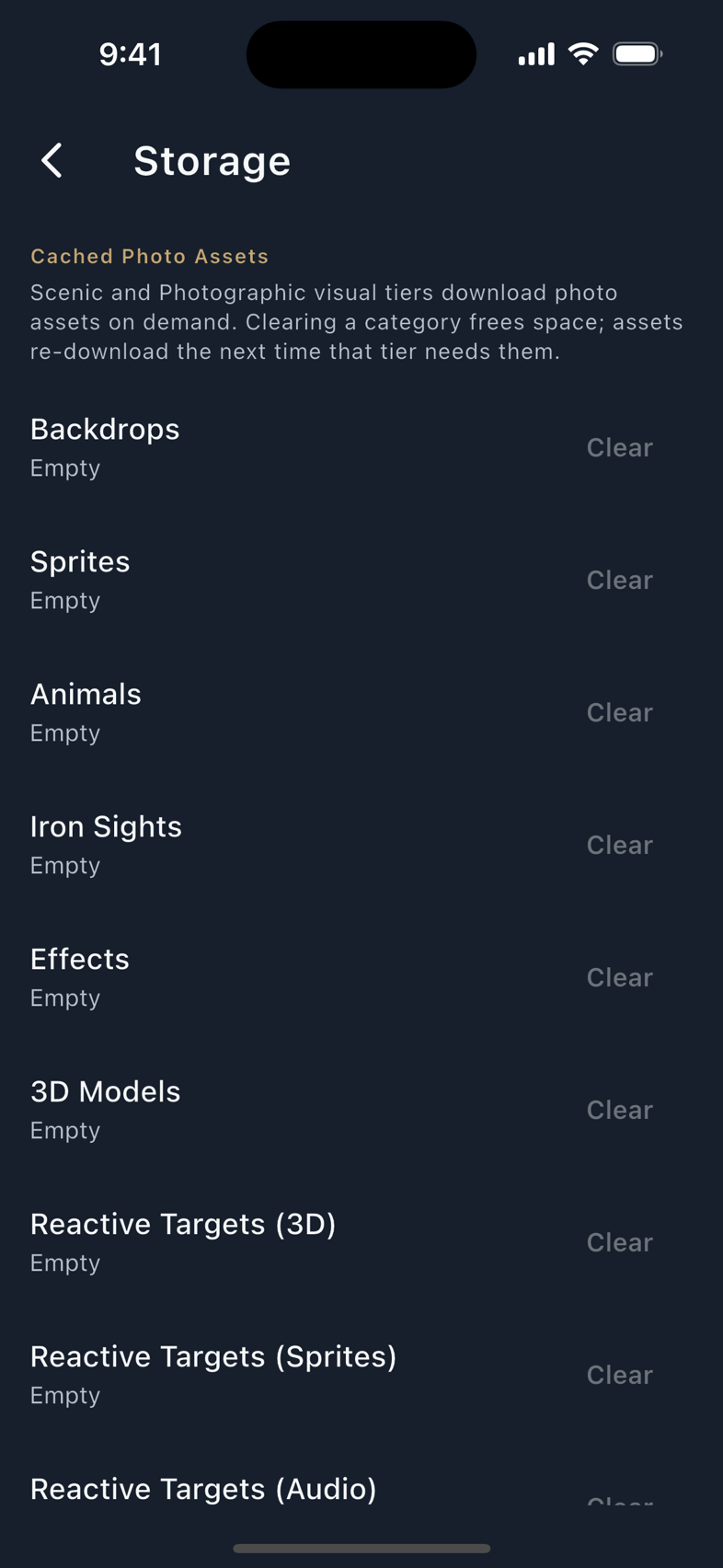
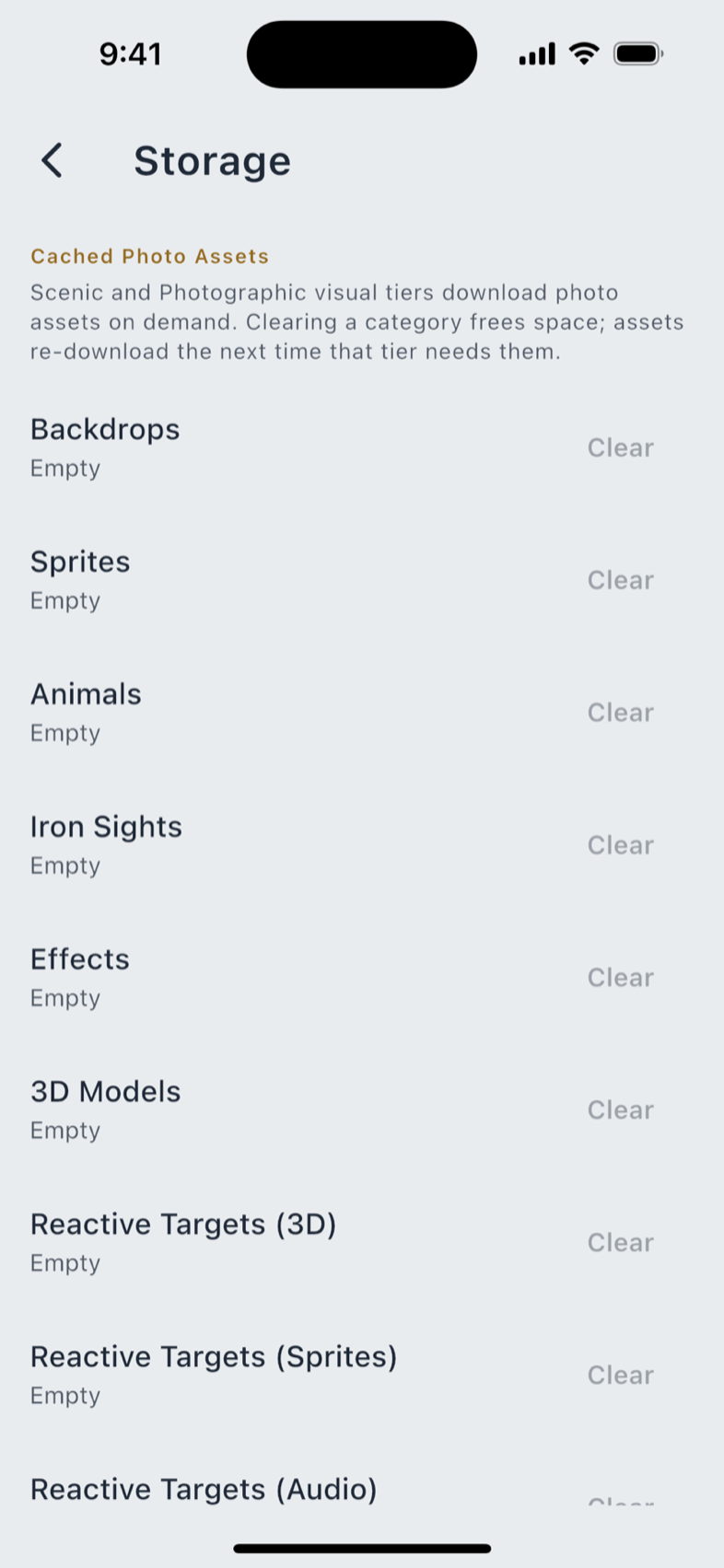
Four groups on one screen: Crash Reporting, Legal (Privacy Policy, Terms of Service, Read Safety Disclaimer), Your Data (Keep a Copy of Your Data, Photos From an Unfinished Import, Recently Deleted, Reset This Device, Delete My Account & All Data), and a Storage row beside it for clearing cached photo assets the Scenic scene downloads. The next chapter, Privacy & Your Data, walks all of it.
Reloading, Layouts and Custom Fields
The Reloading section holds two rows.
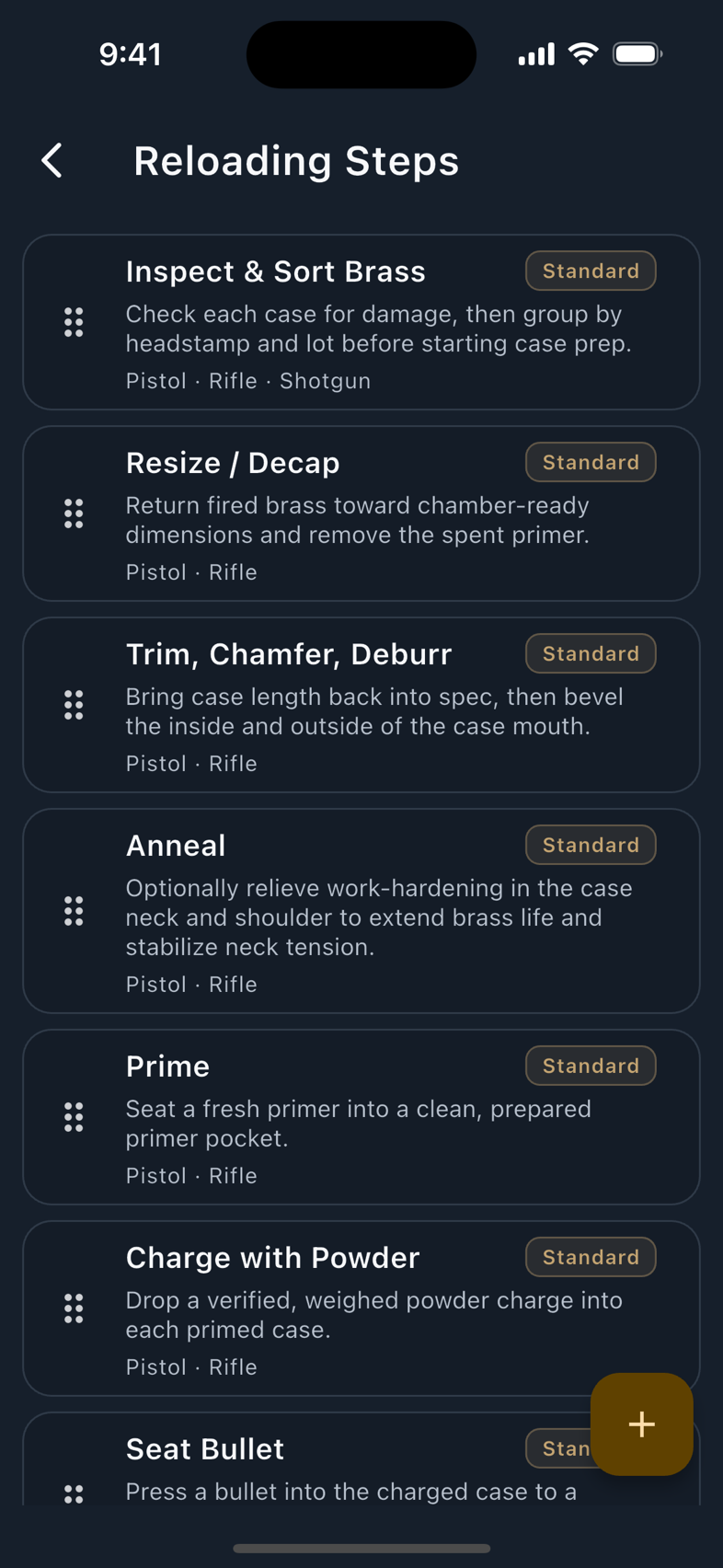
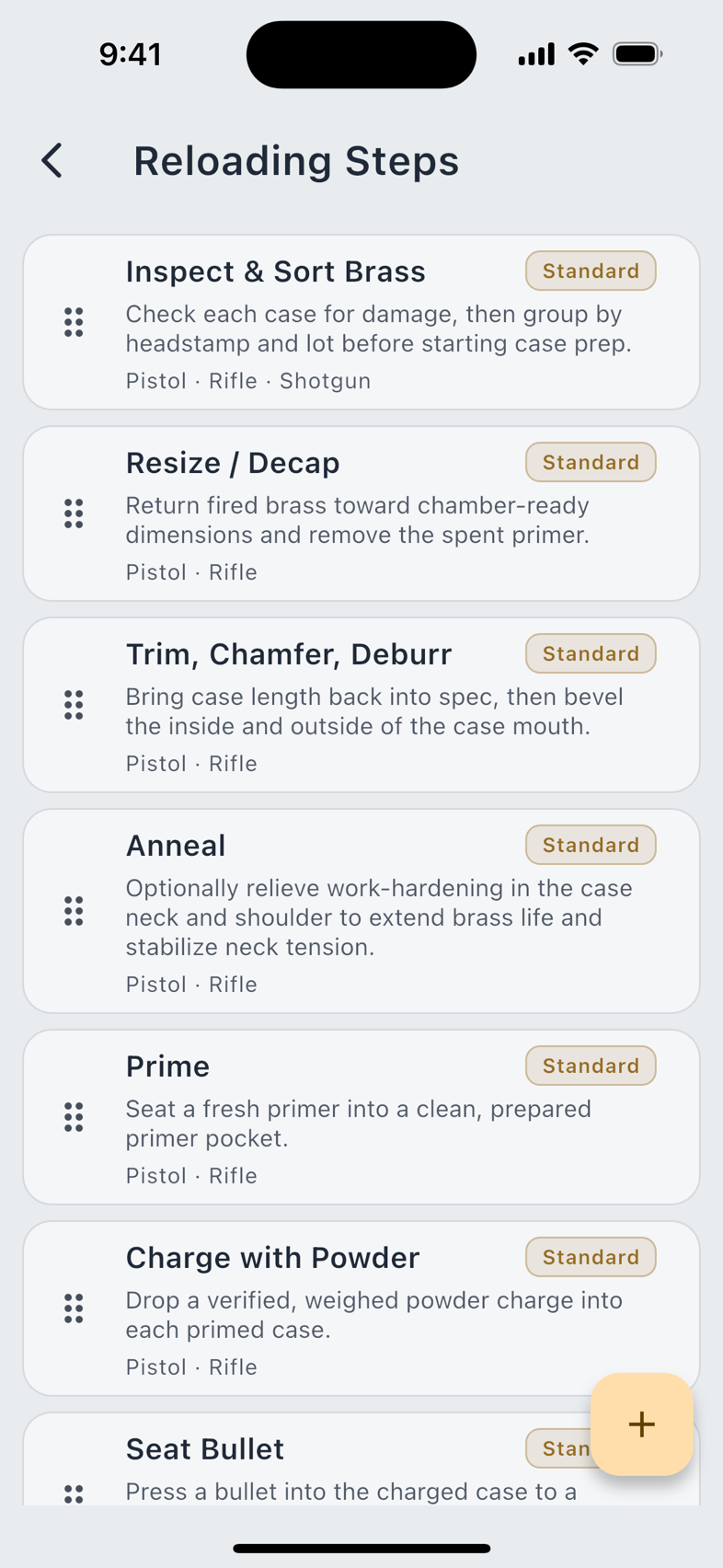
Reloading Steps is your own process checklist: the steps you actually perform, in your order, each marked for whether it applies to pistol, rifle or shotgun. A step that is not applied to any caliber is flagged rather than silently ignored.
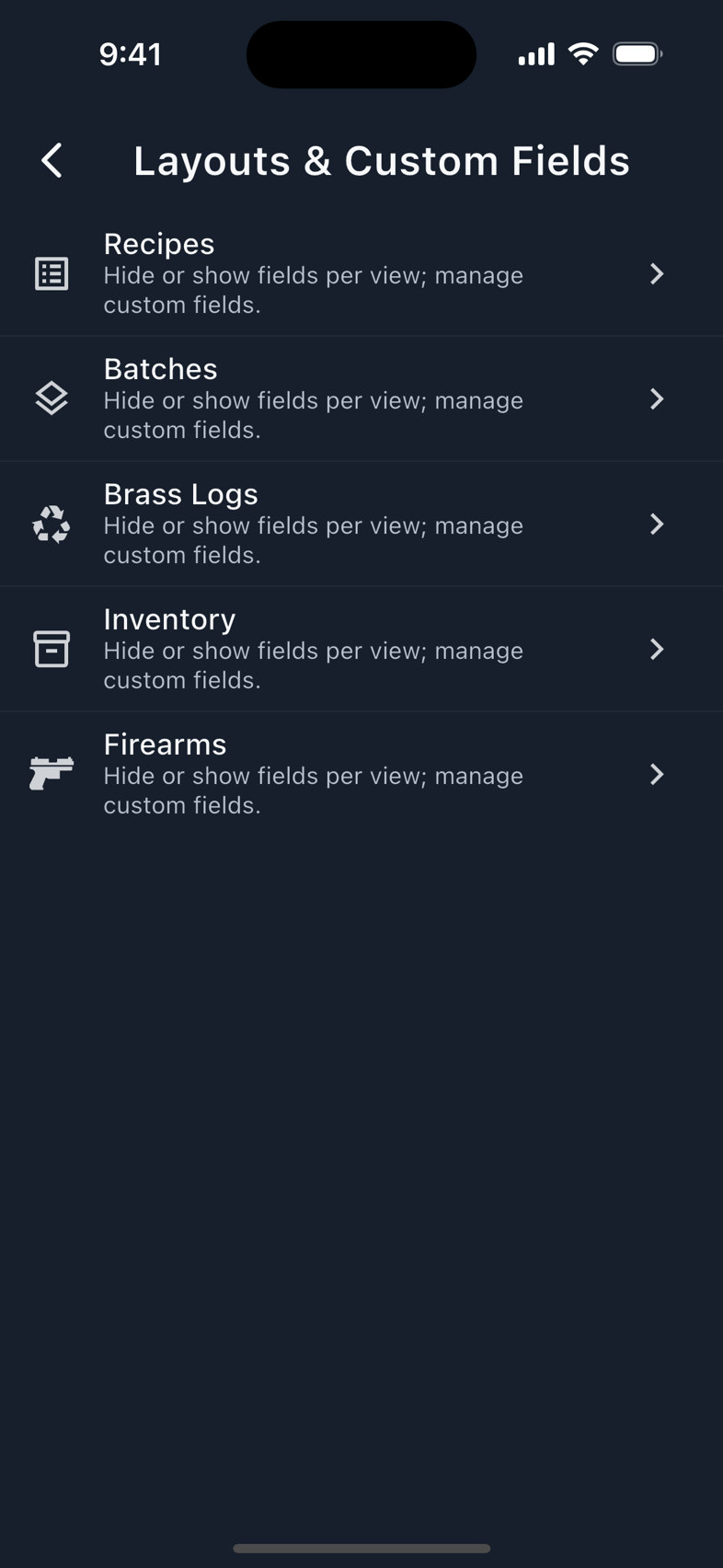
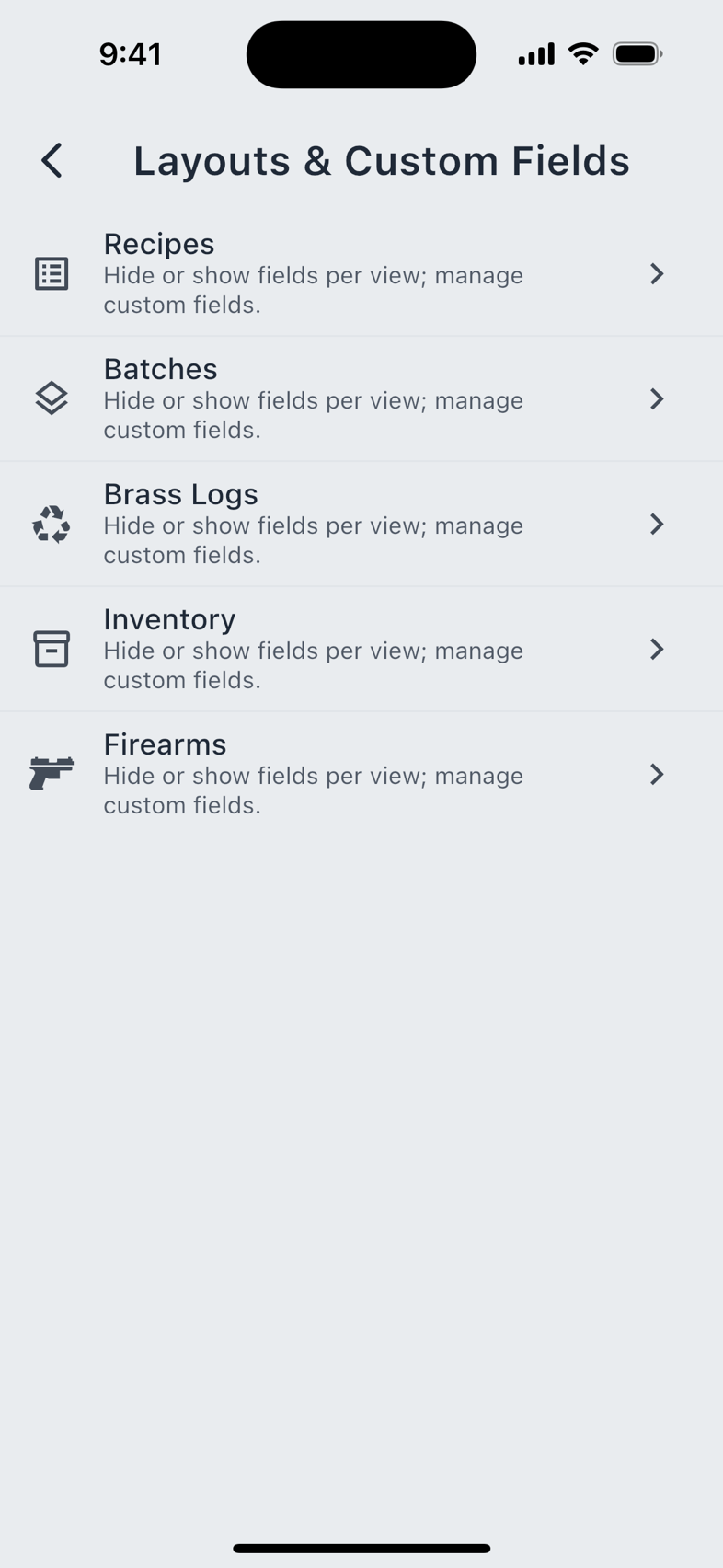
Layouts & Custom Fields opens a chooser with a row for each of the five records that has a customizable form: Recipes, Batches, Brass Logs, Inventory, Firearms. Each row leads to that record's layouts page, which has three parts.
- Standard. Free The per-view editor: hide or show fields in each view, and add, rename or remove custom fields. Free accounts get three custom fields per record type.
- Custom Layouts. Pro Build your own saved layouts: reorder fields, rename them, and group them into sections of your own. Create as many as you like and switch the active one from this page.
- Quick Add. Listed, and deliberately not customizable, because Quick Add uses a fixed field set so it stays the fastest way in.
Components
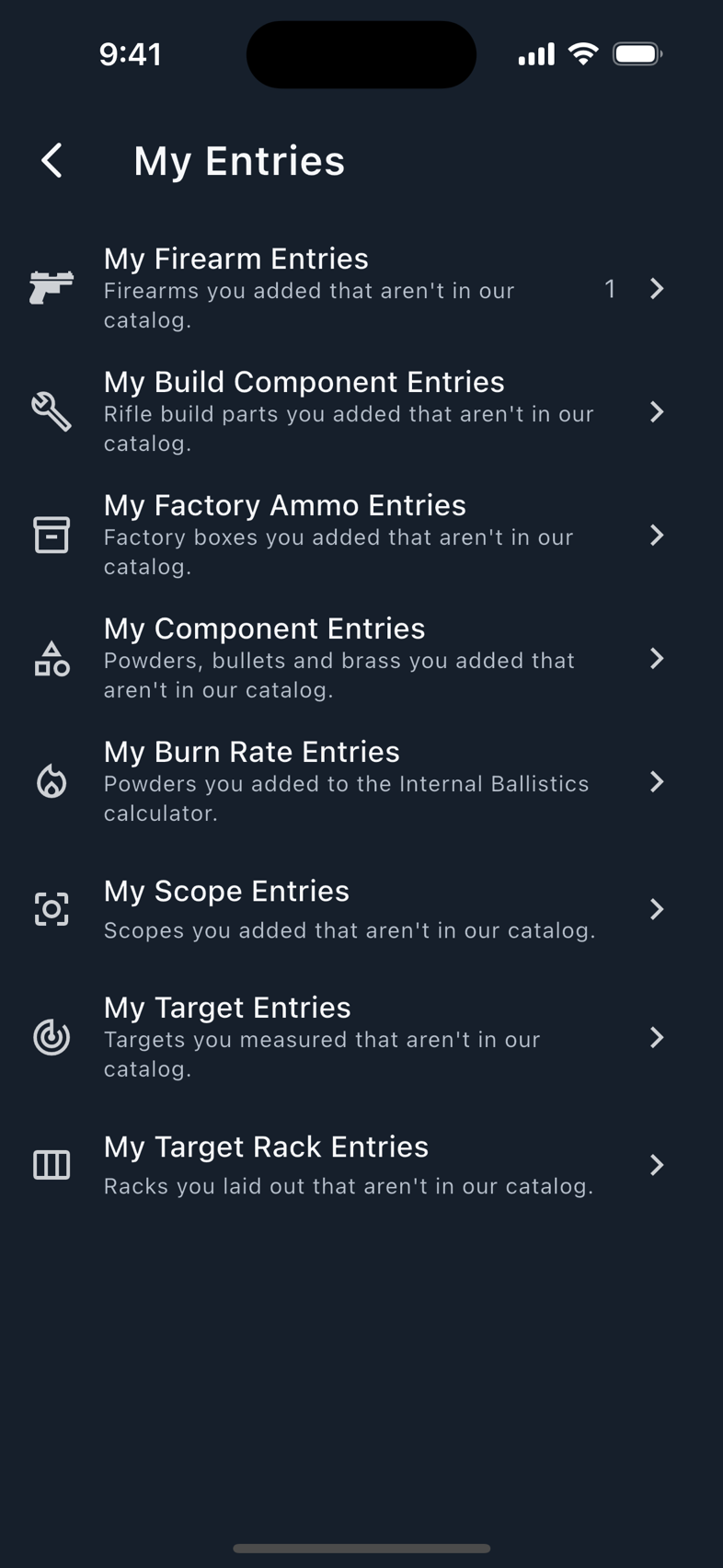
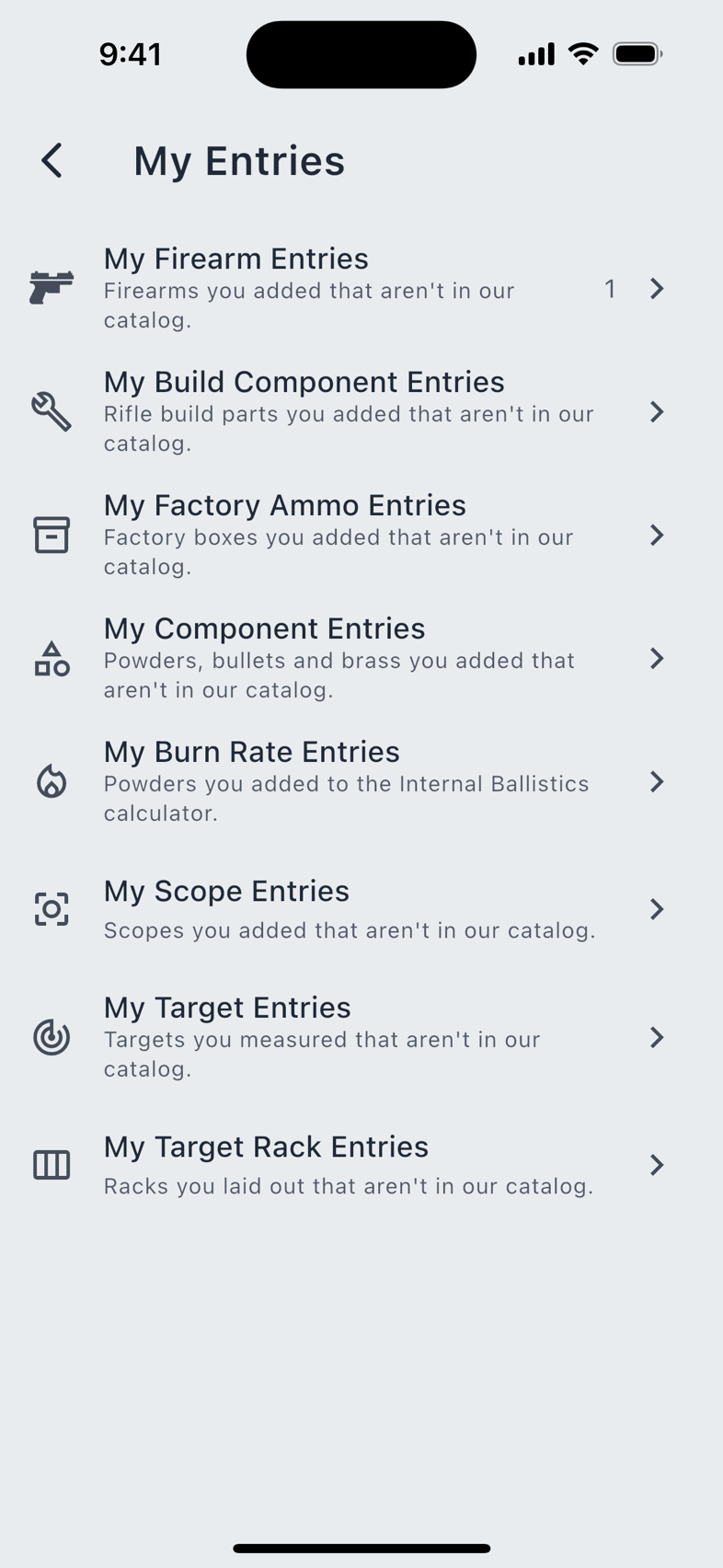
One row, My Entries, subtitled everything you added that isn't in our catalog, and it appears only once you have added something. It opens a hub listing each register with a live count: firearm entries, build components, factory ammo, components, powder burn rates, scopes, targets, and target racks. A register you have never used stays listed but shows no count.
A reference-catalog update replaces the shipped catalog tables only. Your own entries live in separate tables and are never overwritten, merged, or renamed by an update.
Ballistics & Range Day
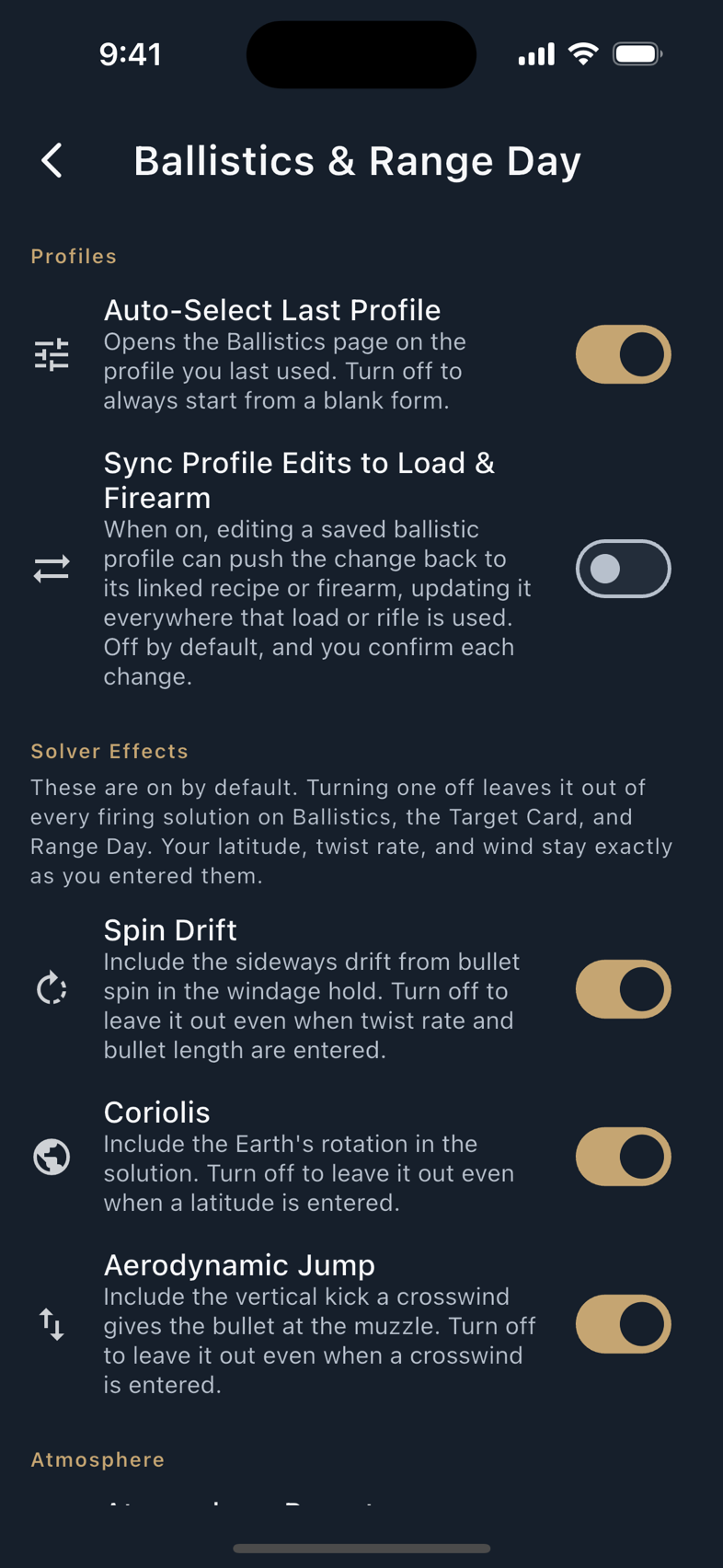
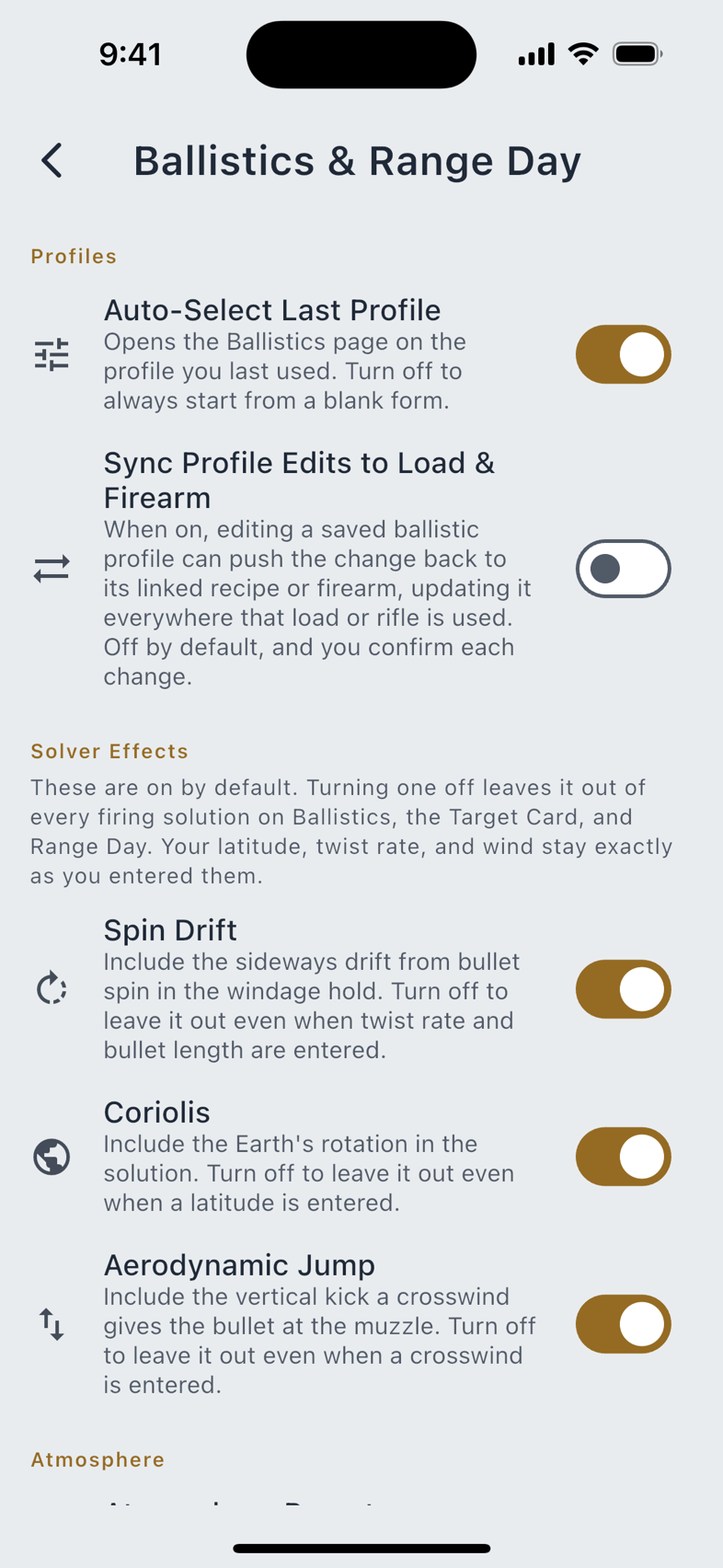
Four groups: Profiles (Auto-Select Last Profile, which opens Ballistics on the profile you last used, and Sync Profile Edits to Load & Firearm, off by default and confirmed per change), Solver Effects, Atmosphere (the door to your named atmosphere presets), and Scope View & Scene.
Solver Effects are on by default. Turning one off leaves it out of every firing solution on Ballistics, the Target Card and Range Day, and, as the screen says, your latitude, twist rate and wind stay exactly as you entered them.
Mover Presets
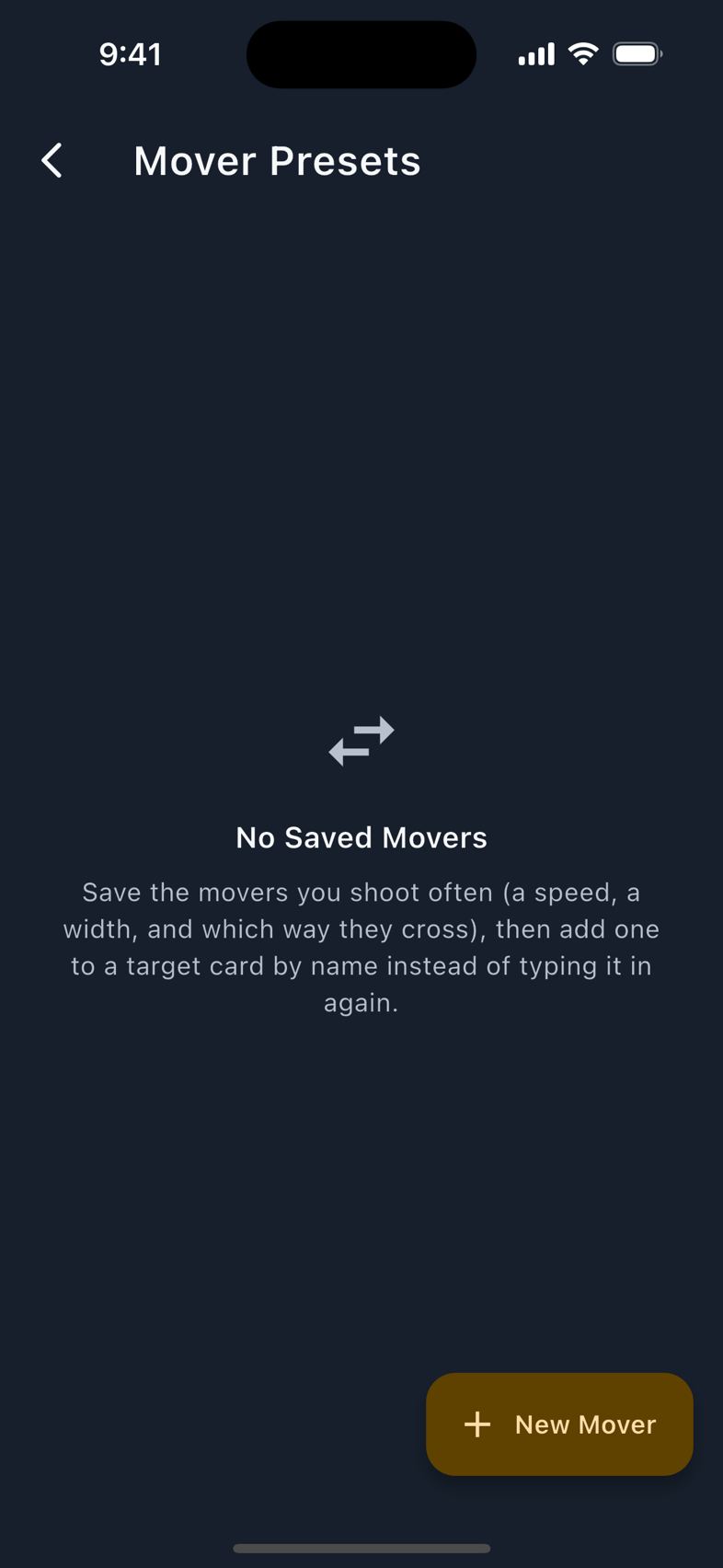
The movers you shoot all day, saved once and recalled by name. A preset carries a name, a crossing speed, a target width, a travel direction, a hold reference and notes. Authoring presets is free; the lead columns they feed are part of the Moving Target trainer Pro.
Two behaviours are worth knowing before you save one. Speed is required: a crossing preset with no speed cannot produce a lead, so Save stays disabled until you type it. Width is optional and starts empty, because no target width is derivable from anything the app knows; a preset with no width is legal and simply withholds the edge hold. If you chose an edge hold without a width, the screen says so on the preset rather than quietly switching you back to centre.
Device Compatibility
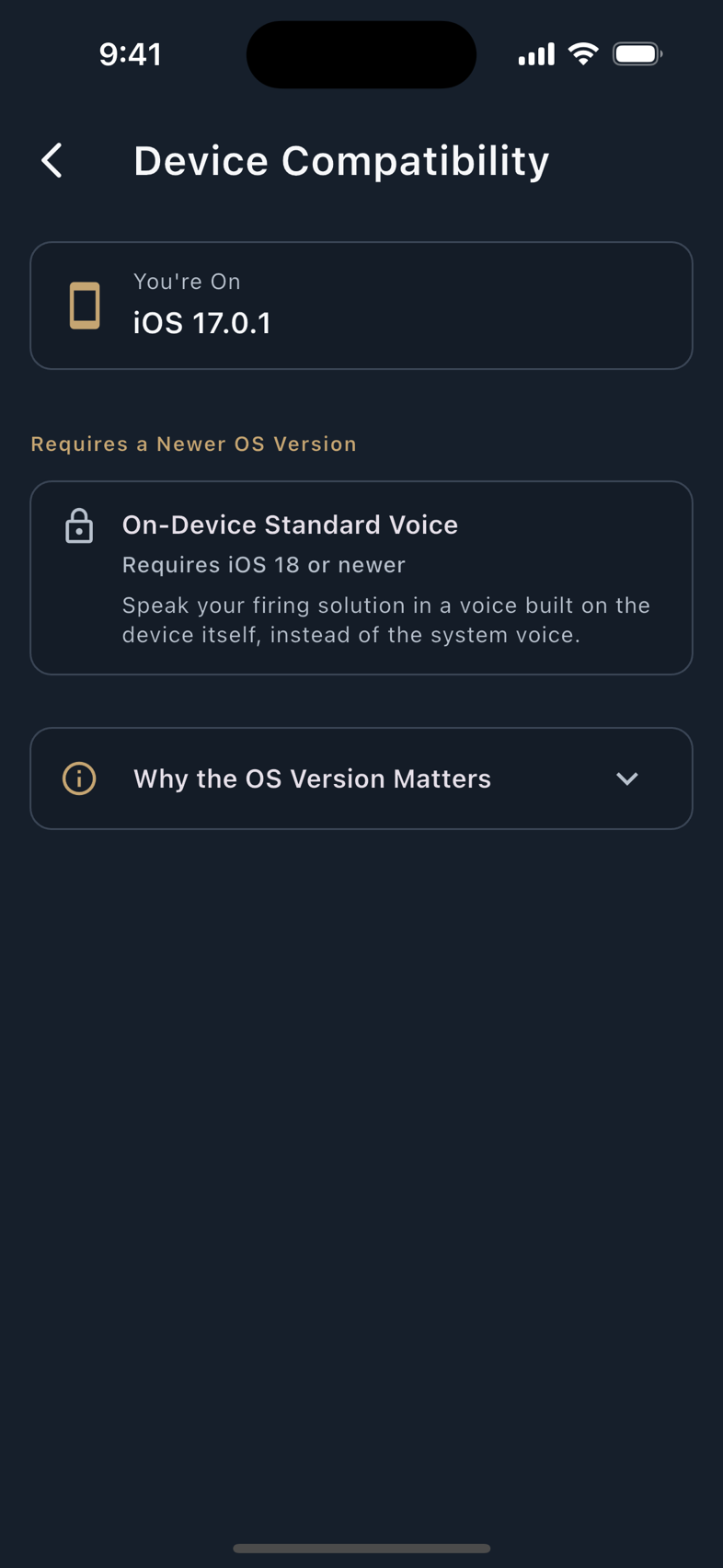
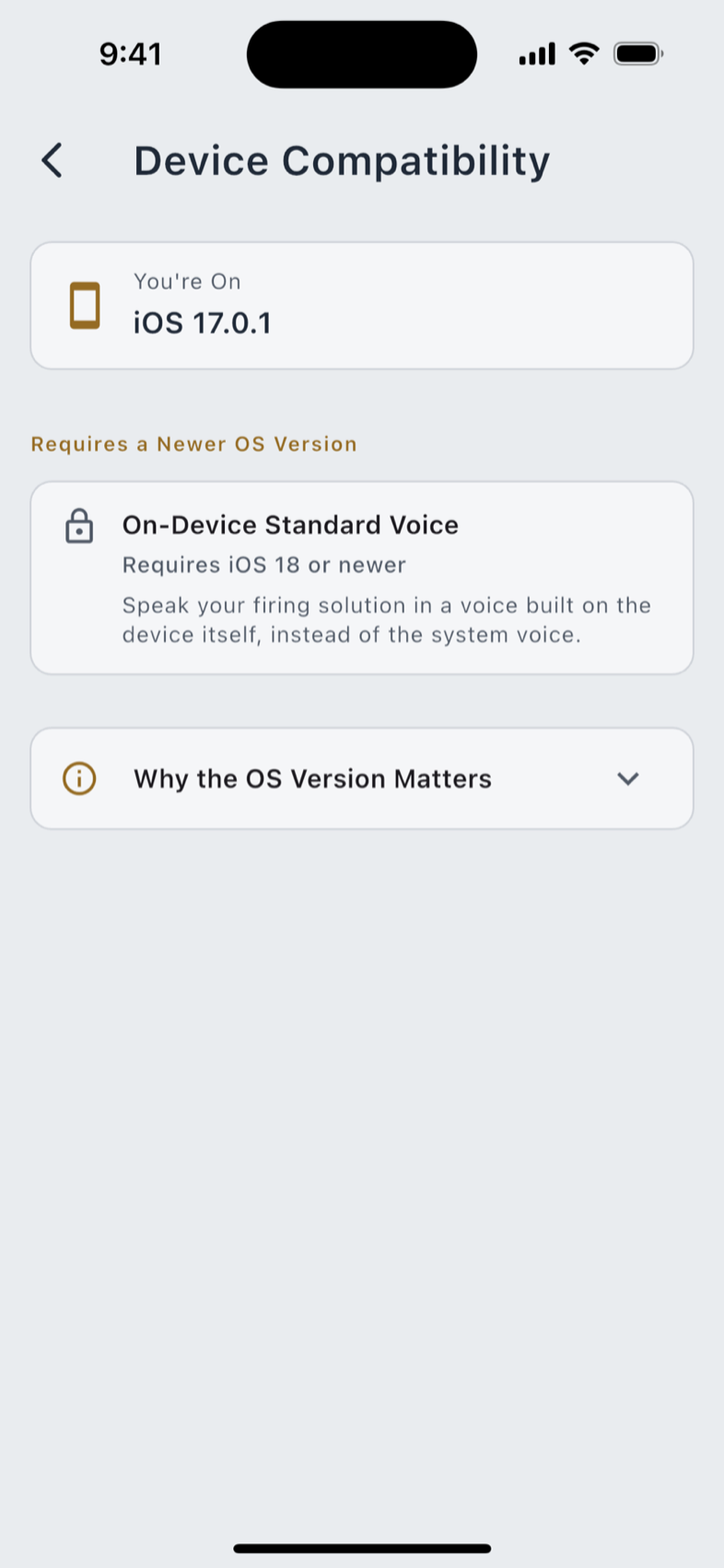
This row appears only when your device actually has a limit. If everything runs, the row is not there.
The screen lists what you are on, then splits features into Requires a Newer OS Version and Available on This Device, naming the requirement for each: the weather meters and the SG Timer need Android 12; Wear OS pairing and the watch motion sensors need Android 11; the on-device Standard voice needs iOS 18. It ends with the point that matters: manual entry is always free, and none of these features is required to track loads, firearms or brass, or to use the ballistics calculator.
Help & Support
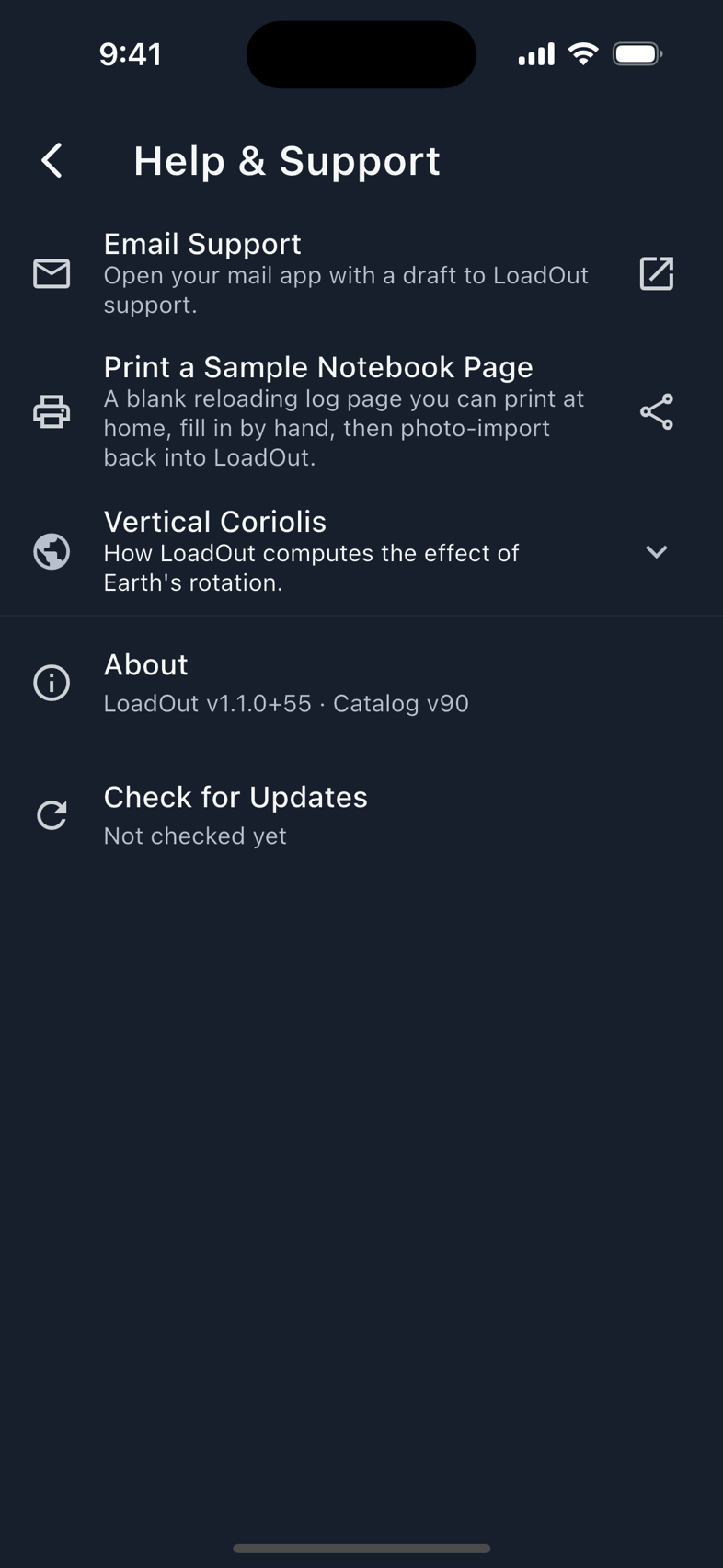
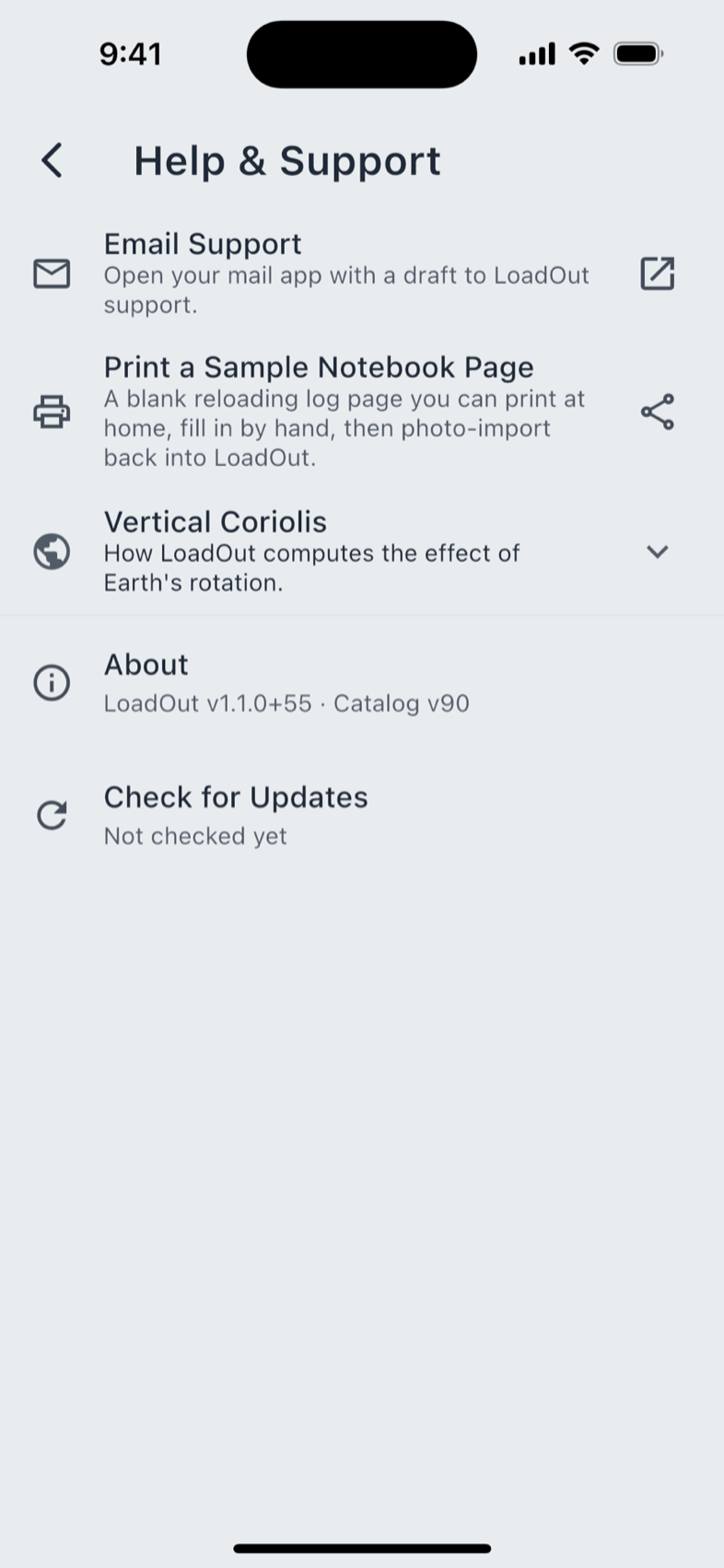
- Email Support opens your mail app with a draft addressed to support@johnsondigitalsystems.com, pre-filled with your app version, platform, and whether you are signed in or a guest.
- Print a Sample Notebook Page gives you a blank reloading log page to print, fill in by hand at the bench, and photograph back into LoadOut later.
- Vertical Coriolis explains how LoadOut computes that effect, and when the contribution breakdown flags it.
Restoring from a backup is not here. That door lives on the Cloud Backup & Restore screen, under Cloud Sync and Backup and in the Import & Export hub.
About, versions and credits
The About block sits at the foot of Help & Support. It carries the app version, the reference-catalog version, and a Check for Updates action that looks for a newer catalog, not a newer app. When one is downloaded the screen says so plainly: restart LoadOut to apply it, and your data is untouched. If the update server cannot be reached it says that too, and your catalog is left alone.
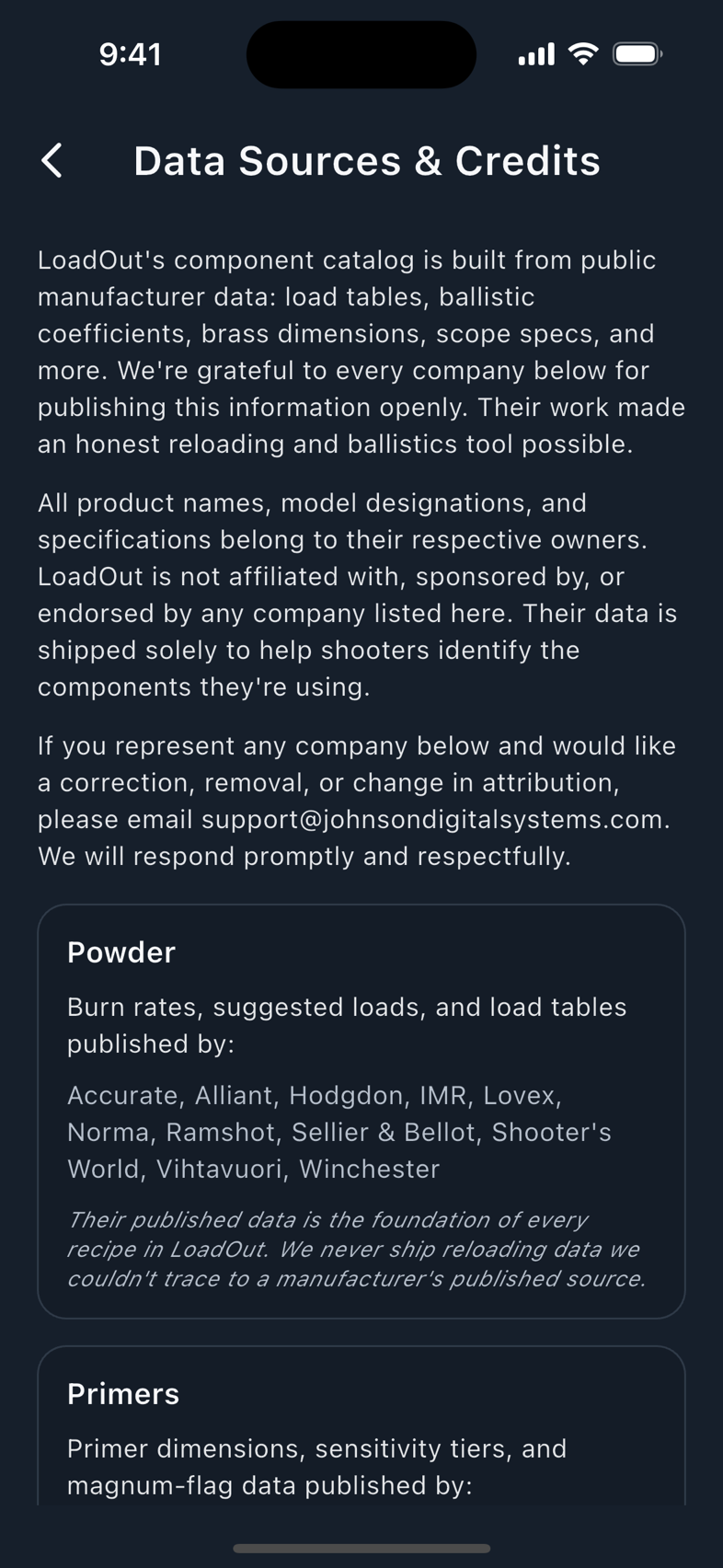
Data Sources & Credits is the other half. It thanks every company, designer and contributor whose work is in the app, and carries a note on reticles, a note on the ballistic math, the device-protocol credits for the makers who publish their documentation, the model and voice-data notices, and an Open Source Licenses button that opens the full licence list for every package LoadOut is built on. If your company appears there and you want a correction or a change in attribution, the screen gives you the address to write to.