Chapters
On this page
Most of what looks like a fault in LoadOut is the app declining to guess. It will not invent a muzzle velocity, a charge or a wind, and when an input is missing it names the field rather than producing a plausible number. That explains about half of this chapter; the rest is the ordinary business of stores, clouds, radios and watches.
No firing solution appears
What you see. The Solution view is empty, or a card says it cannot compute yet, or Range Day shows no holds at all.
Why. A firing solution needs a bullet and a rifle. LoadOut refuses to derive one from placeholder values, so a blank field stops the solve instead of silently filling itself in. Where a Missing Inputs card exists it lists which fields are missing and why each matters, and the fields themselves turn red.
- Read the Missing Inputs card first. It names each field and, where it helps, where to get the value.
- On Range Day, pick a load or a firearm. The Solution card stays quiet until you select a saved load, a ballistic profile or a common factory load, or until you type all four of bullet weight, diameter, ballistic coefficient and muzzle velocity by hand. Three of the four is not enough.
- On the Ballistics page, check the six a profile needs: bullet weight, bullet diameter, ballistic coefficient (or a custom drag curve in its place), muzzle velocity, zero range, and sight height. A solution cannot exist without them.
- Ignore the ICAO line while you do it. Using ICAO standard atmosphere is not an error. See below.
"Using ICAO standard atmosphere" means you entered no conditions. The solver still needs air to fly the bullet through, so it uses the international standard atmosphere and tells you it did. It is a disclosure, not a warning, and it disappears the moment you enter real temperature, pressure, humidity or altitude. What it does mean is that the solution is for standard air, not for the air you are standing in.
The numbers look wrong
What you see. A hold that does not match what your rifle does, or one that is off by a suspicious factor.
Why. Almost always an input, a unit, or a genuine limit of what a solver can know about your rifle. Work down this list in order; it is roughly how often each one is the answer.
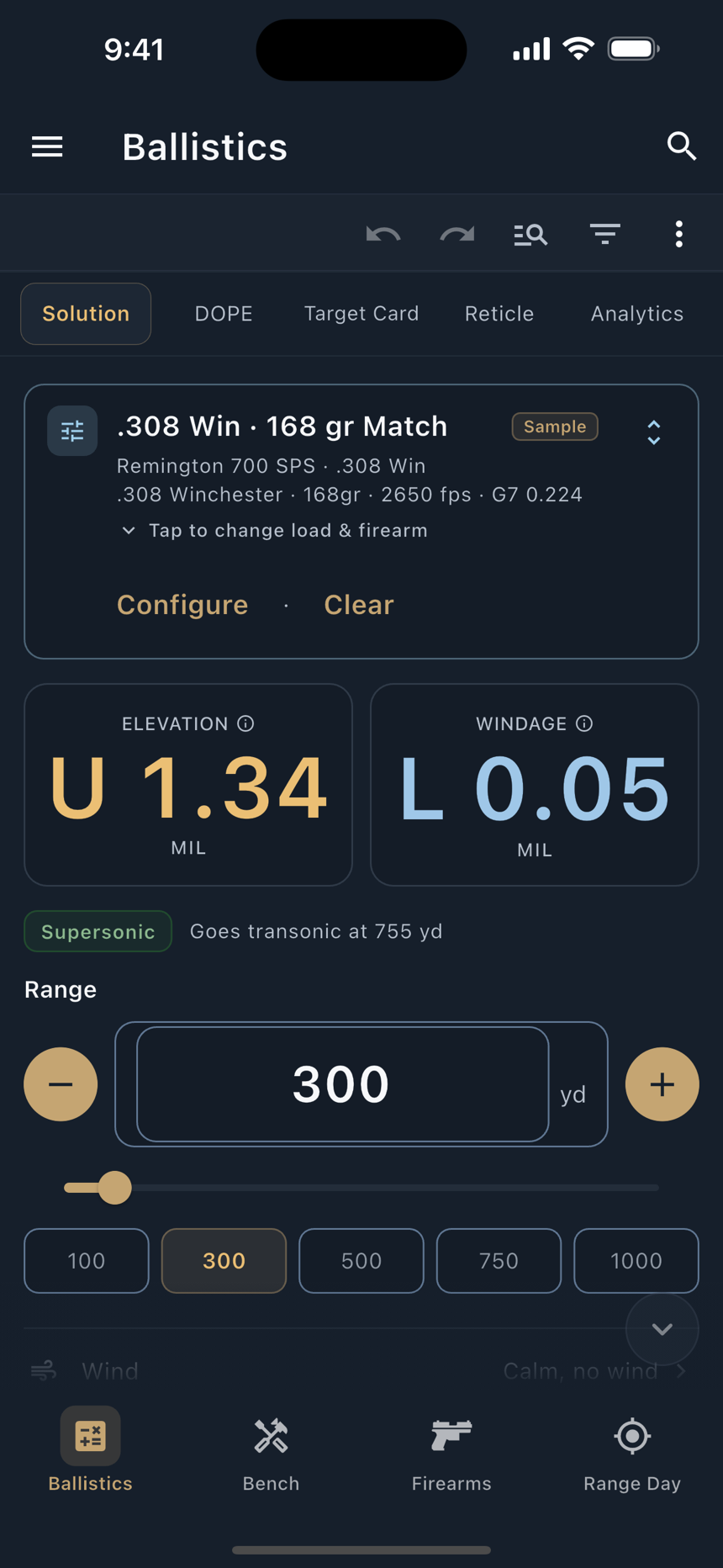
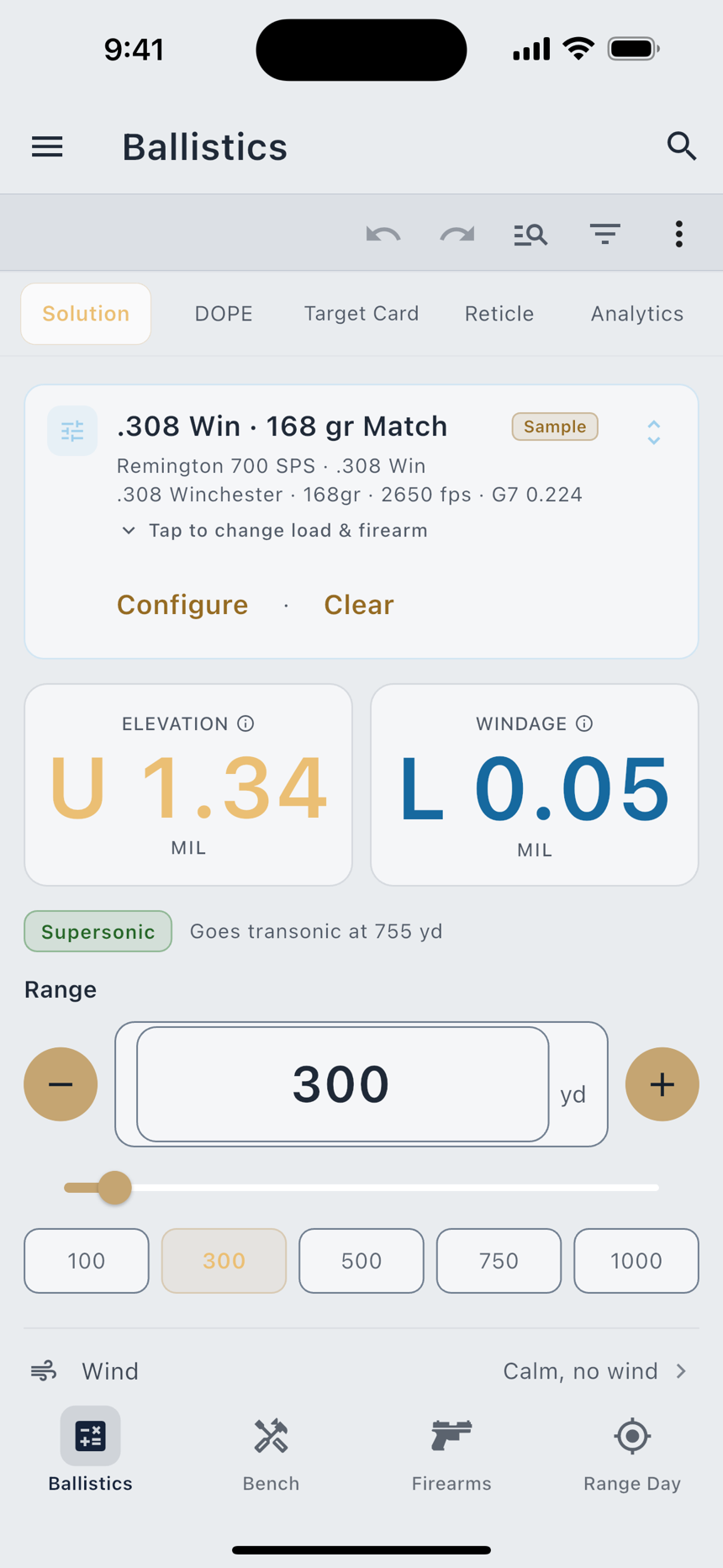
- Check the angle unit. A hold that looks about 3.4 times too large or too small is mils being read as MOA or the reverse. LoadOut starts on MRAD even under Imperial units, deliberately; change it under Settings › General in the Angle row and the choice sticks.
- Check the rest of the units. Range, velocity and small lengths each have their own row, so yards with a sight height in centimetres is possible.
- Check zero range and sight height. These two shift the whole curve. A sight height entered as 2 inches when the scope sits 2.6 above the bore moves every hold.
- Match the drag model to the coefficient. A G7 number entered in a G1 field, or the reverse, is a large error at distance.
- Ask where the muzzle velocity came from. A catalogue figure is a starting point, not your rifle. A chronographed number from your own barrel is worth more than every other refinement in this list combined.
- Check twist rate and twist direction. They drive spin drift, which is small close in and not small at distance.
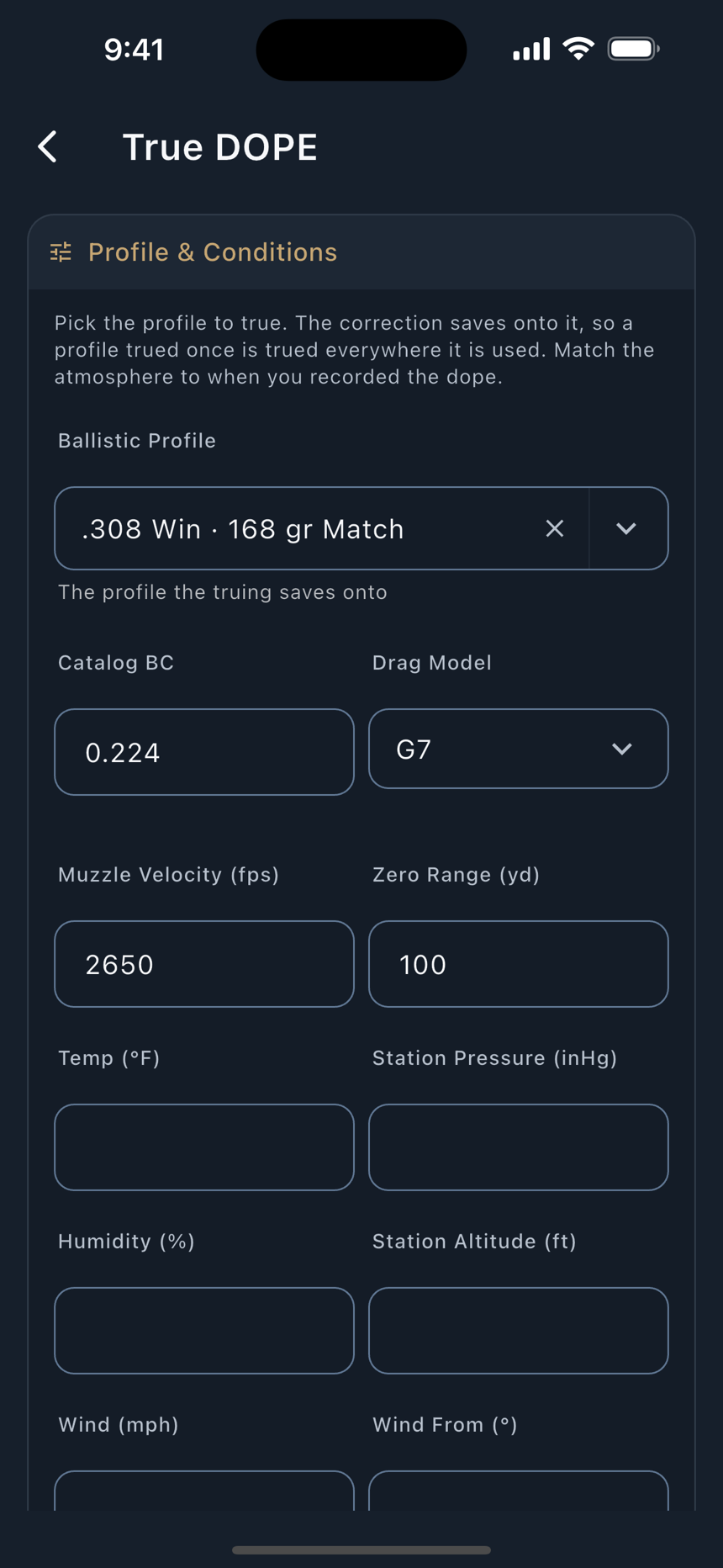
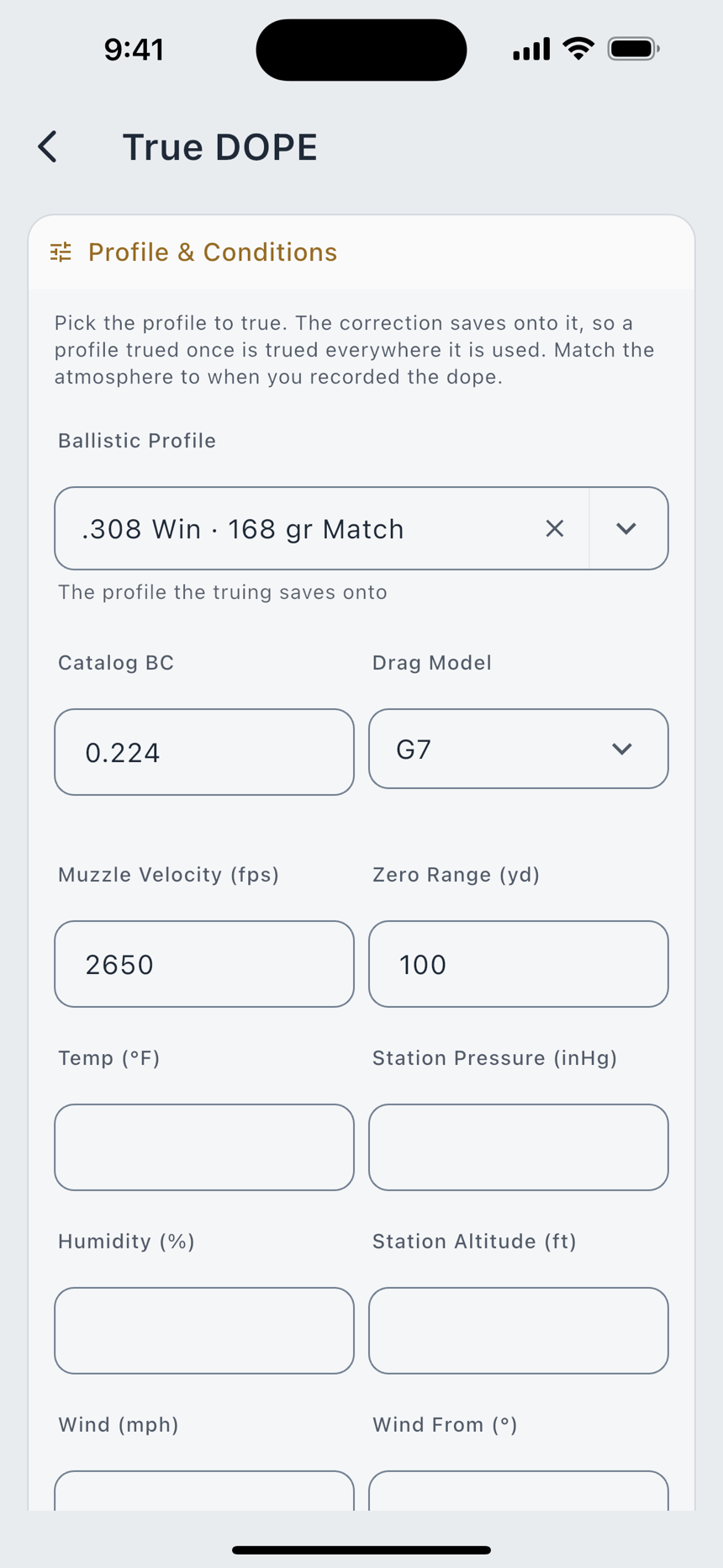
- Then true it. True DOPE takes what your rifle actually did at a known distance and adjusts the solve to match, by muzzle velocity, by drag scale, or with a drag factor per Mach band. Free, and the honest fix for a solution that is close but consistently off.
A confidence flag is not an error. Past roughly Mach 1.2 the drag on any bullet becomes least predictable, so LoadOut marks the transonic band amber and the subsonic band red, and says to verify against real dope out there. Past the range it validates against published reference trajectories it marks the solution as solver-projected. Both are the app telling you how much to trust a number, which is the opposite of the number being broken.
The Sample keeps showing up
What you see. A rifle, load, profile or target card marked Sample that you did not create.
Why. LoadOut seeds one complete worked example on first launch so no screen is a blank rectangle before you have entered anything. Its values are real and sourced, not filler.
- To adopt it, open it, change anything, and save. The badge clears on the first edit you save and the record becomes yours.
- To be rid of it, delete it like any other record. It goes to Recently Deleted for 30 days and does not come back.
- Either way it never counts against the free-tier limits while it is still a Sample.
You have reached the free limit
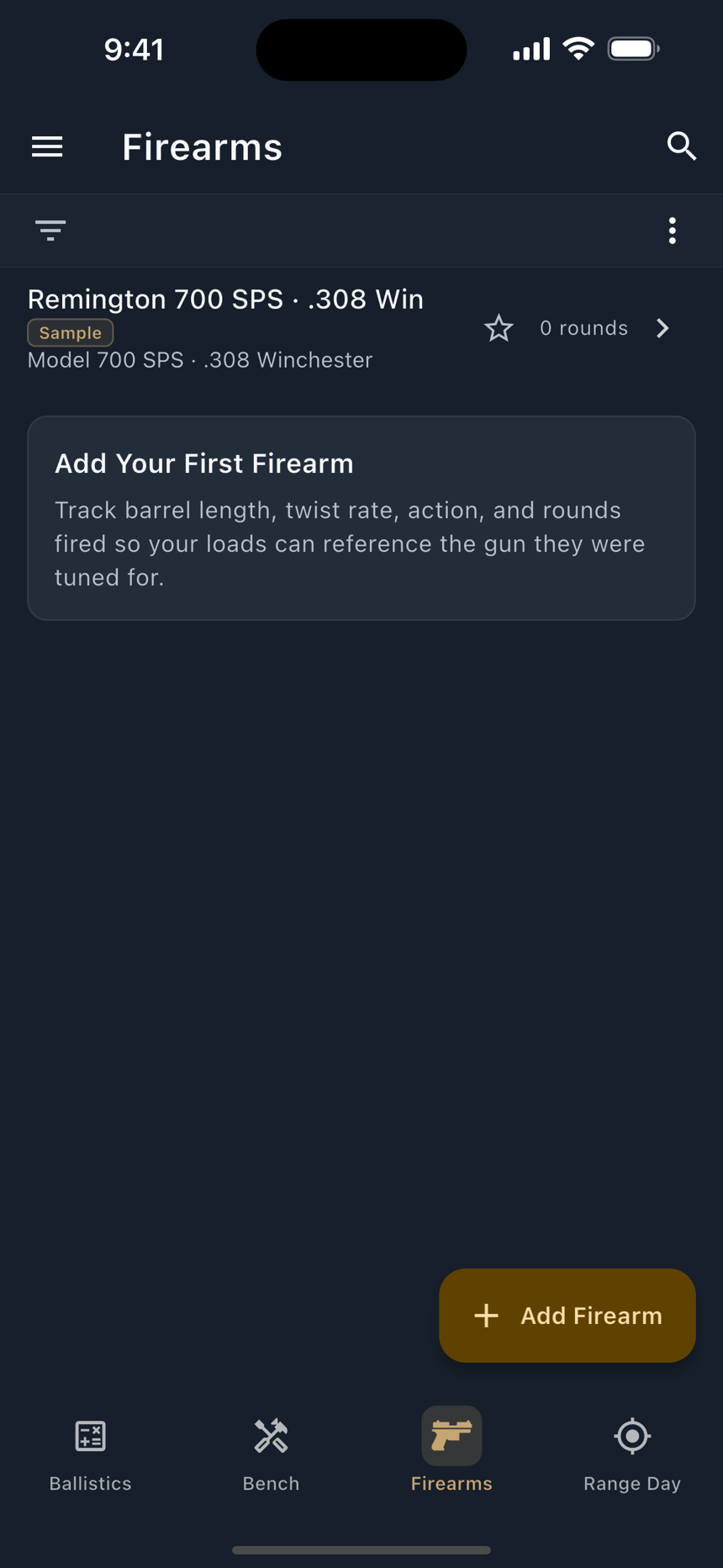
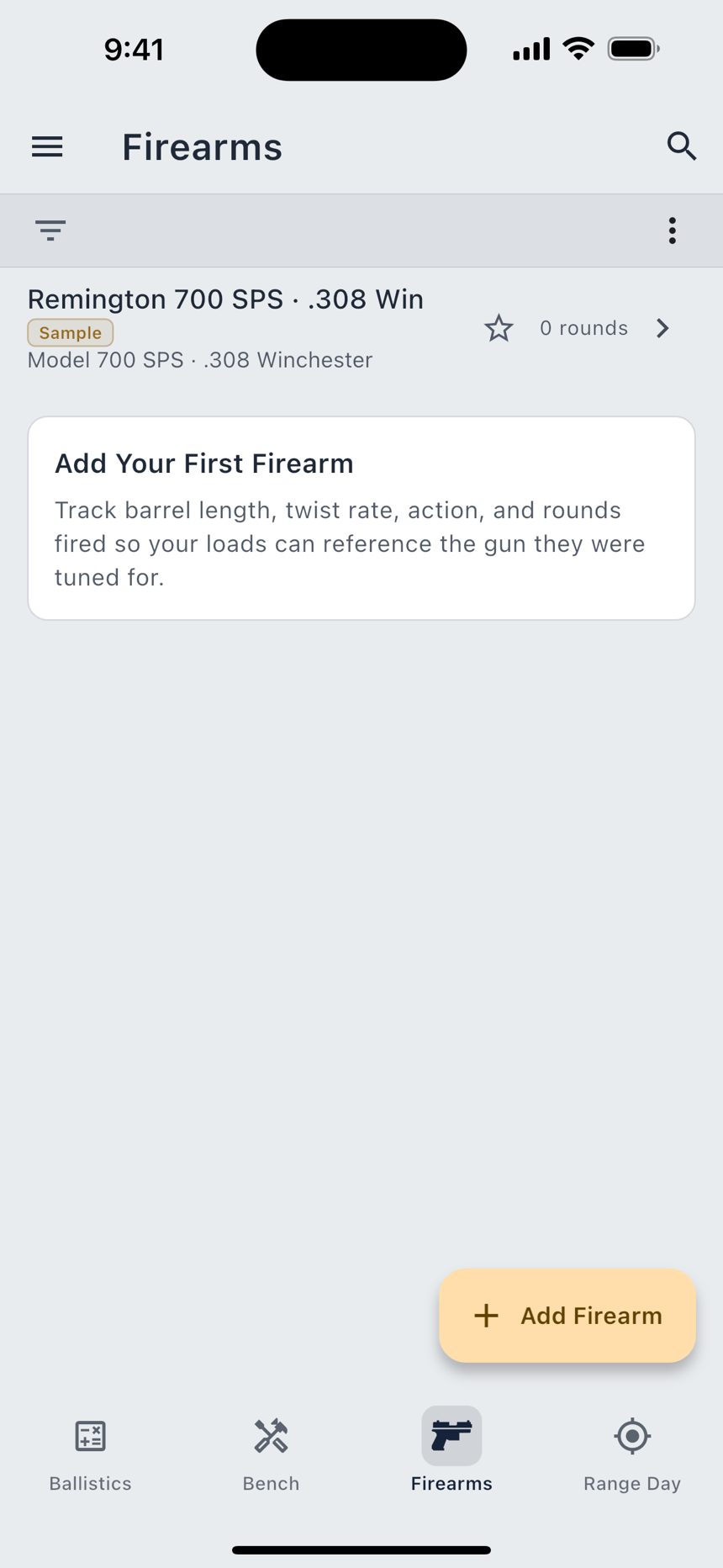
What you see. A strip at the top of the Firearms or Ballistic Profiles list reading 2 of 2 Firearms, and a sheet headed Free Includes 2 Firearms when you try to add another.
Why. The free tier includes two firearms and two saved ballistic profiles. The strip is there from the start so the limit is never a surprise at save time.
- Nothing of yours is at risk. The sheet says so first: everything you added stays as it is, and nothing is hidden, locked or deleted.
- Check Recently Deleted. A deleted firearm or profile keeps its slot for the 30 days it can be restored. Deleting it permanently frees the slot immediately, and cannot be undone.
- A restore is never trimmed. Restore a backup with twenty rifles on a free account and you keep twenty. The app tells you once that everything was restored and that you cannot add more until you are back under the limit or on Pro.
- If you have ever held Pro, you are not capped, even if the subscription has lapsed.
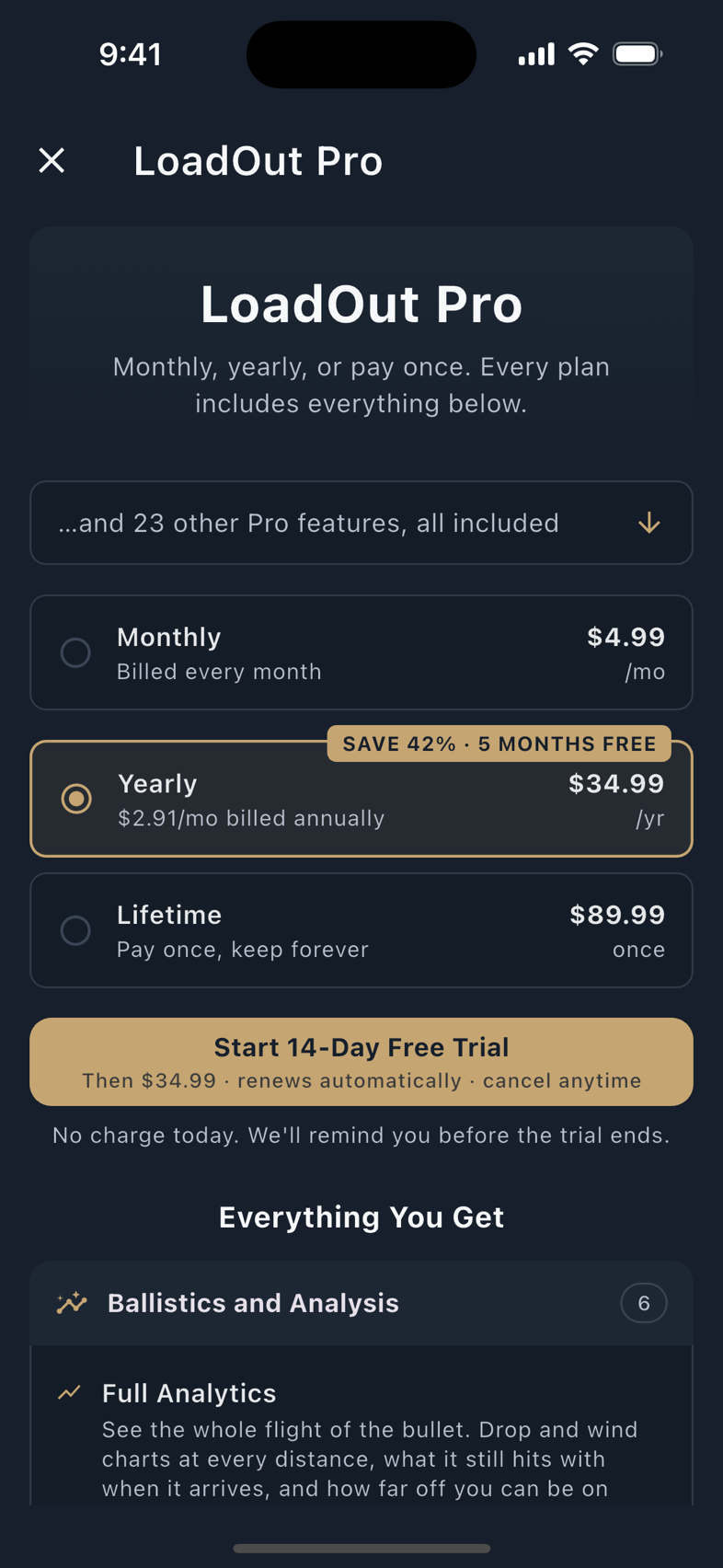
Pro is not showing after a purchase
What you see. You paid, and the app still shows lock icons.
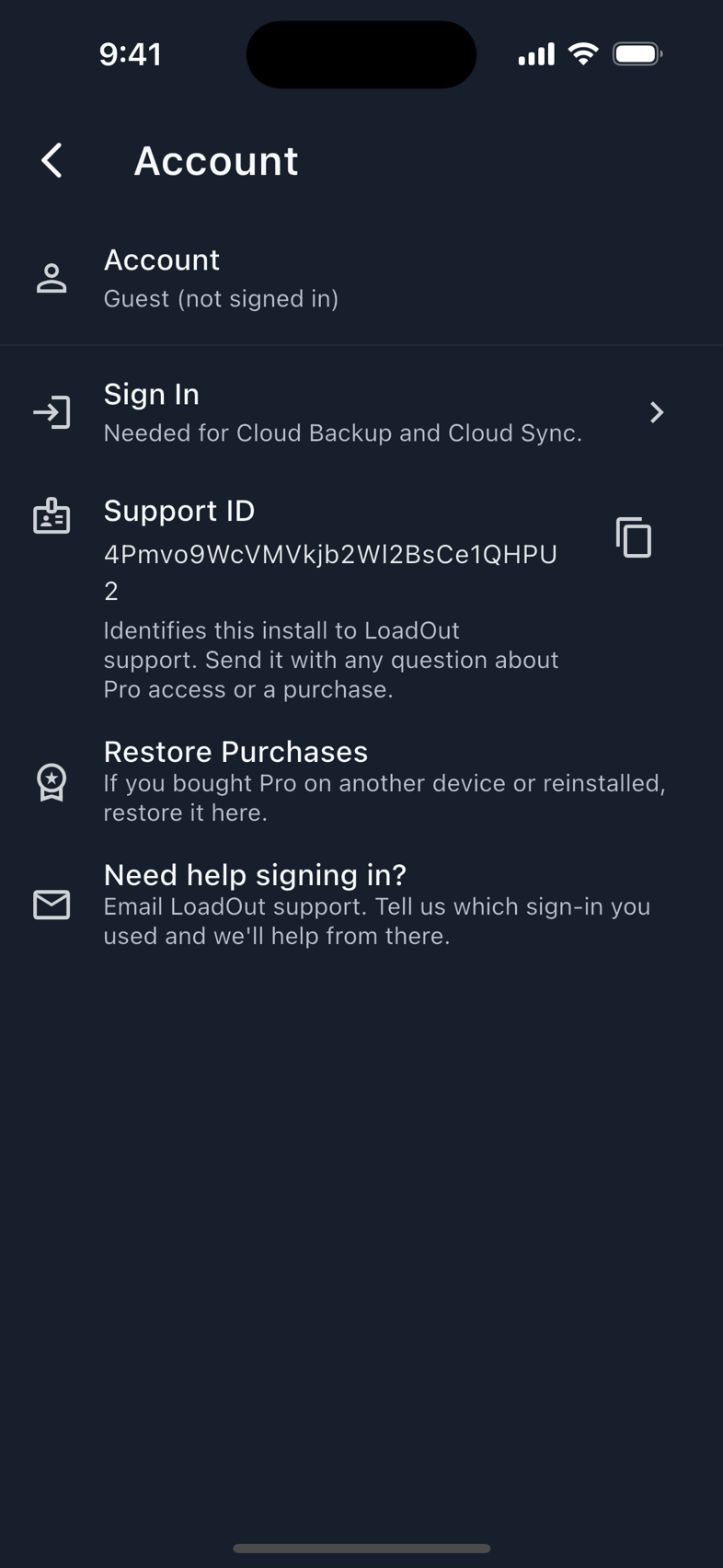
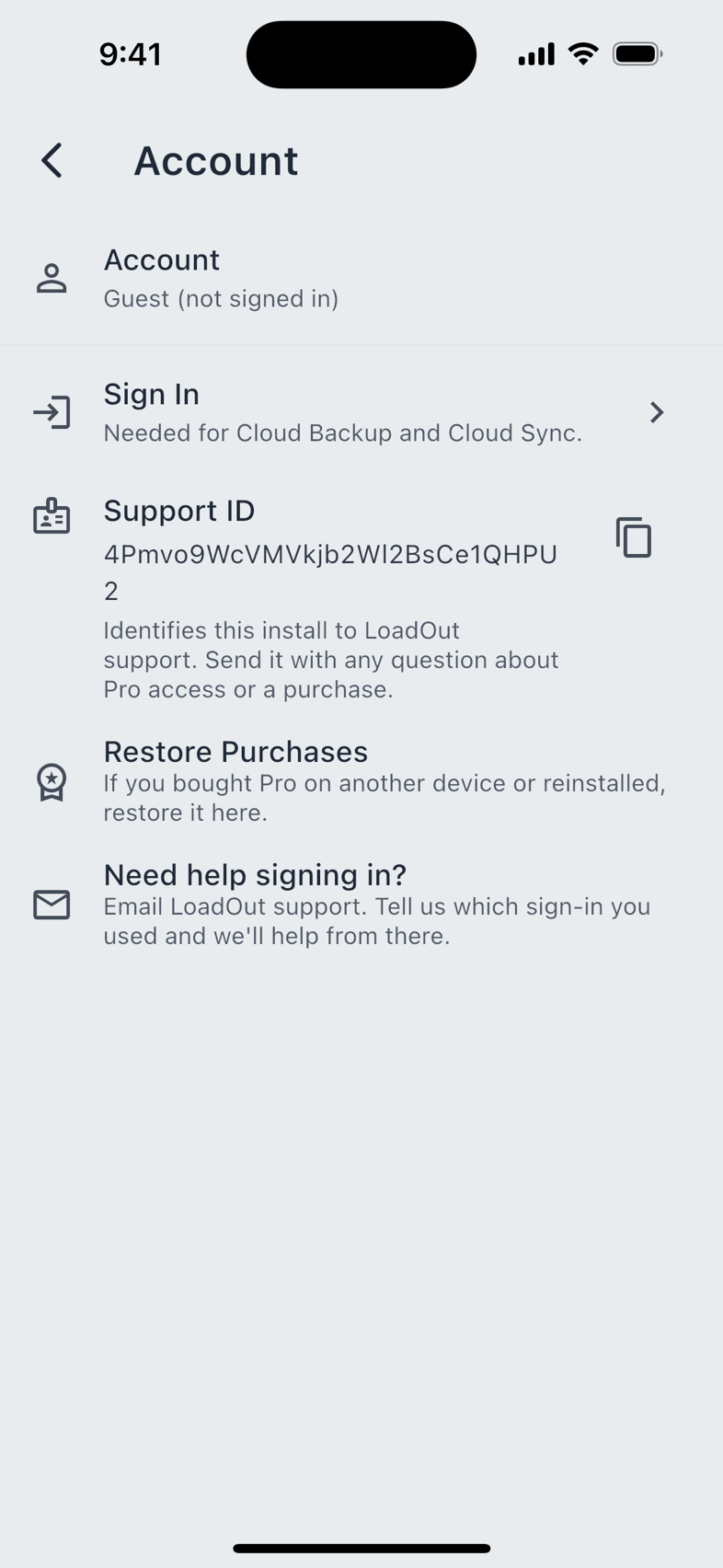
- Tap Restore Purchases under Settings › Account. It needs no LoadOut account; it asks the store.
- Check you are on the same store account you bought with. A different Apple ID or Google account is a different purchase history.
- To carry Pro to another platform, sign in. Signing in with the same LoadOut account on both is what links them; without it, each store knows only its own purchases.
- On the web app, Pro cannot be bought or restored at all. Browsers have no store, so the Pro features are unavailable there. Use the phone, tablet or Mac app.
- Still nothing? Send support your Support ID from the Account screen. It identifies the install, and it is exactly what we need to look you up.
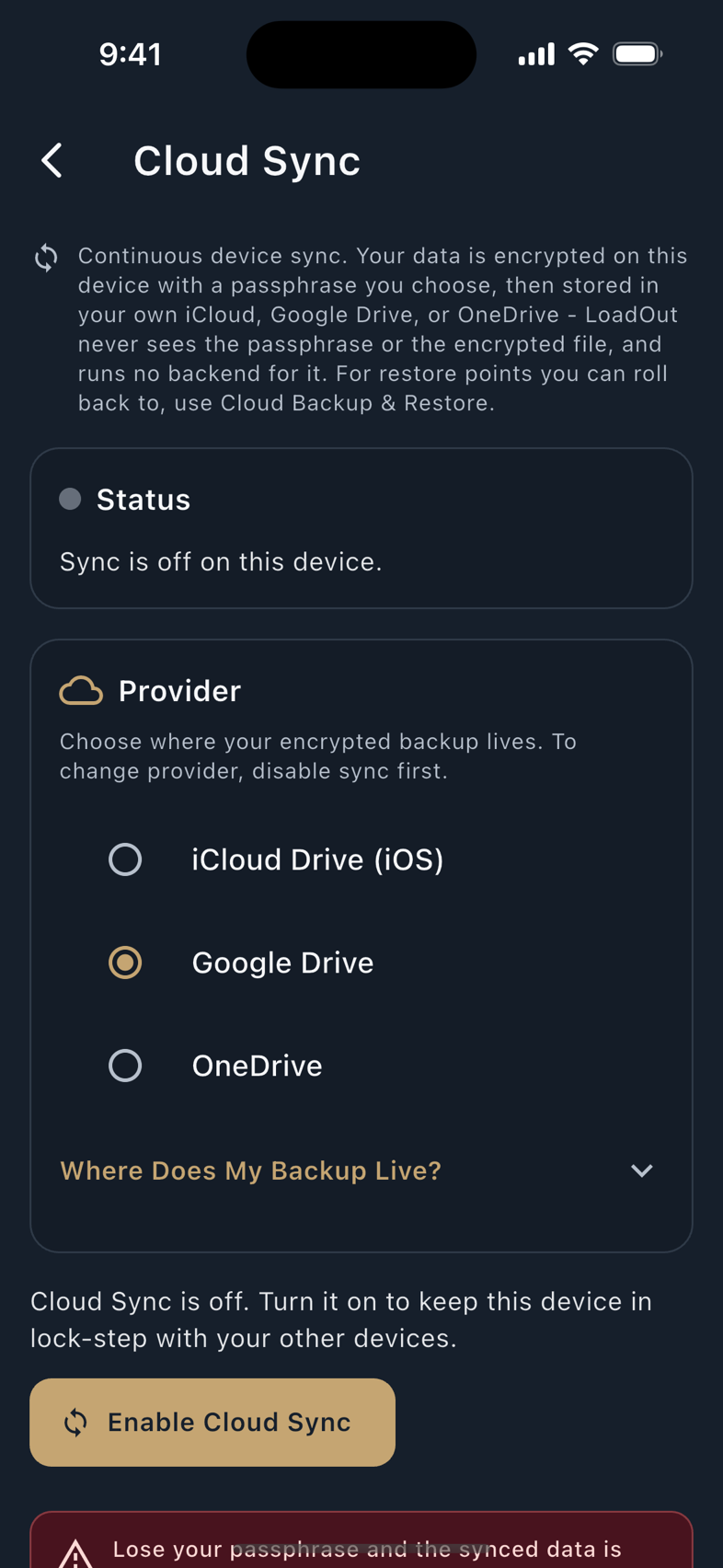
Cloud backup or sync will not work
What you see. A refusal message, a sync that never completes, or a restore that will not open the file.
| What it says | What to do |
|---|---|
| Cloud Sync is not enabled | Turn it on. Both cloud features also need a signed-in cloud account; a guest has nowhere to write to. |
| Cloud Sync needs Pro | Sync is paused because the entitlement no longer holds. Your local data is untouched and nothing was lost; restore or renew Pro and it resumes. |
| The passphrase is refused | It is case-sensitive and must be typed exactly. LoadOut cannot reset it and cannot read your copy, by design. If another device is still syncing, the same passphrase on that device is the one that works. |
| A network or provider error | Your local database is untouched by a failed pull. Check the connection and the provider's own sign-in, then try again. |
| Backup was created by a newer version of LoadOut | The copy came from a device running a newer build. Update this device and open it again; an older app will not read a newer file rather than guess at it. |
Two structural notes. iCloud Drive is offered on iPhone and iPad only; the Mac, an Android phone and a browser show Google Drive and OneDrive instead. And a browser shows those two rows without being able to use them: both cloud features are Pro, Pro cannot be resolved in a browser, so the web app has no cloud backup or sync.
The watch is not connected
What you see. A status word on the watch's page under Settings › Connected Devices.
Apple Watch gets three answers, because the phone can ask the watch directly and wait for a reply.
| Status | What it means |
|---|---|
| Connected | The watch answered, with LoadOut open on it. |
| App Not Open | The watch answered from the background. Your watch is right there: open LoadOut on it and it connects right away. |
| Not Answering | The watch did not answer. It may be asleep, off wrist, or out of range; watchOS does not tell a phone which, so the app does not pretend to know. |
Wear OS and Garmin report Not Connected instead, because there the system reports the link state directly. Keep the watch near the phone with Bluetooth on and it reconnects on its own; for a Garmin, check that Garmin Connect on the phone shows the watch as connected, since LoadOut reaches it through that app.
Two behaviours worth knowing while a watch is out of range:
- Shots are not lost. Each watch writes a fired shot to a queue on its own storage before it touches the radio, and retires it only when the phone confirms it. Out of range they simply queue, and the watch shows how many are unsent.
- A setting changed on a Wear OS watch out of range can be lost. That report is sent live and dropped if the phone is unreachable, so the phone's next push sets the watch back to what the phone believes. Change it again in range, or change it on the phone, which is authoritative either way.
Settings you enter for a watch save whether or not it is connected, and apply the moment it is. More in Companion Watches.
A meter or timer will not pair
- Turn Bluetooth on and allow the Bluetooth permission. The capture screen names the reason it cannot proceed: Bluetooth off, No permission, Radio unavailable.
- Wake the device and keep it close. Switch it on and hold it within a few yards while it pairs. On a Kestrel, turn on LiNK in the meter's own Bluetooth menu first.
- Disconnect it from its own app. These devices talk to one app at a time; if the vendor's app is holding the connection, close it or disconnect there.
- Check the OS floor. On Android the weather meters and the SG Timer need Android 12 or newer; the app says so and points at Settings › Device Compatibility.
- Not on a browser. The web version has no Bluetooth, so a meter or timer needs the phone or tablet app.
Pairing step by step, per device, is in Connected Devices.
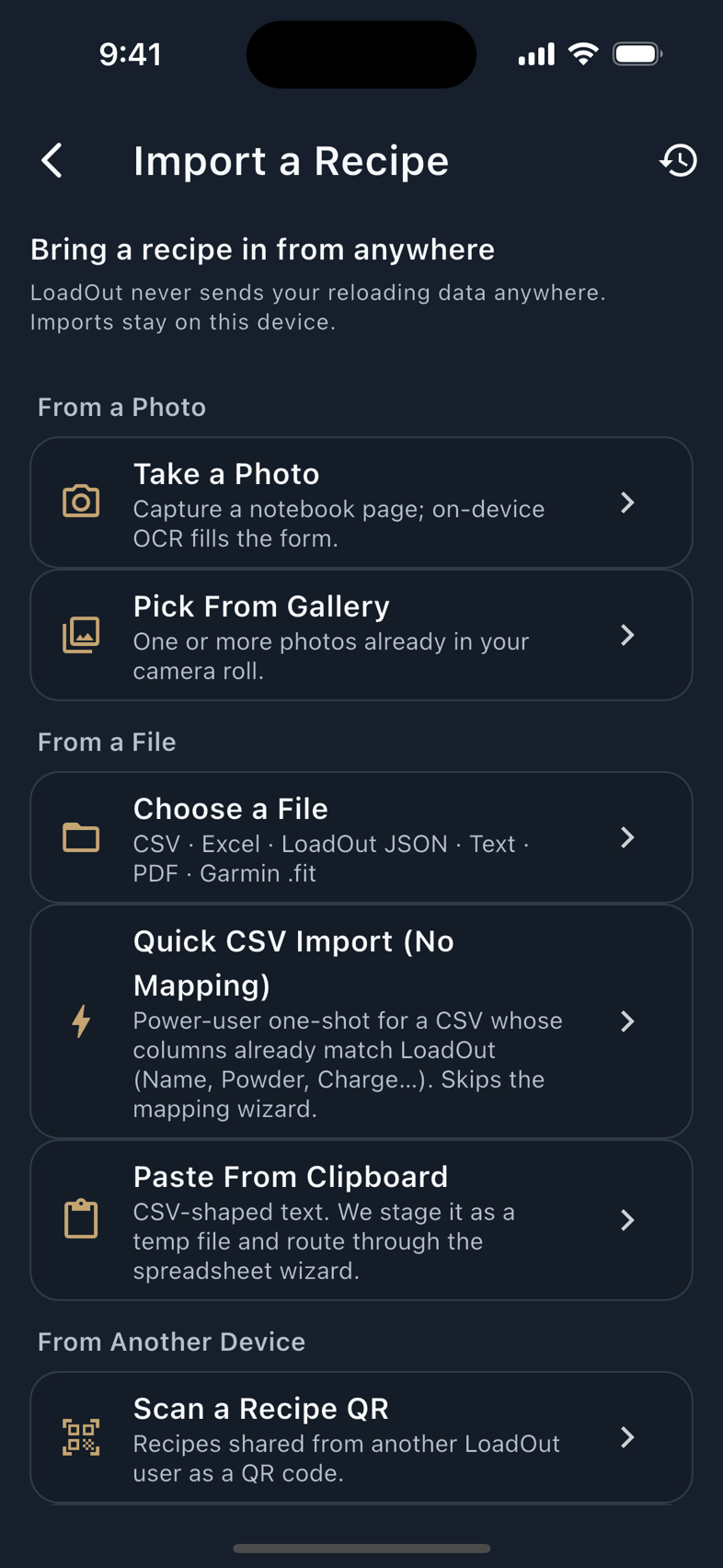
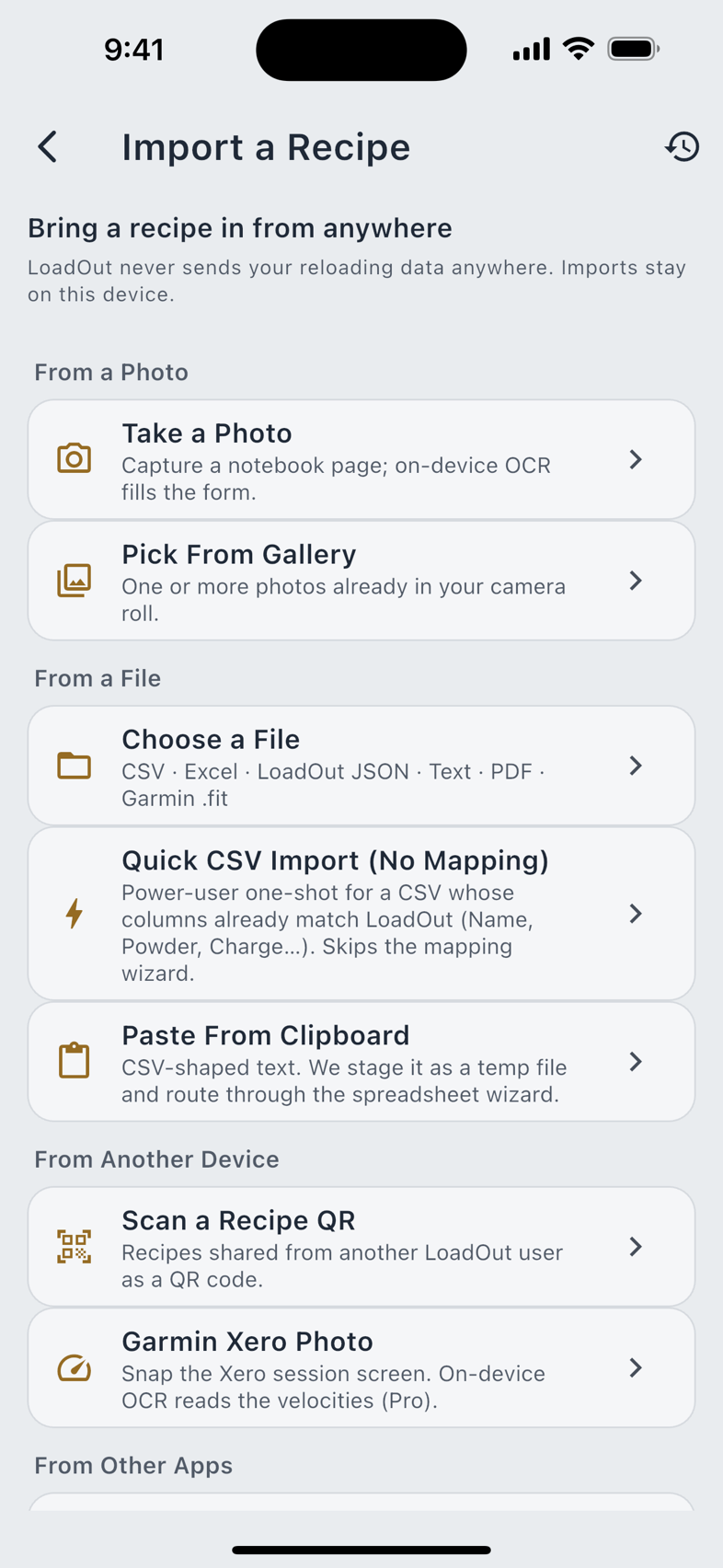
An import left fields blank
What you see. A recipe arrives on the review screen with gaps.
Why. Blank is deliberate. LoadOut will not fill a field it did not read, and it draws a distinction most importers do not: the page did not carry this and we saw something and could not trust it are different facts. A charge it could not read is left empty and confessed, with the unreadable text shown, rather than guessed at. A charge written in grams is not filed as grains; it is not filed at all.
- Fix it on the review screen. Nothing is saved until you confirm, and every value is tappable.
- Take the warning seriously if you see it. When a charge does not look possible for the cartridge, the screen says so and asks you to check it against your load manual before saving.
- Check everything against your own data. The review screen says it plainly: LoadOut never validates load data, and you own the final check.
Reloading ammunition is dangerous. An imported charge is a transcription of something you photographed or received, not a recommendation. Verify every charge against current published load data for your exact components before you load it.
Photo import is unavailable
What you see. The camera routes are missing or greyed out.
Why. Reading text from a photograph needs a camera and the on-device text recogniser, which are phone and tablet features. The web app has neither, and says so rather than failing at the tap. Capture on the phone or tablet, and the record syncs or exports from there.
Two routes are guides rather than readers: Microsoft Word Document and Microsoft OneNote walk you through exporting the page to PDF or plain text, because LoadOut does not open either format directly. Both exported forms are supported file routes.
The app showed "Something Went Wrong"
What you see. A screen replaced by a panel reading Something went wrong on this screen, with Return to Home and Reload.
Why. LoadOut catches errors at the screen level rather than letting them take the app down. The panel is the recovery, not the failure: Reload rebuilds that screen, and Return to Home gets you somewhere safe. A rarer full-page version reads Something Went Wrong, with The app hit an unexpected error. Please restart the app. beneath it. That one is the floor under everything, and it does need a restart.
- Tap Reload. Many faults are transient and do not come back.
- Use Tell Us What Happened if it is offered. It appears only when crash reporting is on, and only the note you type is added to the report, which carries the stack trace, the screen, the versions and the row ids, and never anything you typed elsewhere.
- If it repeats, write in. Say which screen, what you had just done, and whether Reload helped.
My data is gone
- Look in Recently Deleted first. Settings › Privacy & Data › Recently Deleted holds anything deleted in the last 30 days; Restore puts it back as it was.
- Restore from your own copy. A JSON export imports back through Import & Export; a Cloud Backup restores from its provider with the passphrase you set.
- On the web, check whether site data was cleared. The web app keeps your records in that browser's own storage, so clearing site data, using a private window, or switching browsers looks exactly like data loss. Export a copy before you clear anything.
- Do not expect the phone's backup to have it. iCloud Backup and Android's device backup deliberately exclude your reloading data; they keep your settings only. Your copy is the export or the Cloud Backup.
Getting help
Settings › Help & Support › Email Support opens a draft to support@johnsondigitalsystems.com already carrying your app version, platform and whether you are signed in. If you write in from anywhere else, include those yourself.
- Platform and version. iPhone, Android, Mac or web, and the version from the About block at the foot of Help & Support.
- The steps. What you did, what you expected, what happened instead.
- A screenshot of the screen showing the problem, which is usually worth more than a paragraph describing it.
- Your Support ID from the Account screen, for anything about Pro access or a purchase.
Send your reloading data only if you want to, and only the part that matters. A single exported recipe is usually enough to reproduce an import or solver question. We never need your whole database.