Chapters
On this page
A reloader arrives with history: a notebook, a spreadsheet, a folder of exports from another app. This chapter is about getting that in without retyping it, and about getting all of it back out whenever you want. Every way in is free except the chronograph routes (the Garmin .fit and ShotView files and the Garmin Xero Photo tile, all three Pro), and every way in ends at the same review screen, because nothing becomes a record in LoadOut until you have looked at it.
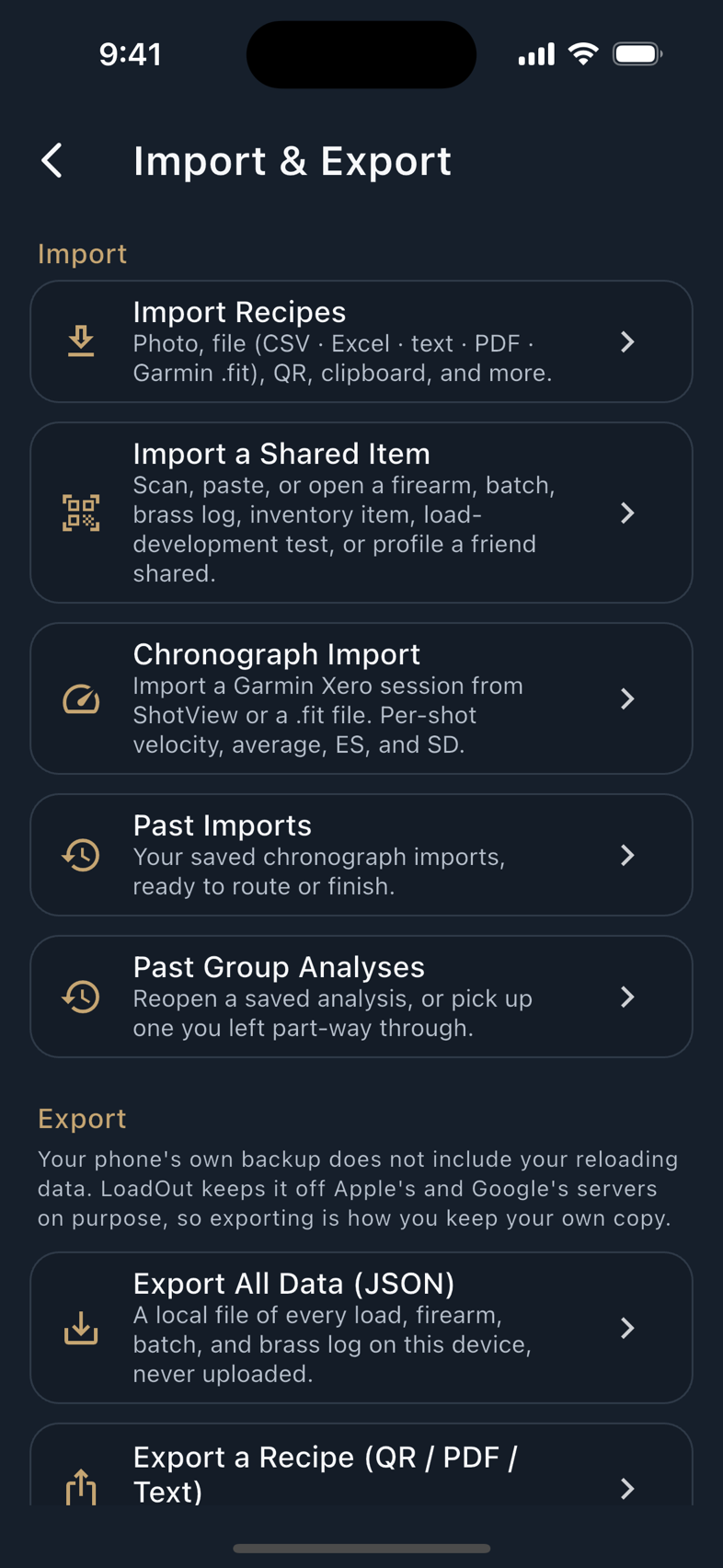
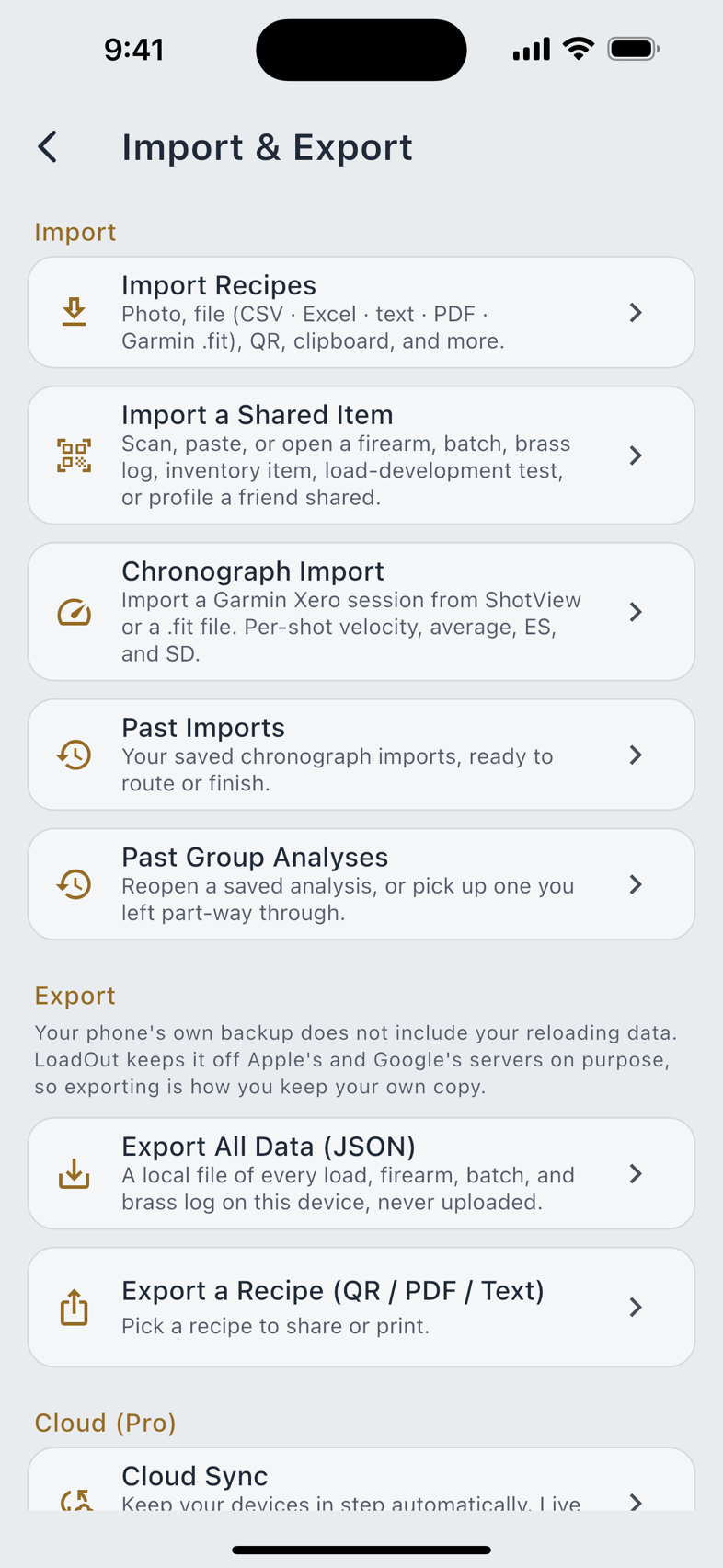
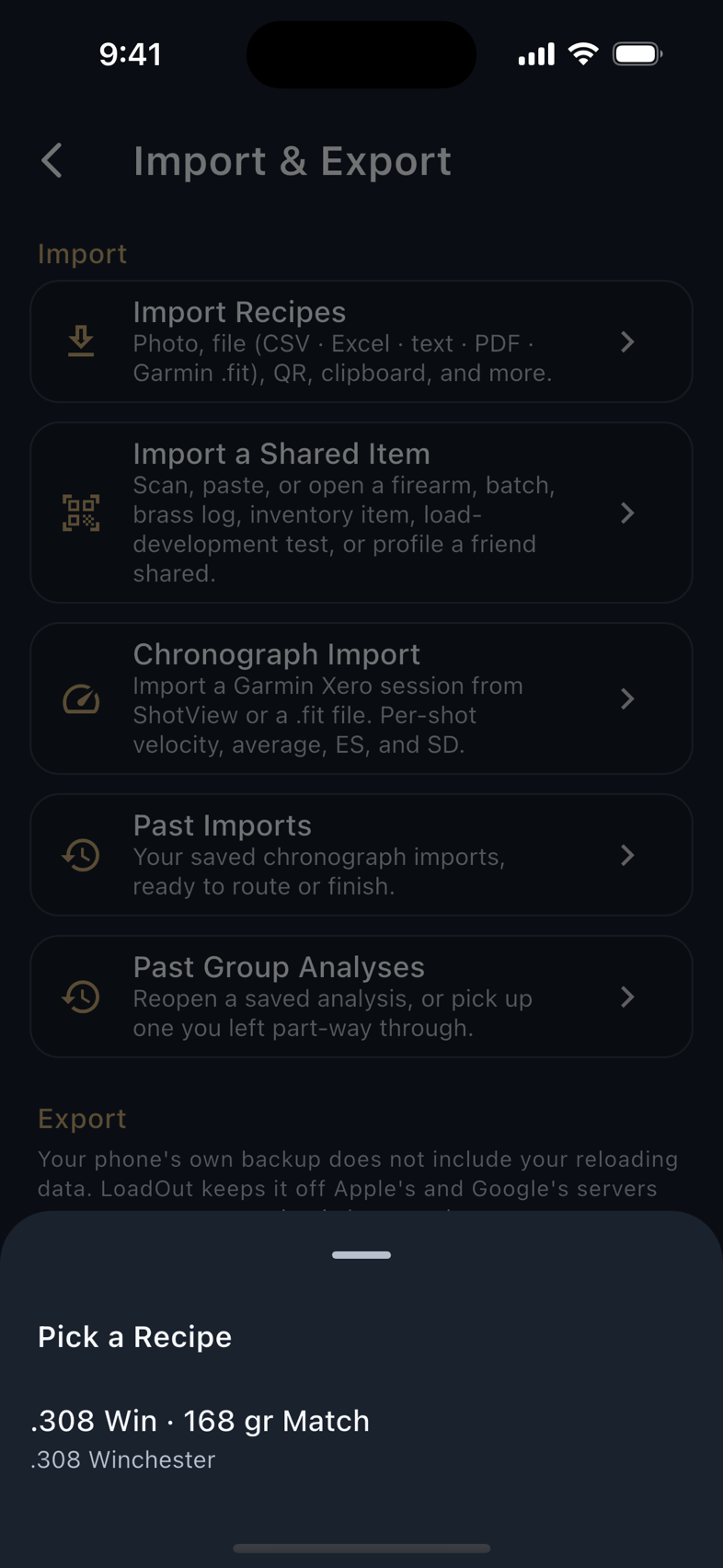
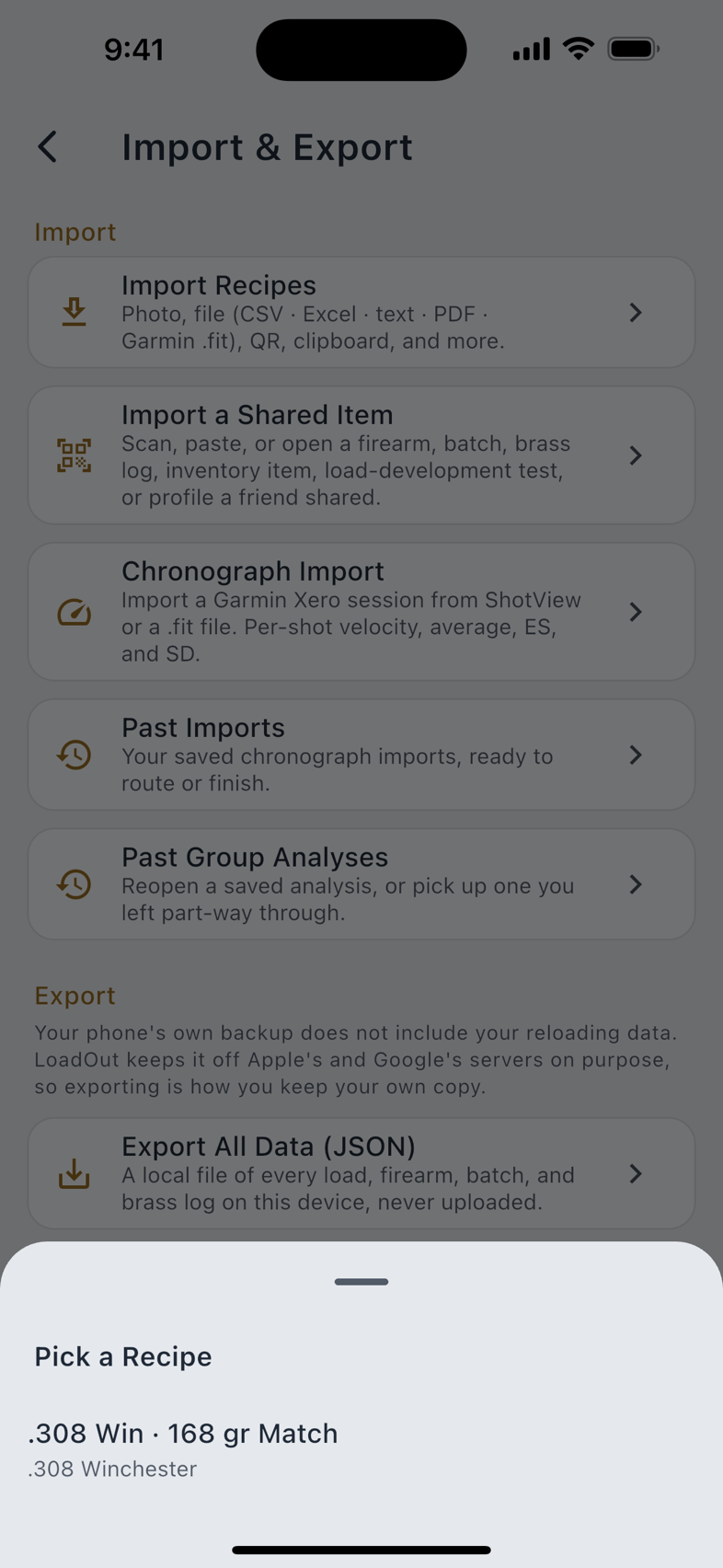
The Import & Export hub
Side menu › Import & Export is the one place all of this lives. Three sections:
| Section | Rows |
|---|---|
| Import | Import Recipes, Import a Shared Item, Chronograph Import, Past Imports, Past Group Analyses |
| Export | Export All Data (JSON), Export a Recipe (QR / PDF / Text) |
| Cloud Pro | Cloud Sync, Cloud Backup & Restore |
Every way in
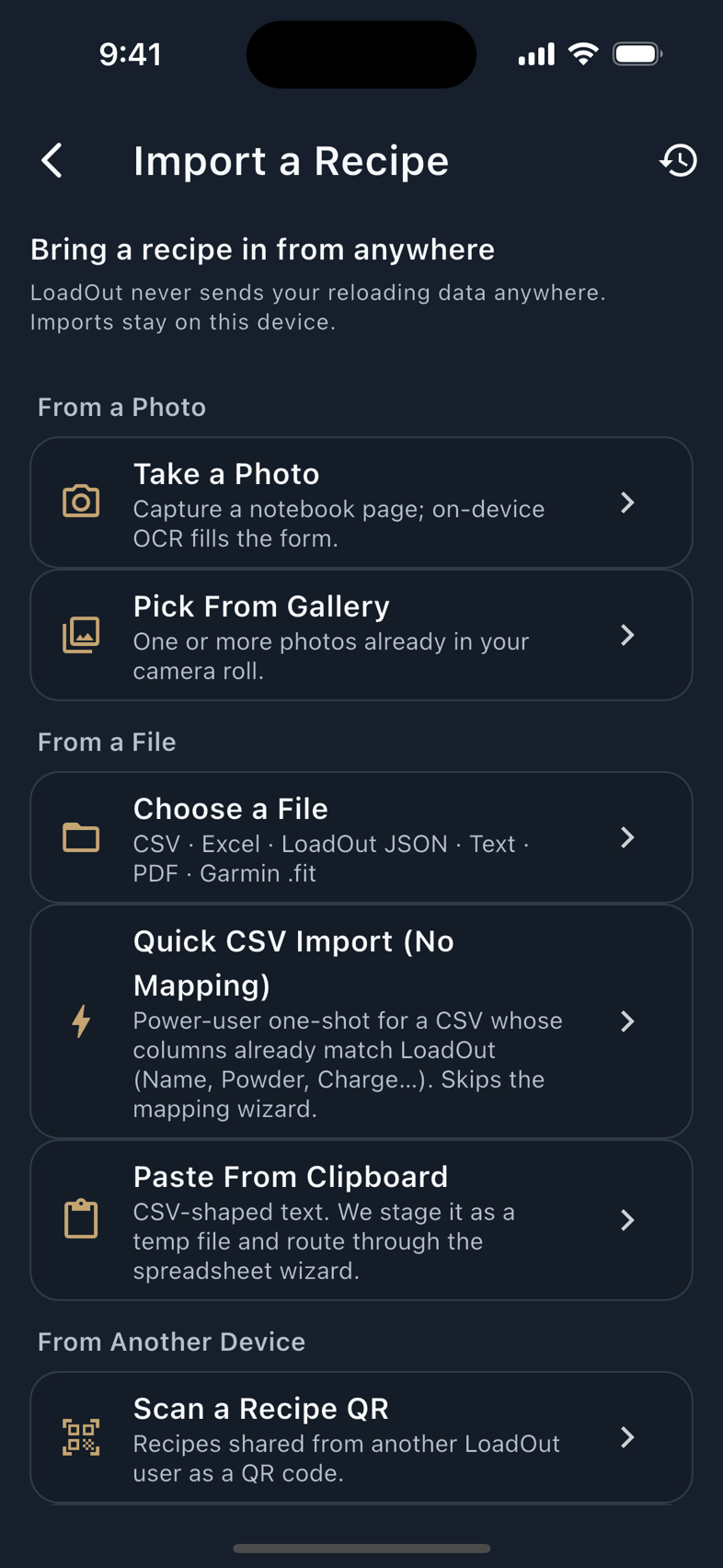
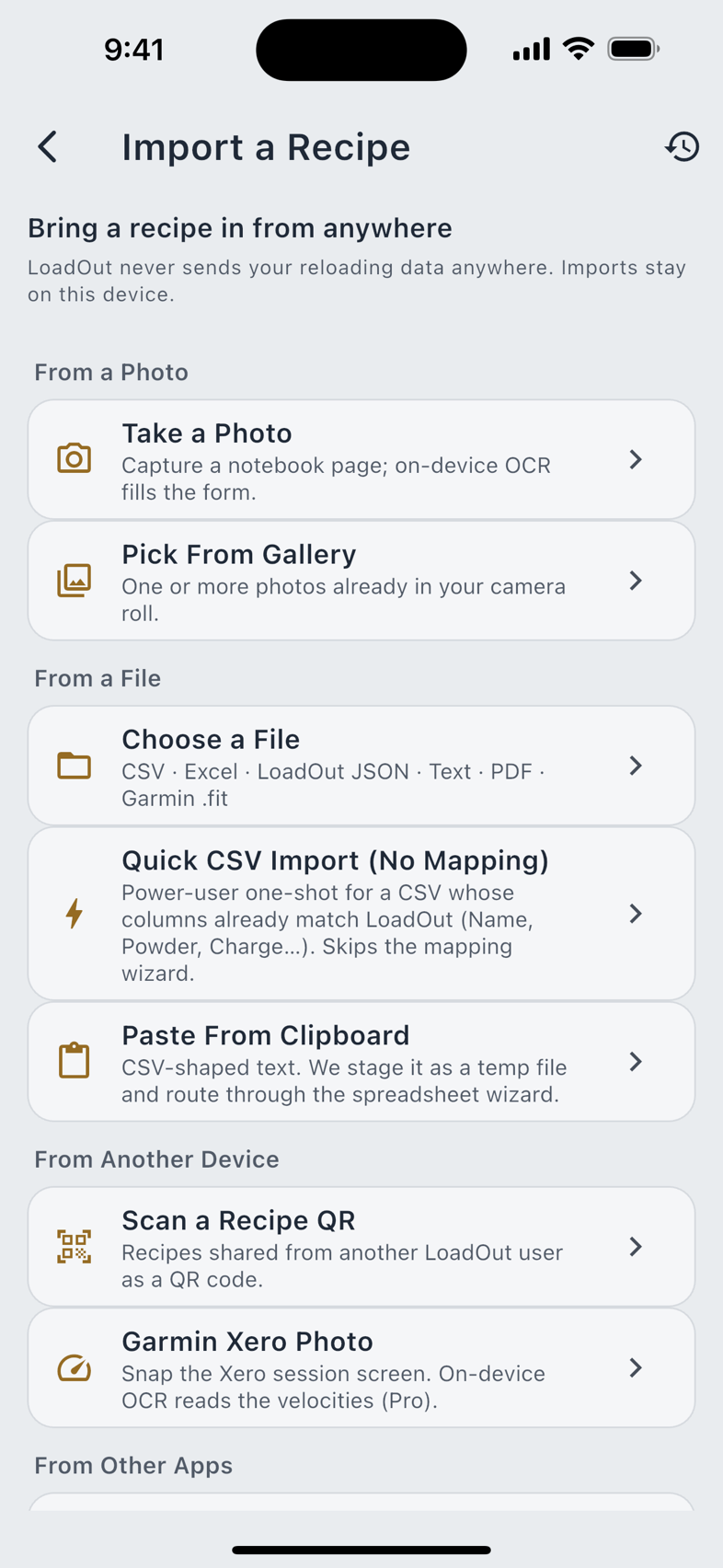
Import Recipes opens a screen titled Import a Recipe. It lists eleven tiles, and it is the only place in LoadOut where the methods are listed. Every other door (a Learn lesson, a list screen's empty state, a search result) routes here rather than offering its own shorter menu, so there is one page to know.
From a photo
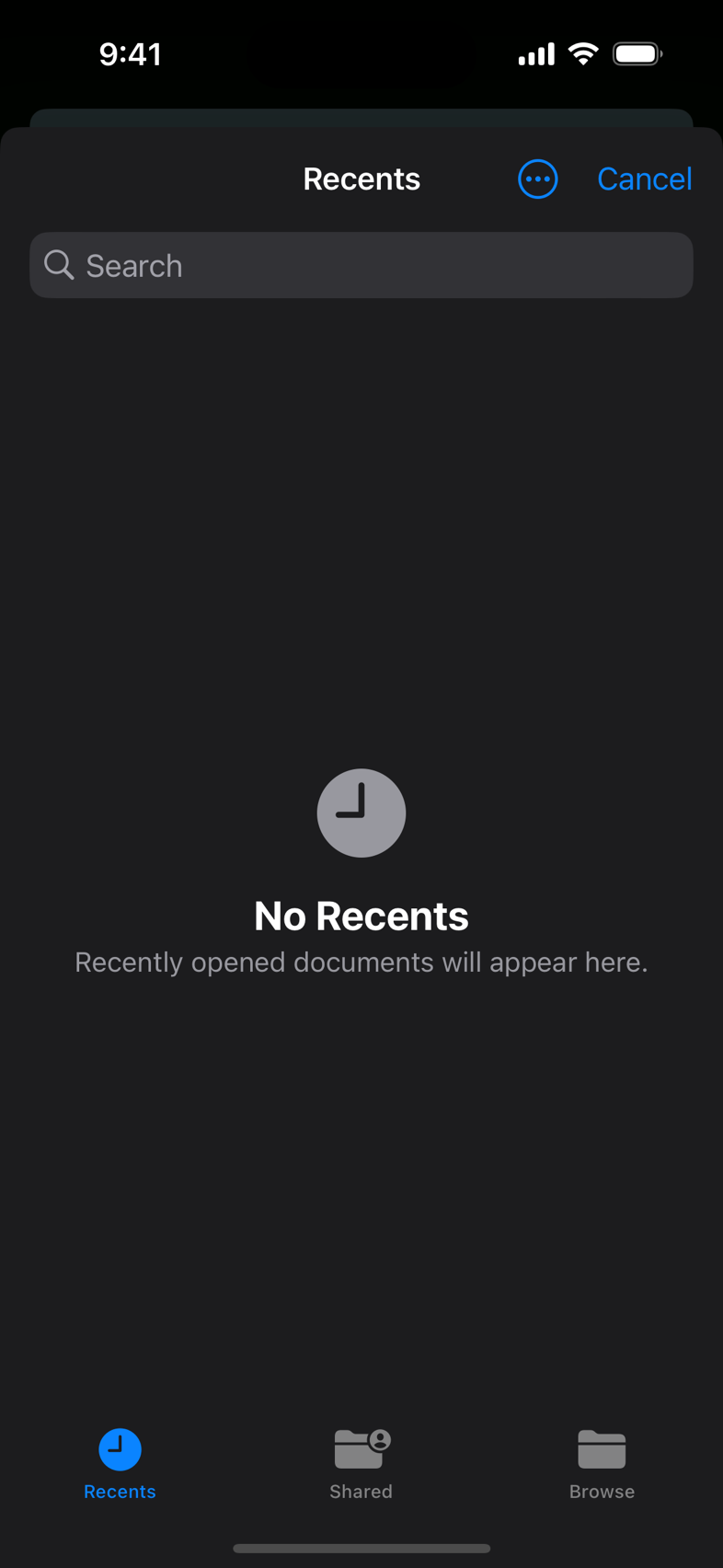
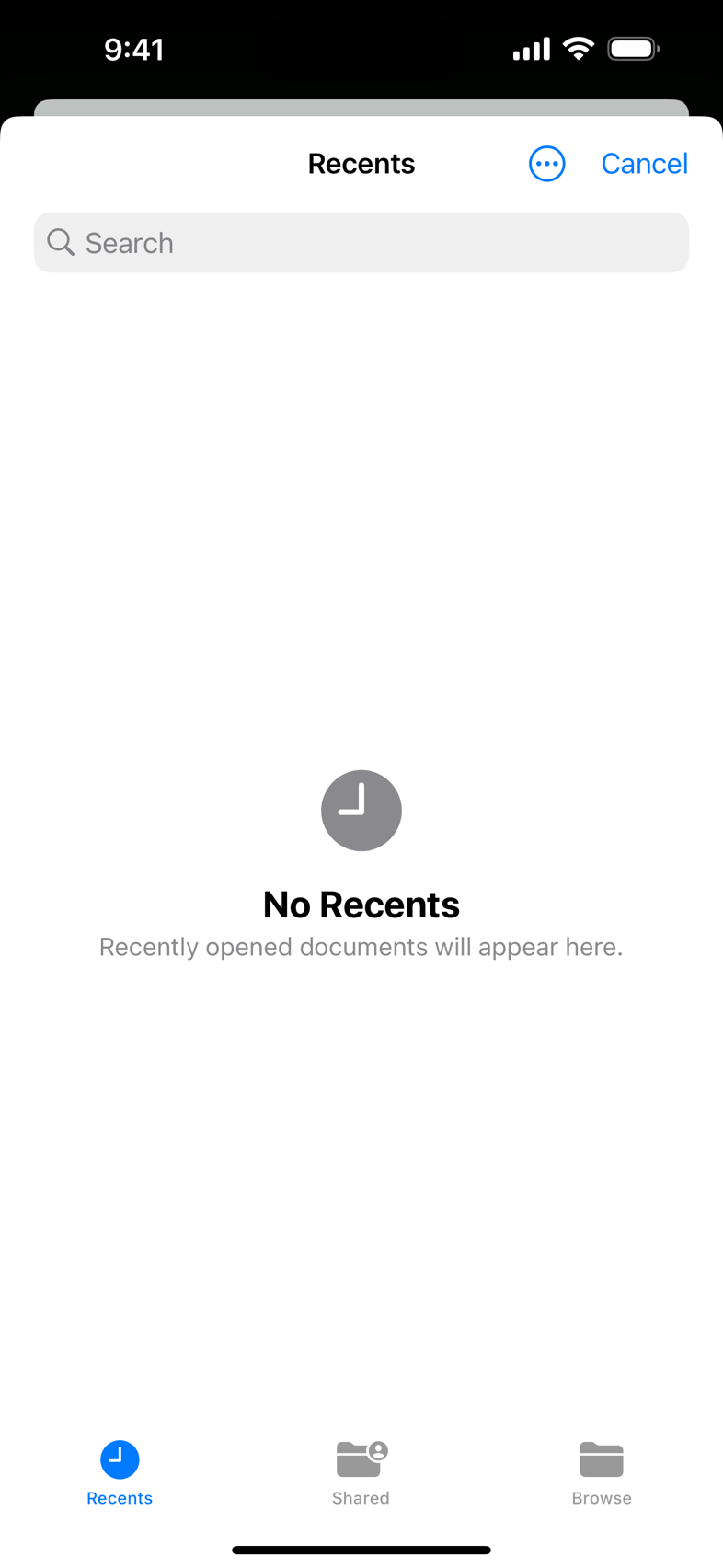
Take a Photo uses the camera; Pick From Gallery takes one or more photos already in your camera roll. The text recognition runs on your phone, and every field the reader fills in carries the scrap of your own photograph it came from. Tap the dotted underline and you see the patch it read.
What matters more is what it refuses to do. A charge written as 41.5 can be read as 415, and only you know which one you wrote, so it asks rather than quietly repairing it. When the characters are not a number it can trust, it shows you the characters it actually saw instead of tidying them into something plausible. And it keeps two kinds of blank apart: a field it saw and could not read, and a field your page never carried. Those are different facts, and the review says which is which.
Capture From Paper is the guided version. A frame sits on the screen, the app coaches the framing, and it takes the shot itself once things are steady, across several frames rather than one, so a single blurred shot cannot decide a number on its own. Where the frames disagree and there is no telling which reading is right, it refuses that field rather than picking one.
From a file, the clipboard, or another device
| Route | What it takes |
|---|---|
| Choose a File | CSV, Excel, a LoadOut JSON export, plain text, Markdown, RTF, PDF, and a Garmin .fit session. The picker accepts csv, xlsx, xls, json, fit, txt, text, md, markdown, rtf and pdf, and dispatches on the extension. |
| Quick CSV Import (No Mapping) | The same CSV, straight through, for a file whose headers already read like LoadOut's fields. |
| Paste From Clipboard | Whatever you copied: a forum post, a message, a column out of a spreadsheet. |
| Scan a Recipe QR | A recipe shared by another LoadOut user as a QR code. |
| Apple Notes (Share to LoadOut) | The iOS share sheet, from Notes or anything else that shares text. |
The full spreadsheet route walks a column-mapping step: one row per column in your file, with a dropdown naming the LoadOut field it should become. It guesses from the header and you correct it. That mapping is remembered, so the second export from the same spreadsheet does not ask again. Quick CSV Import (No Mapping) skips the step entirely when the file does not need it.
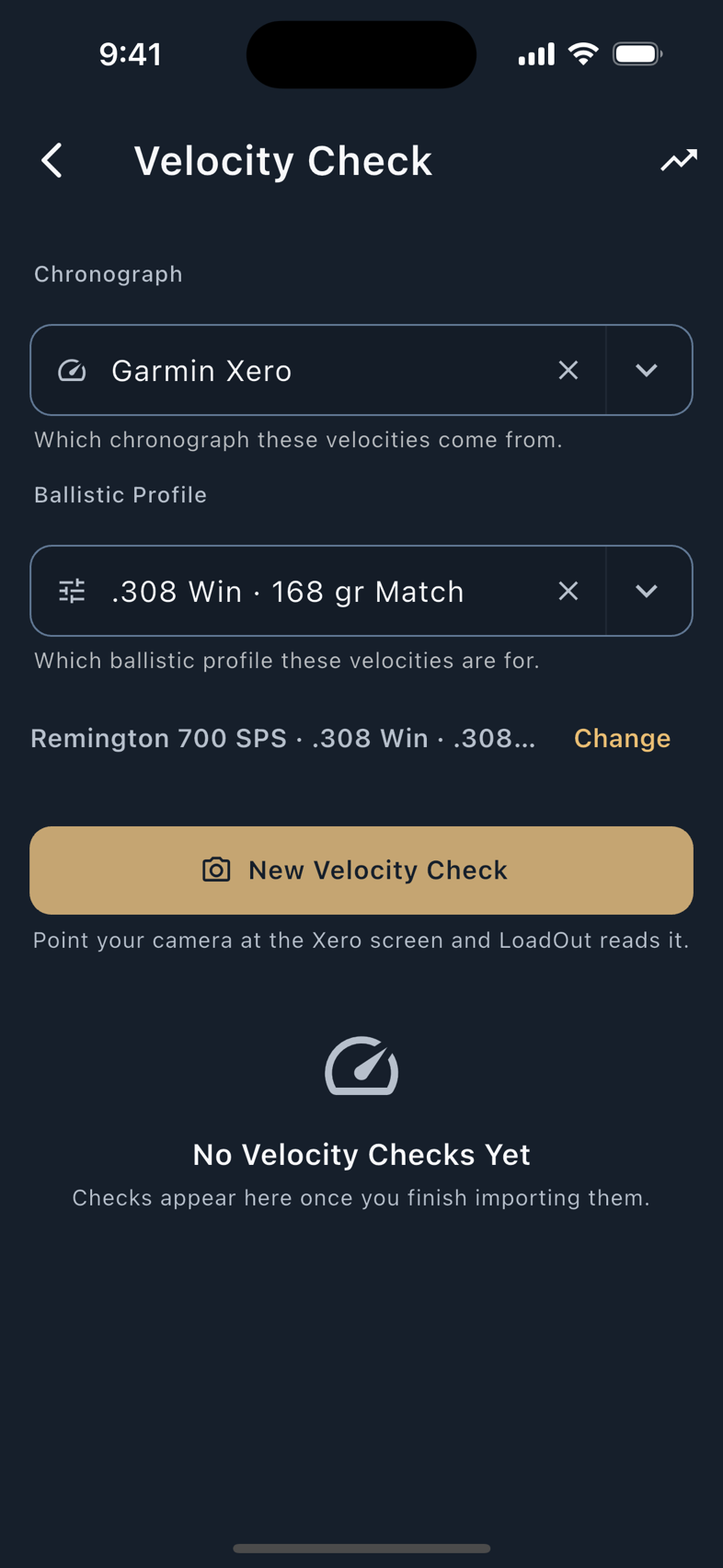
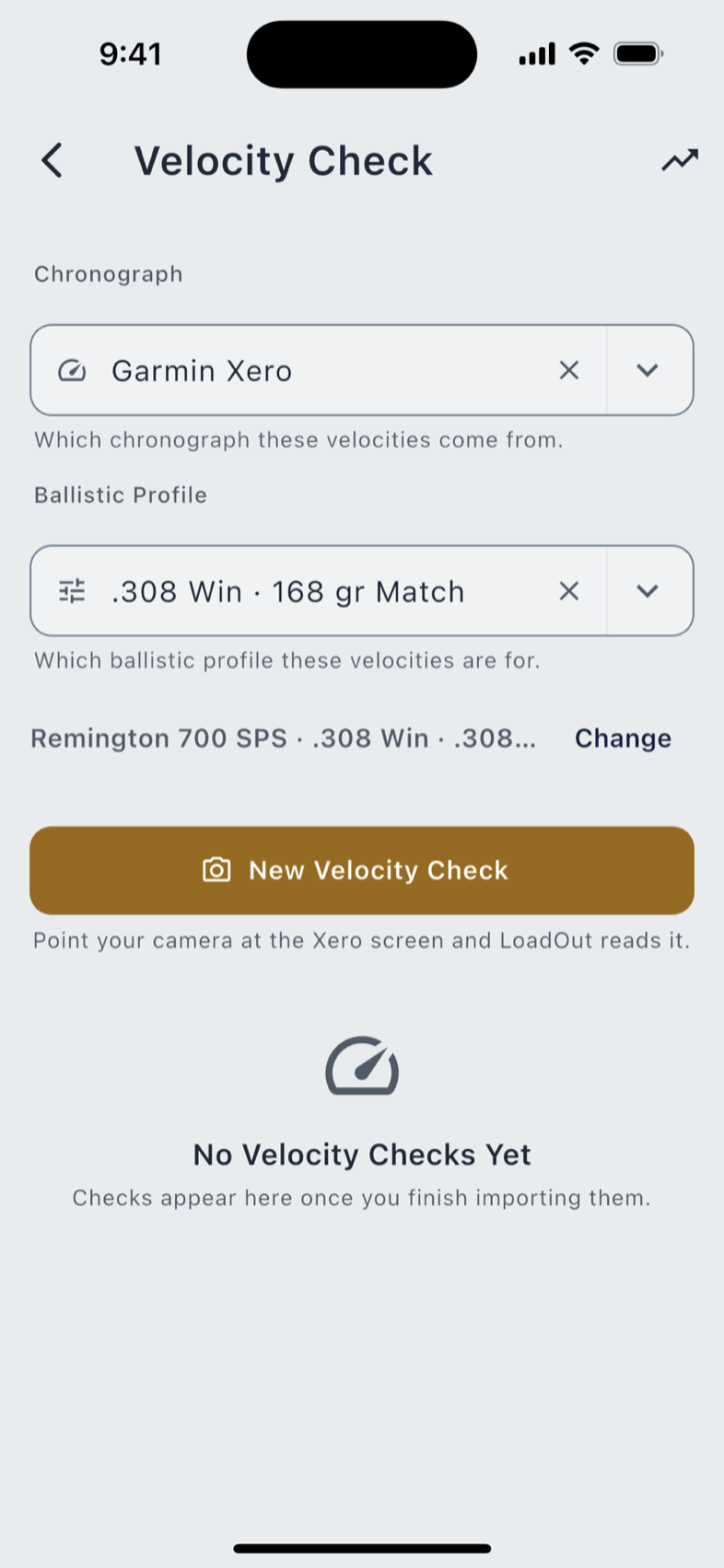
Microsoft Word Document and Microsoft OneNote are guides rather than readers: LoadOut does not open a .docx or a OneNote page directly, so either tile walks you through exporting the page to PDF or text, which the importer then reads. The Garmin Xero Photo tile is Pro: it appears on any device that can take a photo, and opens the paywall on tap if you are not a subscriber. No AI setting is involved. The camera route to a Xero screen also lives in Velocity Check.
The review screen
Every route lands on a review before anything is written. For a recipe it is titled Review Imported Recipe, and Save Recipe is the only thing that commits it. Close the screen instead and nothing was created.
- Read what was found. Filled fields show their value and, on a photo import, the crop it was read from.
- Read what was not. A field the importer could not read stays blank and says so. It is never filled with a plausible number, and no corrected value is offered for you to tap past.
- Fix what is wrong. Every field is editable here, before it becomes a record.
- Save. Only now does a recipe exist.
Importing several items at once, a shared bundle or a spreadsheet with many rows, adds a checklist step. Duplicates arrive unchecked; check one to keep a copy alongside what you already have.
On the free tier a received firearm or ballistic profile counts against the limit of two, because a share is a create rather than a restore of your own data. The import does not fail. It reports what it managed: "Imported 3 of 5: 2 could not be added on the free tier." Nothing is silently dropped, and nothing is silently hidden.
Importing a ballistic profile or another record
Import a Shared Item takes a share code, scanned or pasted or opened from a link. It handles a firearm, batch, brass log, inventory item, load development test, ballistic profile, target card, shooting day or note. A code of the wrong kind says so plainly rather than half-importing.
A spreadsheet of ballistic profiles gets its own review, and its own honesty about incomplete rows. Rows missing a value the solver needs are grouped into a Rows Skipped block with the reason: these rows are missing a required value and were left out. LoadOut never fills in a bullet, BC, or velocity you did not provide. Three imported and one skipped is reported as three imported and one skipped.
Chronograph Import
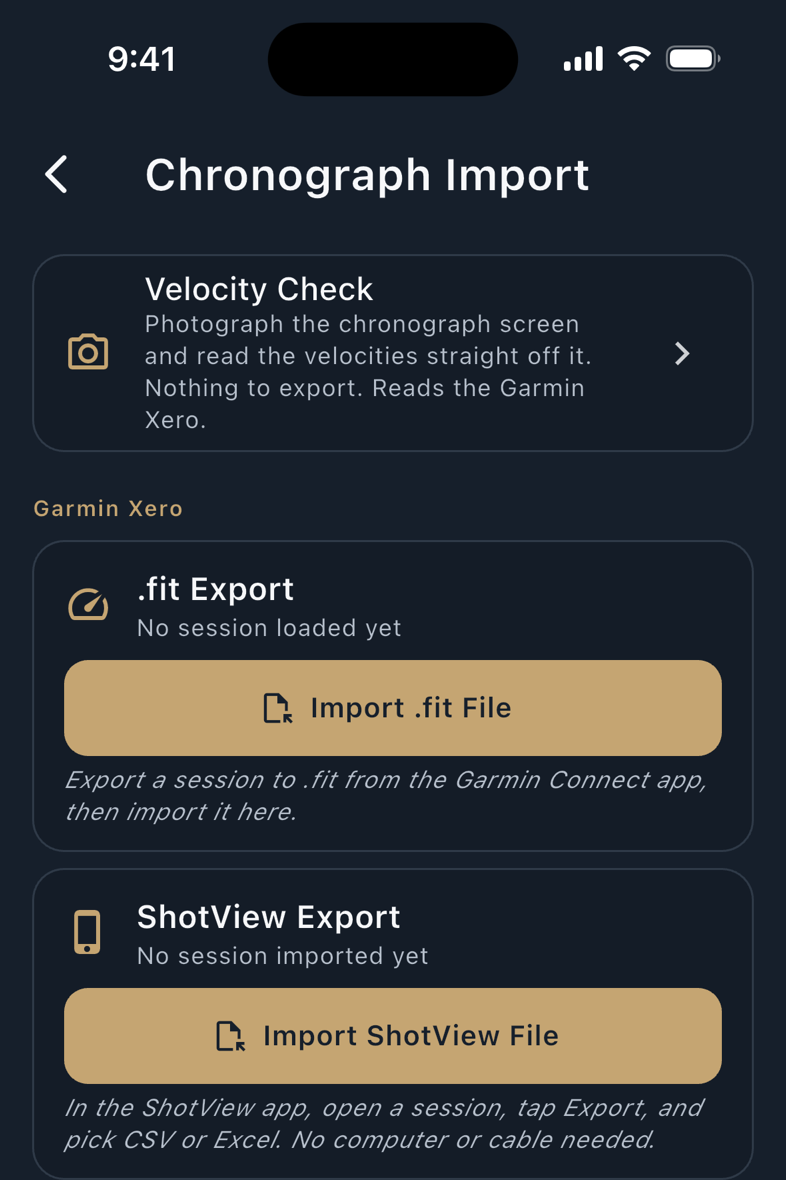
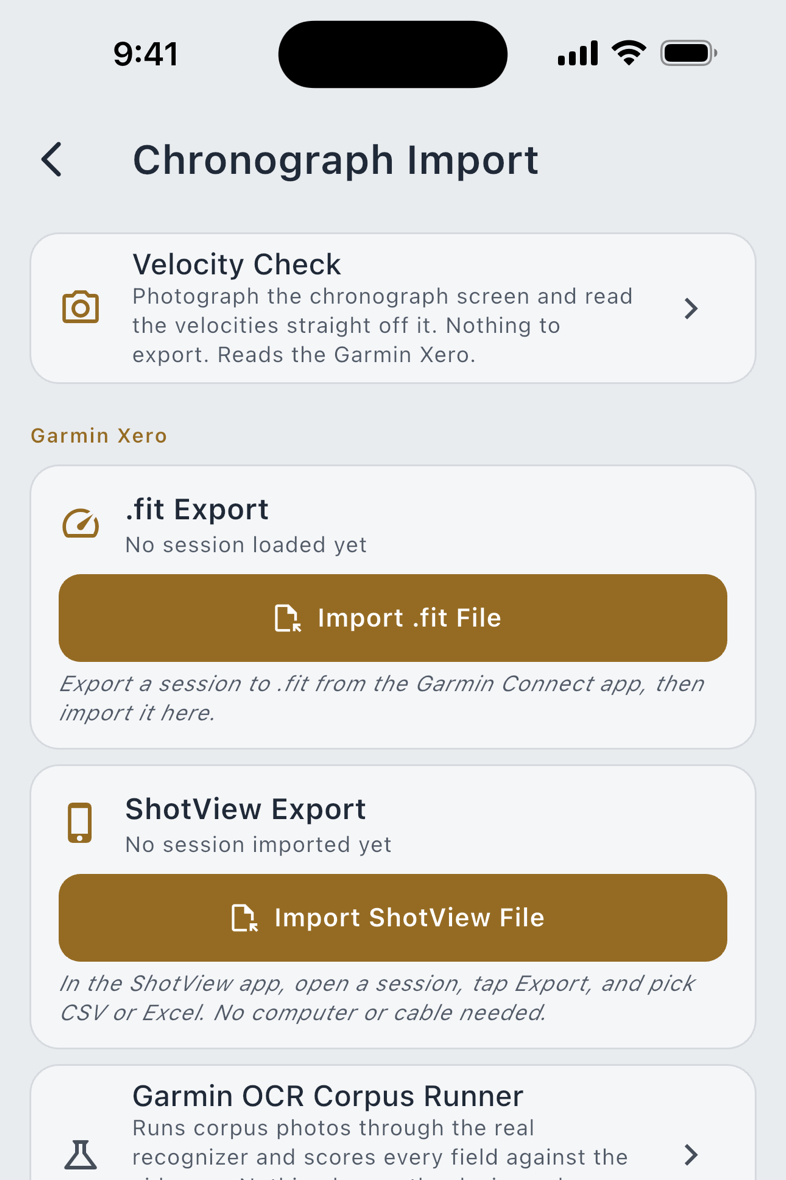
Pro One vendor section, Garmin Xero, with two file routes:
- Import .fit File: the session file exported from Garmin Connect.
- Import ShotView File: a CSV or Excel export from ShotView.
Either one brings in per-shot velocities and the session's average, extreme spread and standard deviation, filed against the rifle you pick. Below the vendor section sits Velocity Check, the camera route: photograph the Xero's own screen and the reading happens on your phone. See Connected Devices for that route in full.
Past Imports lists every session these routes have produced, so you can go back to one rather than re-importing the file.
Export All Data
Free, on every platform, with no account and no Pro. Export All Data (JSON) writes one file, loadout-export- plus a timestamp, ending .json, containing every user-data table: recipes, firearms, batches, brass logs, inventory, profiles, sessions, notes, the lot. It is plain JSON, readable in any text editor, and it is the file the importer reads back.
- Tap Export All Data (JSON). LoadOut writes the file into its own private temporary folder.
- Pick a destination from the share sheet. Files, Downloads, a cloud drive, email, AirDrop, another app: whatever your platform offers.
- The receiving app does the saving. LoadOut never writes outside its own storage, which is why it never asks for a storage permission and none is declared.
Importing a file back is the same review flow as everything else. One thing it will not do is guess across versions: a file written by a newer build of LoadOut is refused outright, with the reason: "Backup was created by a newer version of LoadOut (export format N). Update the app and try again." A partially-understood restore is worse than none.
Sharing a recipe
Export a Recipe (QR / PDF / Text) opens a picker, then offers three formats:
Other record types share as a code rather than a document: a batch, firearm, brass log, inventory item, load development test, profile, target card or note travels as a share capsule that the recipient opens with Import a Shared Item. The wire formats are documented in File Formats & Sharing.
Reports and printouts
Several screens produce a document rather than a data file. They are reached from the screen that owns the data, not from the hub.
| Report | Formats |
|---|---|
| DOPE range card | PDF, image or text, from the Ballistics DOPE tab, with the conditions it was solved for printed on it |
| Target Card | PDF or image, laid out as the card you carry |
| Custom DOPE card | PDF, with any write-in column you added: a titled blank column for what you record by hand at the line |
| Load development report | PDF, plus loadout-load-development-shots.csv for the per-shot numbers |
| Chronograph report | PDF and CSV of a velocity session |
| Shot strings | loadout-shot-strings- plus a timestamp, as CSV |
| Recipe | PDF, from the recipe share sheet above |
The exported card ends with one line, in the PDF, the image and the text alike: Predicted DOPE. Verify against your real dope. The holds on it are solver output, not something you have shot. It is an instruction rather than a suggestion.
Keep a copy of your data
Your phone's own backup (iCloud Backup on iOS, Auto Backup on Android) does not include your LoadOut data. LoadOut excludes its own storage from both, on purpose: those services would put your reloading records on Apple's and Google's servers, unencrypted by us. Your app preferences still ride along, so a new phone keeps your units and theme.
The cost of that decision is real, and Settings › Privacy & Data › Keep a Copy of Your Data states it: lose the phone with no copy of your own and the data is gone. There are exactly two copies that survive it, and the first is free.
- Export All Data (JSON), above. Free on every platform. Do it after a big loading session and put the file somewhere you keep things.
- Cloud Backup or Cloud Sync Pro. Encrypted on your device with your own passphrase and written to your own cloud drive. See the next chapter.